


SOLIDWORKS PDM Sandbox Vault for Modification and Troubleshooting

Article by Cody Foley updated May 30, 2024
Article
A SOLIDWORKS PDM Sandbox Vault (test vault) should be used when modifying or troubleshooting your vault. Working with a SOLIDWORKS PDM Sandbox vault can help prevent problems, with your production vault, when you make changes. Some changes such as modifying workflows, may result in problems that can take a very long time to resolve. It is highly recommended to test any change in your Sandbox vault, before applying these changes to your production vault.
Creating a Sandbox Vault shell via the “Create new vault…” wizard
Creating a Sandbox vault is a simple procedure and well worth the time invested. In SolidWorks Enterprise PDM Administration, right-click on the server where you wish to create the Sandbox Vault and choose Create new vault…
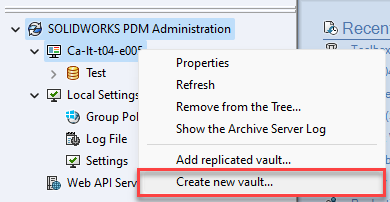
Right-click and select “Create new vault…”
Enter a name for your Sandbox vault.
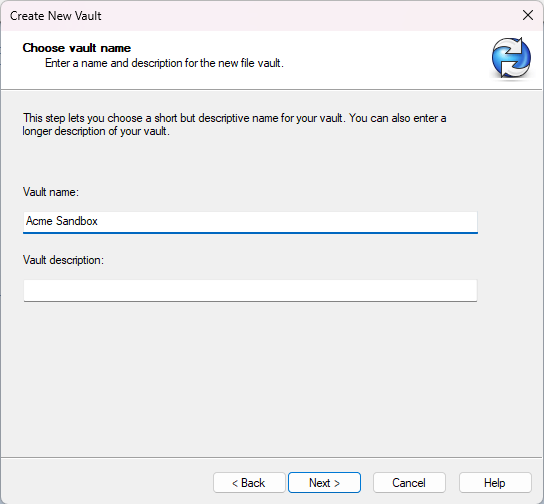
Select a name and description for your vault
Select the root folder where the new Archive folder for the new file vault will be created.

Select vault archive folder
Type in the server name/location of the database server. Additionally, If you wish you can give the database a different name.

Enter SQL and database settings
You will be prompted to enter the database server “sa” password or if your company has set up a different SQL login for PDM, please use that instead.
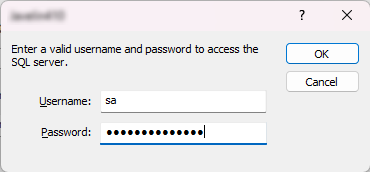
Enter SQL credentials
Choose the Language and the Date format.
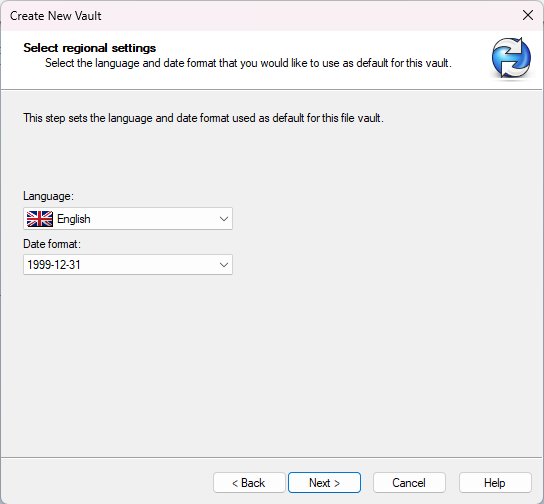
Select language and date format
Enter the admin password, or use the default password created during the archive server installation.
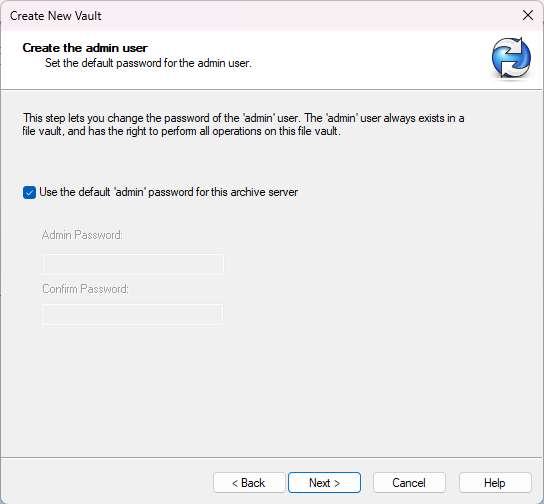
Select “Admin” credentials settings
For the configuration of the vault, choose the Empty standard configuration. We will populate the Sandbox vault with the settings from the production vault and do not want to add any additional content at this point.
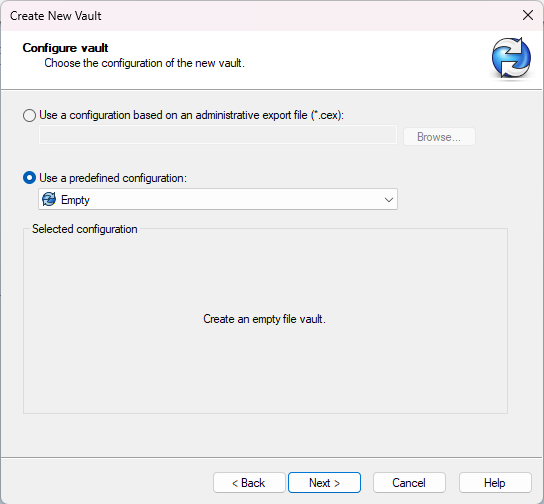
Select what settings you want your vault to have
Export the Production Vault Settings
After the Sandbox vault has been created, by clicking on Finish on the last screen, we need to Export the nodes from the production vault. Right-click on the production vault and choose Export in the administration tool.
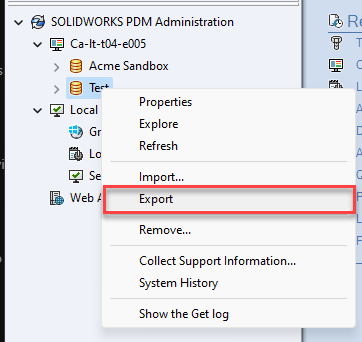
Export vault settings
Save the Export as a .cex file.

Save export settings
Create Vault View of Sandbox Vault
Before we import the CEX we just saved into our Sandbox we will want to create a Vault View so files that were used in the Production Vault settings can be imported (Templates, JPEGs on datacards, etc…). If you don’t do this it will not copy these files over properly and you might need to do some manual cleanup around a couple of items/settings. After creating the vault view, log in, navigate into the Sandbox vault view, and then close/re-open the administration tool.
Import the Production Vault Settings into the Sandbox Vault
After you do that, log into your Sandbox Vault, right-click on the newly created Sandbox Vault in the administration tool, and Import the .cex file created earlier. You will be prompted to select the .cex file.

Import vault settings
Now that you have a SOLIDWORKS PDM Sandbox vault you can use it to develop, troubleshoot and test the various nodes and items of your vault (i.e. cards, workflows, templates etc..). Once you have created and thoroughly tested an item and would like to migrate it to your production vault, you can export that item and import it into the production vault. Individual nodes and items can also be exported from the production vault, for development or troubleshooting in the Sandbox vault. Items and nodes can also be dragged and dropped from vault to vault.
Related Links
Want to do more with SOLIDWORKS PDM?
Our Certified SOLIDWORKS PDM Experts can help you to:
Posts related to 'SOLIDWORKS PDM Sandbox Vault for Modification and Troubleshooting'
