


SOLIDWORKS CAD Admin Dashboard

Article by Scott Durksen, CSWE updated August 1, 2024
Article
The SOLIDWORKS CAD Admin Dashboard provides administrators with tools to be able to monitor performance, activated serial numbers, hardware and drivers, SOLIDWORKS session statistics and system options across all SOLIDWORKS users in your organization.
This can be a powerful tool to help identify issues, such as systems with unsupported graphics card drivers, or experiencing large percentages of SOLIDWORKS sessions that were either killed or crashed (“terminated unexpectedly”) vs sessions that terminated normally. Users with SOLIDWORKS system options that are not matching those set out for the organization can also be identified through the dashboard.
Accessing the CAD Admin Dashboard
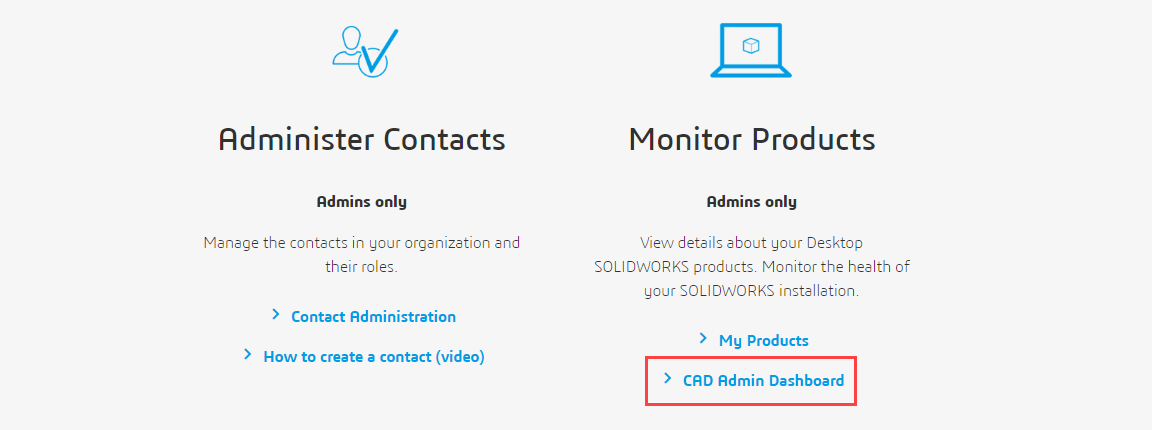
The CAD Admin Dashboard is accessed from Monitor Products on the SOLIDWORKS Support Homepage. Only a 3DEXPERIENCE ID assigned the Security Administrator role will have access to the CAD Admin Dashboard. For more information on assigning roles to a 3DEXPERIENCE ID, review our article on Transitioning to DSx Client Care & Order System.
Features and Benefits
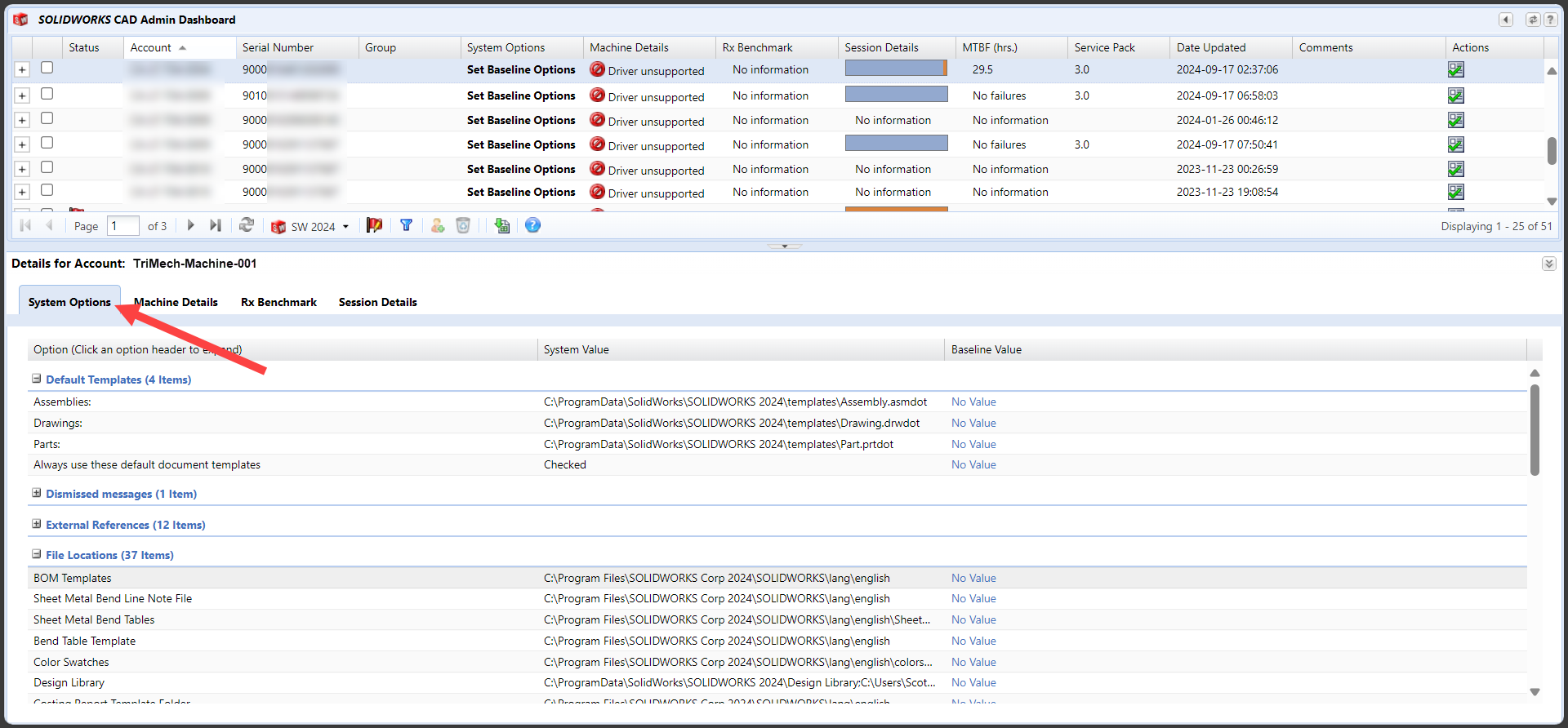
The main (upper) dashboard displays a listing of the systems where SOLIDWORKS has been installed using a serial number associated to your organization with key information shown in the summary columns.

The Account column represents the computer name. Click the ‘+‘ icon beside a system to expand and see additional details. The Serial Number shows the activated serial number at the time indicated under the Date Updated column. The table is filtered for computers with the latest version of SOLIDWORKS, in this case SW 2024, but this can be changed to see the usage of previous versions. The installed Service Pack will also be listed.
Machine Details will attempt to compare the hardware and installed driver against the SOLIDWORKS Hardware Certification page. Ensure the recommended driver is installed for the given system. More information can be found on our blog article SOLIDWORKS Certified Graphics Drivers.
All of the information can be exported to Excel for additional processing.

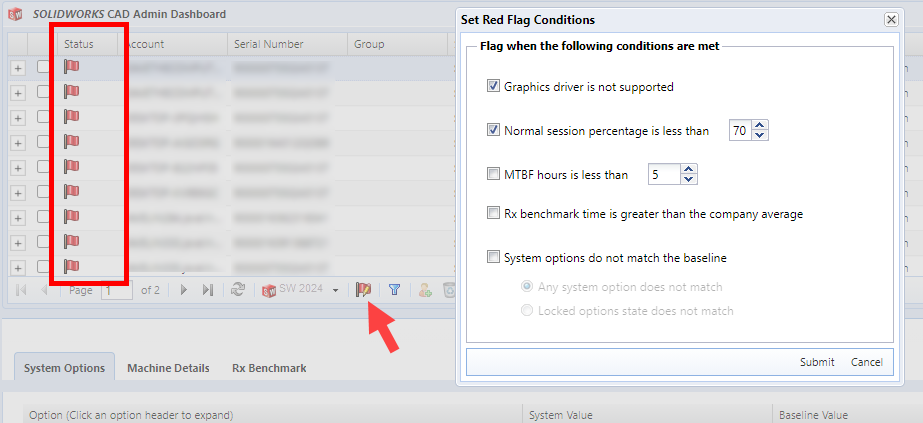
The Status column displays a red flag for any systems that meet certain conditions. The conditions can be adjusted using the “Set Red Flag Options” button on the toolbar.
The lower section of the dashboard shows detailed information about the system selected in the main dashboard, including the SOLIDWORKS System Options settings, specific Machine Details, RX Benchmark if the Benchmark test has been performed on that computer and a history of the systems SOLIDWORKS Session Details.

The SOLIDWORKS Customer Experience Improvement Program
The dashboard results are made possible by the information gathered from the systems by opting into the SOLIDWORKS Customer Experience Improvement Program.
If a user does not select the option to join the program, the the system’s information will not be displayed in the CAD Admin Dashboard.
The option to join the program is presented immediately after installing, upgrading or repairing SOLIDWORKS.

The program can also be joined directly from within SOLIDOWRKS by going to Tools > Options > System Options > General and checking the box for “Help make SOLIDWORKS products better by automatically sending your log files to DS SolidWorks Corporation”.

If SOLIDWORKS is being deployed using an Admin Image, this option can be enabled and locked on using the SOLIDWORKS Setting Administration tool.
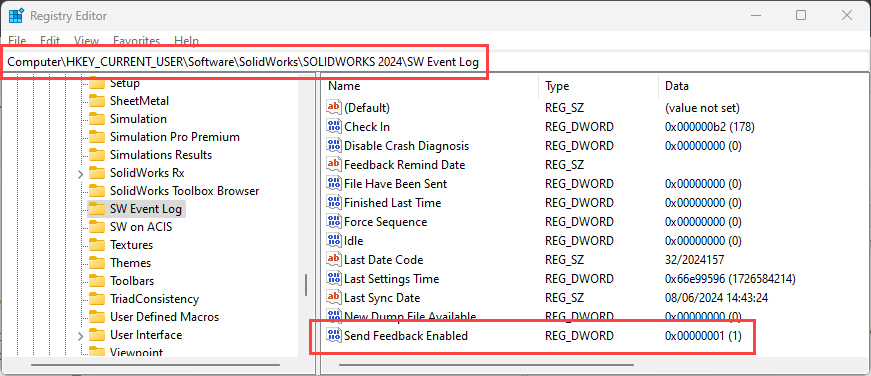
The Customer Experience Improvement Program can also be enabled directly in the windows registry by going to the key HKEY_CURRENT_USER\SOFTWARE\SolidWorks\SOLIDWORKS 20XX\SW Event Log setting the value “Send Feedback Enabled” to a value of 1.
Related Links
Certified SOLIDWORKS Services available from Javelin
Javelin can help you to:
Posts related to 'SOLIDWORKS CAD Admin Dashboard'
