


In-Context Editing with SOLIDWORKS xDesign

Article by Wayne White updated August 13, 2025
Article
In-context editing allows designers to create models in the context of other geometry by referencing existing features, faces, or planes. This lets them create parametric relationships between parts that you wouldn’t necessarily be able to do otherwise and cuts down on the time needed for future changes.
For example, you wouldn’t likely create a computer enclosure without first knowing the design constraints of the internal components. To demonstrate in-context editing, I’m going to use this jigsaw model saved to the 3DEXPERIENCE platform. As the model becomes more complete, we can begin to see the possible interaction between components and want to make sure they are related.
Reusing Existing Sketches
I will begin by creating the cam part, whilst referencing already existing geometry. SOLIDWORKS xDesign also allows us to work with existing sketches, so in this case, since we have a working sketch that could potentially be used across multiple designs, I can easily drag and drop the sketch from a bookmark.

Inserting the saved sketch
Starting with In-Context Relations
As we can see, the sketch is already well defined. I will add sketch relations to help fully define the geometry. I added a parallel constraint between the cam construction line and the gearshaft component. With a few sketch edits, I’ve defined the cam shape as we can see the blue elements turn black.

Fully defining the sketch
After the sketch is inserted, I want to make that sketch into a component. When I make it a component, it now has a spot in the database as a physical product. I can rename the component accordingly.
Now that the sketch is well defined, I will extrude the profile. As we can start to see in the design tree, the component is being built. At this point, it could be a good idea to isolate it, so we can just focus on the cam. We will continue to dress up the geometry to achieve the desired design intent.
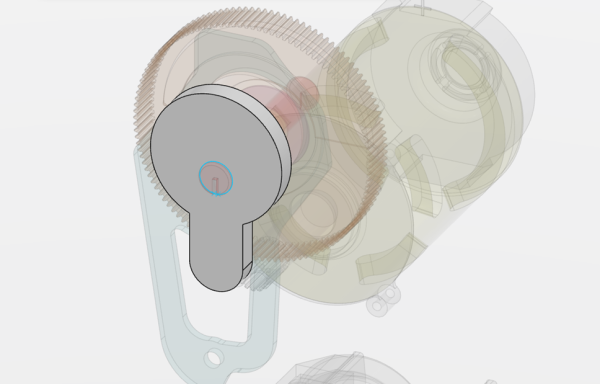
Isolating the cam part
Additional In-Context Editing
After exiting the Isolate, we can continue to see the cam relative to the other components. We will continue to leverage in-context editing to dress up the geometry, as in this case, we will borrow the outside diameter for an additional cut.
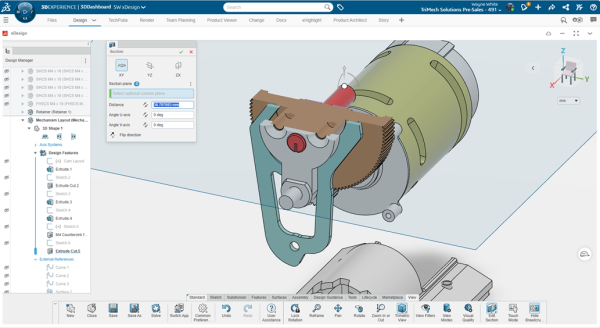
Live Section command in action
xDesign has a Live Section command to make it easier to see the inside of components while making any necessary changes. We can easily add additional clearance between parts using normal or in-context relations. To verify the work, an Interference Detection can be run between all assembly components.

Interference Detection Results
In-context editing in SOLIDWORKS xDesign works very similarly to traditional CAD, where external references manage the connection from the new design to existing components. All the while, SOLIDWORKS xDesign with the 3DEXPERIENCE platform as the base helps maintain file references, making it easier to design products and less complicated to manage files.
Related Links
SOLIDWORKS xDesign Resources
Learn more about the SOLIDWORKS xDesign with our resources:
Posts related to 'In-Context Editing with SOLIDWORKS xDesign'
