Solutions for Common SOLIDWORKS Display Issues

Article by Keily Grubaugh, CSWE updated August 18, 2025
Article
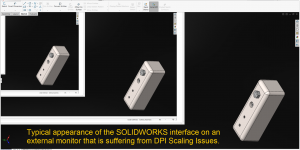
What happens when you launch SOLIDWORKS only to find that the background of the entire graphics area is now black? Or suddenly your model has disappeared from view?
Below, we’ll discuss a few of these potential SOLIDWORKS display issues and how to resolve them.
Empty Graphics Window (Model Not Showing)
Issue: Your model is missing in the graphics window but still shows up in the FeatureManager Design Tree.

Solution 1: Check If the Solid Body Is Hidden
- Expand the Display Pane by clicking on the left arrow at the top of the FeatureManager.

 Expanding the Display Pane
 - Check the display state of the solid bodies folder and toggle the hide/show state.
 Hide/Show Display State
 - Alternatively, you can expand the solid bodies folder and right-click on each body to hide or show it.
 Hide/Show Solid Body
Solution 2: The Display Style Is Missing
- Go to View>Display to determine if a display style is currently selected.
 Verifying the model display
 - Select one of the options, such as Shaded With Edges.
- Do a CTRL+Q force rebuild and save the part or assembly file.
Black Model Appearance
Issue: Your model appears black, but no appearance has been applied.

Model is displayed completely black
Solution 1: Check Your Scene Lighting
- Navigate to the DisplayManager and switch it to Scene, Lights, and Cameras.
 Accessing the Scene, Lights, and Cameras
 - Expand the Lights folder and note whether any are turned off.
- Right-click on a light to turn it on, or edit the settings.
TIP: Changing the value of the ambient light will also impact the overall “brightness” of the model. So, if you have applied a white appearance to the model and it appears gray, try increasing the ambient light value.
Solution 2: Your Model Display States Have Become Corrupted
- Navigate to the ConfigurationManager tab.
- Right-click in an empty space in the window (do not click on a display state or configuration) and select Remove All Display States.
 Removing all display states
NOTE: This will delete all appearances and display states in the file. It is best to only use this option when you suspect corrupt display objects in the file structure.
The Entire SOLIDWORKS Display Area Is Black
Issue: Your entire display graphics area is black, most likely after a (system or software) update.

Solution 1: Toggle Enhanced Graphics Performance
- Navigate to Tools>Options>System Options>Performance
- Scroll down and toggle off Enhanced graphics performance
 Toggling Enhanced graphics performance
 - Restart SOLIDWORKS
Solution 2: Update Your Graphics Card
- Determine the latest supported graphics card driver for your system.
- Install the graphics driver and restart your system.
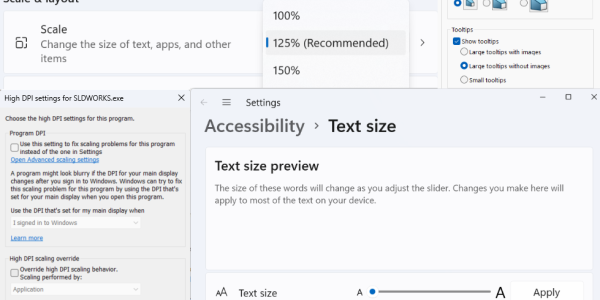
Solution 3: Adjust High DPI Settings
- Open Windows File Explorer and navigate to your SOLIDWORKS executable. The default location is C:\Program Files\SOLIDWORKS Corp\SOLIDWORKS.
- Right-click on SLDWORKS.exe and access Properties
- In the Properties dialog box, click on the Compatibility tab, then Change settings for all users (this may require administrative permissions), then Change high DPI settings.
- Finally, enable the option Override high DPI scaling behavior and choose scaling performed by Application.
 Adjusting high DPI settings for SOLIDWORKS
 - Apply all and restart SOLIDWORKS. You may also need to restart your system to see changes.
Black ‘Selected Geometry’ Window In Appearance Property Manager
Issue: When trying to add an appearance to a model, the selection box is black. This is a bug that occurred in some older versions of SOLIDWORKS.

Appearance Property Manager
Solution: Minimize The Selected Geometry Window
- With the Selected Geometry window expanded, click on the ^ arrow to minimize it.
- Click on the arrow again to expand the window. It should now appear normal.
Still Experiencing SOLIDWORKS Display Issues?
While the common issues and their solutions are listed above, there is always a chance that there is a different root cause for your display issues. Your SOLIDWORKS Subscription gets you access to a dedicated Technical Support team ready to answer your toughest questions.
To submit a ticket and connect with our Technical Support team, click here.
Posts related to 'Solutions for Common SOLIDWORKS Display Issues'