


Using the Combine Tool in SOLIDWORKS xDesign for Mold Design

Article by Wayne White updated August 25, 2025
Article
SOLIDWORKS xDesign allows for advanced feature creation, including Boolean operations. Leveraging advanced features like the Combine tool in xDesign can allow for the rapid creation of a rudimentary core and cavity tooling split for injection molding.
There are more advanced, dedicated mold tools in SOLIDWORKS xDesign; however, many mold designers use Boolean operations to help drive downstream feature creation. In our example, I’ll showcase a simple separation using an already-designed jigsaw body. As we see below, the Jigsaw enclosure is in a good state for starting the proposed mold work, and we can begin working on the tooling split.

The body the tooling split will be created from
Creating the Tooling Split Component
I will want the bodies to be at the same hierarchical level in our model and be part of the same overall tree. I’ll create a component from selected features, and that created component is linked to the master model.
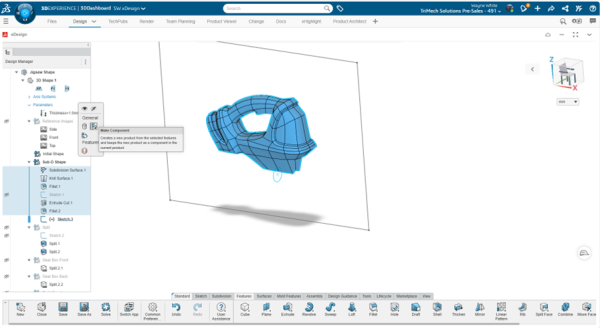
Making a new component from a selection
Next, I create a primitive state for the external geometry of the tooling. A simple sketch, extruded some distance, will suffice here. Of course, specific dimensions could be entered, but that is outside the scope of today’s work.

Setting up a body for the tooling split
Using the Combine Tool
As we can see below, the Combine tool is directly accessible in the Features tab of the Action Bar. There are other ways we can get to the combine feature as well, such as the ‘s’ key with a command search.
The combine feature allows users to add, subtract, or find common intersecting volumes to create a combined state. In our case, we want to subtract, but there are many scenarios where adding or using common selections would be relevant. Even in the scenario of mold tooling, adding the standoffs, runners, gates, and various other mold features could likely utilize various combine features.
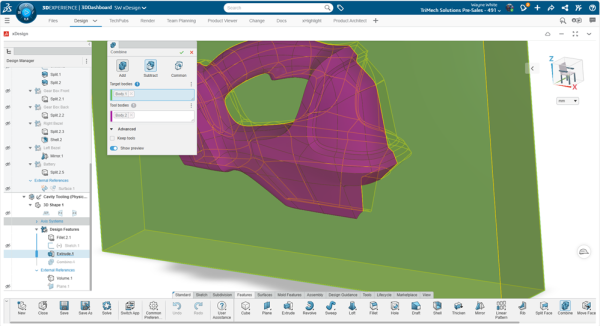
Using the Combine tool
Finishing the Mold
By default, the original shape is still visible, although slightly transparent. However, we still want the designed part while still having the combine tool results on the extruded rectangular volume. Hiding the original body, we can see the effect of the combination with the subtract option.
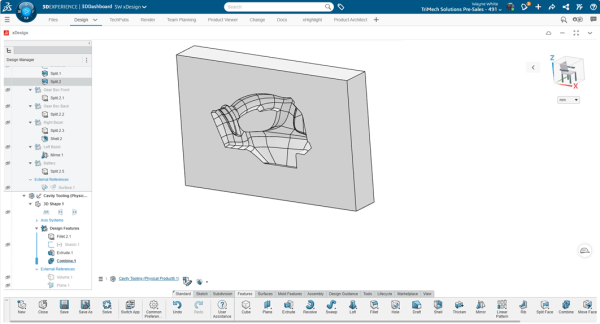
Resulting half of the tooling split
For the purposes of this blog, we can see why Boolean operations are relevant. But when it comes to mold work, the process could be iterative. We’ll finish this off with a bonus feature/ draft analysis. Likely, this would have been done prior to the tooling operation, but we can leverage draft analysis at any point to understand whether the left or right hand side would pull from the mold without any problems.
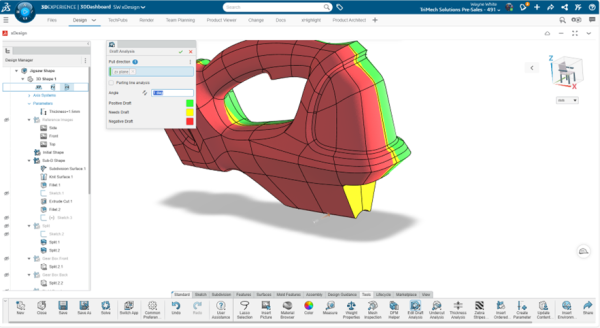
Draft analysis results on the jigsaw model
Previously, working with molded parts and creating tooling splits was an arduous task. However, SOLIDWORKS xDesign brings the power of the Combine tool right to your browser and allows you to create accurate models from anywhere.
Ready to take your mold design skills to the next level? Learn more about SOLIDWORKS xDesign here.
Related Links
SOLIDWORKS xDesign Resources
Learn more about the SOLIDWORKS xDesign with our resources:
Posts related to 'Using the Combine Tool in SOLIDWORKS xDesign for Mold Design'
