


Blog Tag
Showing 16-30 of 34.
SOLIDWORKS Drawing View
SOLIDWORKS Drawing View articles and technical tips

Show a SOLIDWORKS Sketch in a Specific Drawing View while Hidden in all other Views
Let’s assume we have a sketch drawn in a part file and we have not used it to create a…

How to modify a SOLIDWORKS Drawing View Scale on the Fly
One of the inconvenient truths of drawings, is that one sheet scale doesn’t necessarily fit every drawing view. While your…

Automatically add Scale Labels to all SOLIDWORKS Drawing Views that are not set to Sheet Scale
When you create SOLIDWORKS drawing views, you have the option of assigning the scale of each view. If set as…

Why do my Bend Line Notes disappear when a SOLIDWORKS Broken View is applied?
Have you ever tried to apply a Broken view to your flatten view in a SOLIDWORKS drawing? If the answer…
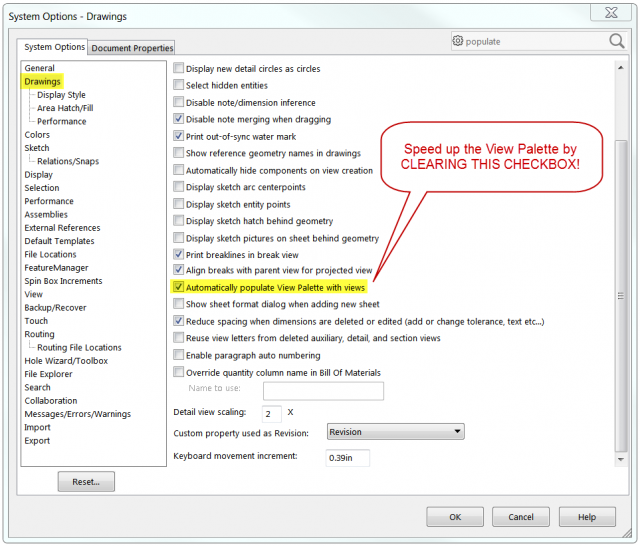
SOLIDWORKS 2017 Offers Enhanced Drawing Performance in several areas
One of the areas in SOLIDWORKS that everyone likes to see improve is drawing performance. With SOLIDWORKS 2017 three areas…

How to exclude hatching in SOLIDWORKS Section Views using Section Scope
In some cases, it may be necessary or beneficial to exclude hatching from particular features of a part or components…
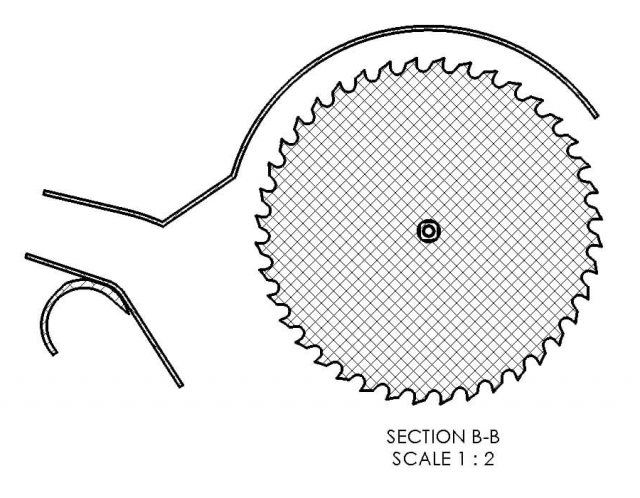
SOLIDWORKS 2017 Emphasized Outline Section View will help you read between the lines
For those of us that remember a time before SOLIDWORKS was a common tool in the shop, the ability to…

SOLIDWORKS 2017 Link Counterpart Location Label to a Display Zone
In my previous post “Using location Labels in SOLIDWORKS Drawings” I explained this neat tool and why you need it. However,…

How to Combine SOLIDWORKS Hole Callouts – Part 2
As I discussed in part one of this blog, there are two ways to combine SOLIDWORKS Hole Callouts. Our customer…

Show Hidden Edges in SOLIDWORKS HLR Drawing Views
In SOLIDWORKS HLV and HLR drawing views, selected lines can be easily hidden using the option Hide/Show Edges, found in…

SOLIDWORKS 2017 Crop and Detail Drawing Views feature new Outline options
SOLIDWORKS 2017 provides more control over the outline of Crop and Detail drawing views. You can now make a Crop or Detail view…

SOLIDWORKS Mirror Drawing View
In SOLIDWORKS 2017, you can Mirror SOLIDWORKS Drawing View, including display model, relative to model, and predefined drawing views without having…

How to Hide or Show Edges behind SOLIDWORKS Transparent Components
Depending on the assembly display-state settings, model edges behind transparent components can be shown or hidden in high-quality ‘shaded with edges’…

How to control the visibility of bodies in your SOLIDWORKS Drawing Views
In a SOLIDWORKS drawing, hiding/showing bodies can affect one view or all views. Hide/Show a body from all views Hiding/showing a…

Add some Perspective to your Drawings
By now, you are probably well aware that one of the display modes that SolidWorks has is the “Perspective” mode,…