


Add some Perspective to your Drawings

Article by Jim Peltier, CSWE updated December 18, 2013
Article
By now, you are probably well aware that one of the display modes that SolidWorks has is the “Perspective” mode, which can make more distant things appear smaller. It’s just one of many optical illusions that we humans must deal with in our day-to-day existence.
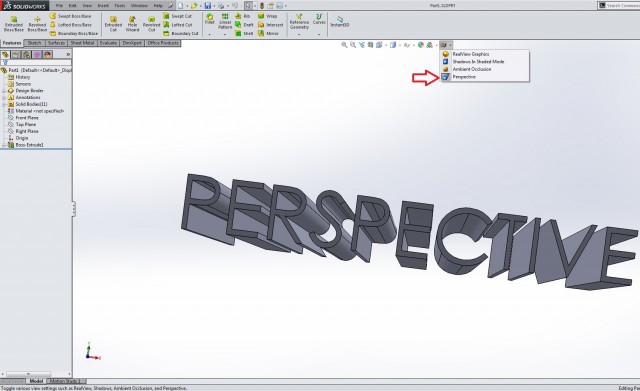
This gives us a sense of depth when we’re looking at a flat computer screen. However, the option doesn’t exist when you’re in a drawing. You would just insert an isometric view and it would be a boring but unambiguous view of what the part is supposed to look like. Unfortunately (or perhaps fortunately), it lacks that sense of depth that you can toggle on or off when you have in part or assembly mode. What you can do is create a named view with perspective turned on.

When you insert the named view into your drawing, you will see the perspective as well. This does not happen if you just insert a view from the “Current view” option, even if you currently have perspective on.

Now you can add some perspective to your drawings. Enjoy!
Related Links
Certified SOLIDWORKS Services available from Javelin
Javelin can help you to:
Posts related to 'Add some Perspective to your Drawings'
