


Blog Tag
Showing 1-15 of 450.
SOLIDWORKS
SOLIDWORKS tips and tutorials from the Javelin team of certified experts

How to Upgrade the SOLIDWORKS Toolbox
The SOLIDWORKS Toolbox is often upgraded automatically when you upgrade your SOLIDWORKS installation, but there are situations where it may…
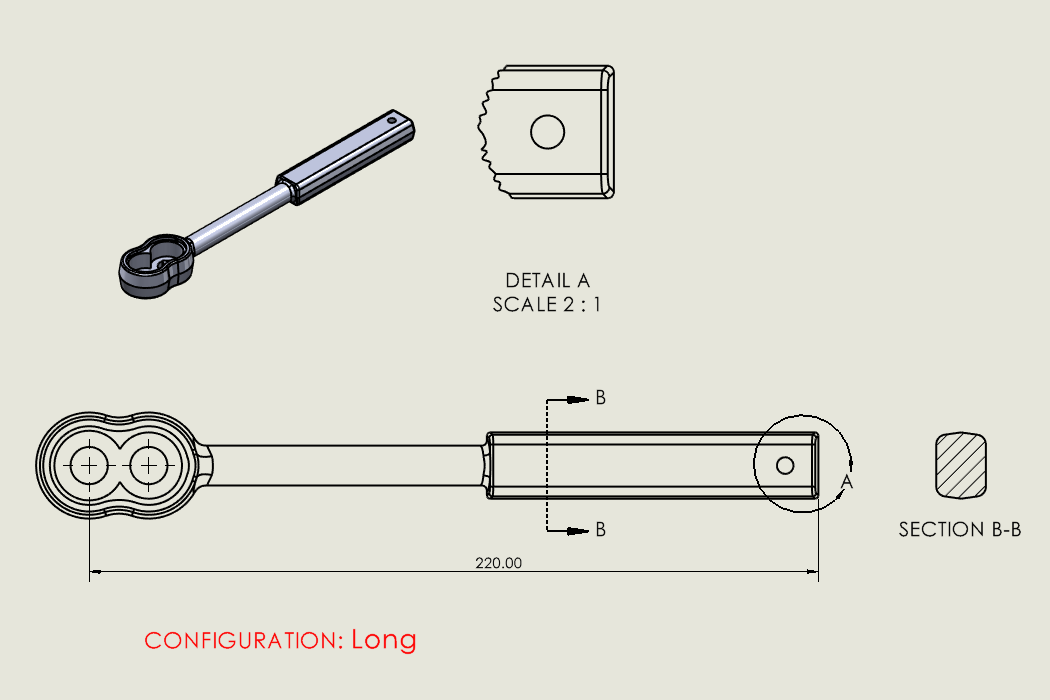
Using Detail and Section Views to Add Intelligence to SOLIDWORKS Drawings
Detail and section views are commonly used in SOLIDWORKS drawings and are an easy way to communicate important details. These…
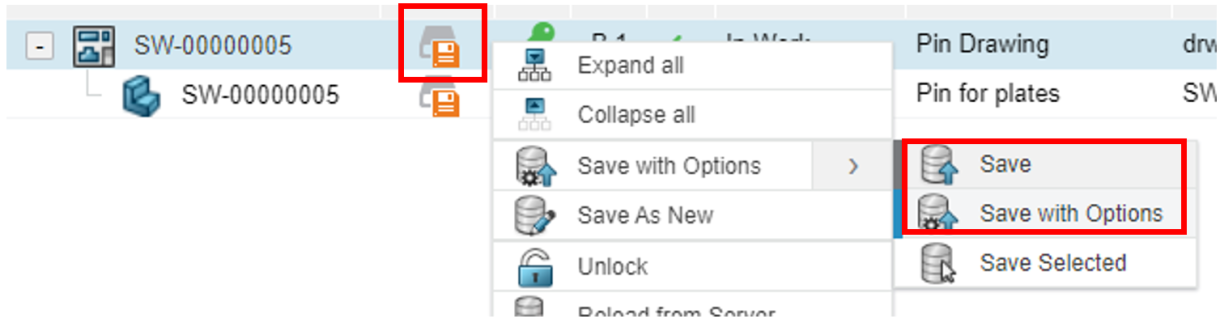
Setting Up Derived Outputs for SOLIDWORKS Files on The 3DEXPERIENCE Platform
After you’ve created your SOLIDWORKS part, assembly, or drawing, you may need to save this file as a PDF, STEP,…

Unlocking the Power of SOLIDWORKS Cloud Services
Have you been wanting to start your journey with the 3DEXPERIENCE platform, but weren’t sure of how best to incorporate…
The True Cost of Only Designing in 2D
I have seen many companies that seem to be content with 2D-only CAD design capabilities because of their lower cost…

Navigate to MyPRODUCTS.SOLIDWORKS.com to access a listing of your SOLIDWORKS assets
Review your organizations SOLIDWORKS assets using MyPRODUCTS.SOLIDWORKS.com After recent updates to the SOLIDWORKS online infrastructure the SOLIDWORKS MyProducts site is…
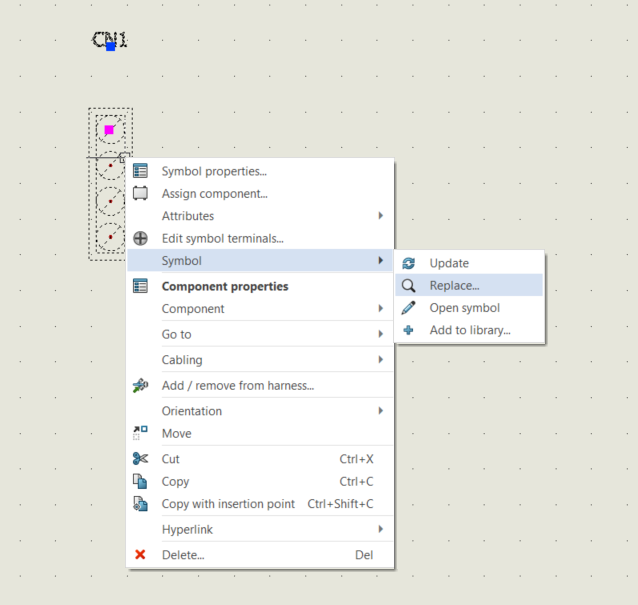
Update and Replace Symbol Command Not Responding in SOLIDWORKS Electrical Schematic
If your SOLIDWORKS Electrical Schematic symbols aren’t responding to the “Update” or “Replace” commands, the issue may stem from a communication blockage between the Electrical program and the Collaborative Server, often requiring IT configuration adjustments to resolve.

Fixing “This Version of SOLIDWORKS Has Not Been Commissioned Properly” Error
“This version of SOLIDWORKS has not been commissioned properly” error is caused by old licensing data that did not get properly removed, learn how to fix the issue.

SOLIDWORKS Simplified Interface: A Welcome Setting for New Users
New to SOLIDWORKS and feeling overwhelmed by the number of tools and tabs to learn? Don’t fret, we have a…

Engineering Design Services: Going From Ideation to Manufacturing
The TriMech Design Solutions team understands that bringing an idea to life is a complex journey. Many visionaries get caught…

Resolving SOLIDWORKS Installation Manager Error Messages
The SOLIDWORKS Installation Manager is a lightweight application used to download and install all of the SOLIDWORKS products. This can…
Using Auto-name and Enterprise Item Numbers (EIN) in 3DEXPERIENCE
The 3DEXPERIENCE platform offers multiple options for naming your models to ensure unique identifiers for your data. These options range…

How to Fix the “Standalone License File Failure” Error During SOLIDWORKS Startup
If you try to launch SOLIDWORKS and receive an error message stating a “Standalone license file failure” you likely have a…

SOLIDWORKS Weldment Profiles for Free
Discover where to download SOLIDWORKS weldment profiles for free. Access high-quality, pre-made profiles to streamline your design process and enhance your projects without any cost.

SOLIDWORKS Administrative Images Setup Guide
SOLIDWORKS Administrative Images assist with installing SOLIDWORKS products across numerous machines. In general, this is most beneficial with 5+ machines…