


Fixing “This Version of SOLIDWORKS Has Not Been Commissioned Properly” Error

Article by Derik Moore updated April 16, 2025
Article
Nobody likes to boot to an error message, especially one you don’t see commonly. Let’s take a look at an uncommon error and how to fix it. If you load SOLIDWORKS and see this error, we have the solution for you.

SOLIDWORKS error dialog box
What Causes the SOLIDWORKS Has Not Been Commissioned Properly Error?
Most of us will never see this error, which reads, “This version of SOLIDWORKS has not been commissioned properly, please contact your supplier.” It’s understandable to be concerned, but luckily the fix is rather simple. This issue is caused by old licensing data that did not get properly removed, but we can do so rather easily.
Showing Hidden File Explorer Items
First, we need to open up Windows File Explorer and navigate to C:/Program Data. This is a hidden folder by default, so you will need to set your File Explorer to show hidden items. You can do this by clicking the arrow next to View at the top center of File Explorer and selecting Show > Hidden Items.

Showing hidden items in File Explorer
How to Fix the SOLIDWORKS Error
With the Program Data folder visible, it’s time to solve the SOLIDWORKS error message. All you need to do is either delete or rename the “Flexnet” folder, and SOLIDWORKS will automatically recreate it on the next launch. We recommend renaming the folder so you have a backup in case something else goes wrong during the process.
Alternatively, you can run C:\[SolidWorks Install Folder]\setup\i386\swactwiz.exe/ dellic /primprod:solidworks in the command line, replacing C:\[SolidWorks Install Folder] with your SOLIDWORKS directory. You may need to refresh your SOLIDWORKS license activation afterward, but this will clear up the original error message.
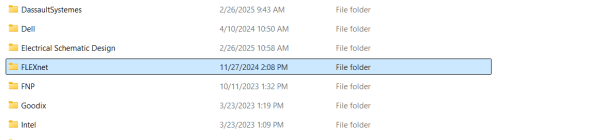
FLEXnet folder in Program Data directory
The steps outlined above should solve any error messages related to “This version of SOLIDWORKS has not been commissioned properly, please contact your supplier.” There are multiple methods to clear up the error, but any will get you back to working as soon as possible.
If you still have issues after the troubleshooting steps above, contact our Technical Support team to gain access to additional assistance to your SOLIDWORKS issues.
Related Links
Certified SOLIDWORKS Services available from Javelin
Javelin can help you to:
Posts related to 'Fixing “This Version of SOLIDWORKS Has Not Been Commissioned Properly” Error'
