


EPDM: Resolve the “Attached: Missing Information” Error.

Article by Jay Khajuriwala updated January 15, 2015
Article
When creating a new vault view in SOLIDWORKS PDM, you may encounter the confusing message:
Attached; Missing Information
This typically indicates leftover or corrupt registry entries, or incomplete vault view files from a prior installation. Below is the structured method for completely cleaning and recreating it to resolve the issue.

EPDM error message
Clean Registry & Recreate a New Vault View:
NOTE: Always export a backup copy of the registry keys before deleting, caution should be taken when editing the registry, as changing or deleting the wrong key, can affect other programs, or the operating system. If you are not familiar with Windows Registry, please have someone who is, do this for you.
Step 1: Remove Corrupt Registry Entries:
Close View Setup, then delete any vault-related keys at:
HKLM\SOFTWARE\SolidWorks\Applications\PDMWorks Enterprise\Databases\[VaultName]HKLM\SOFTWARE\Wow6432Node\SolidWorks\Applications\PDMWorks Enterprise\Databases\[VaultName]HKCU\Software\SolidWorks\Applications\PDMWorks Enterprise\Vaults\[VaultName]
Step 2: Delete/Re-Name the Local Vault Folder:
- Remove any leftover empty or yellow folder located at the ShellRoot path. If stubborn, delete hidden system files like Desktop.ini first
Step 3: Run View Setup Again:
Launch View Setup.
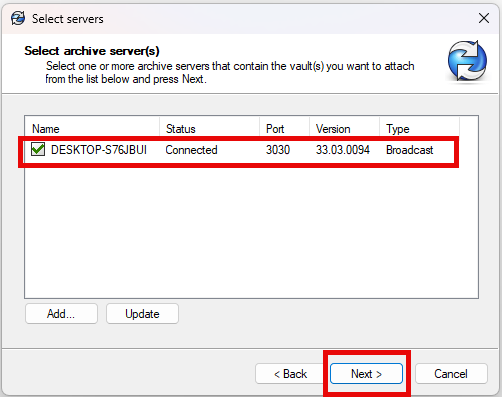
Select your archive server (or manually add it).

Choose your vault.
Specify a clean view folder (ideally close to drive root to avoid path length issues) and choose whether it’s user-specific or shared across all users.
Complete the wizard. The “Attached; Missing Information” issue should no longer appear.


Conclusion:
The “Attached; Missing Information” error almost always stems from residual registry entries or leftover folder data. Cleaning those completely and reinstalling the view usually resolves the problem. If issues persist, coordinate with your IT or PDM administrator, there may be deeper server or permission problems at hand.
Related Links
Want to do more with SOLIDWORKS PDM?
Our Certified SOLIDWORKS PDM Experts can help you to:
Posts related to 'EPDM: Resolve the “Attached: Missing Information” Error.'
