


SOLIDWORKS Rx Safe Modes

Article by Vincent Magcalas updated June 20, 2016
Article
SOLIDWORKS Rx Safe Modes can be used to disable or bypass certain SOLIDWORKS and system settings, in order to isolate SOLIDWORKS issues.
The SOLIDWORKS Rx tool is available from Windows Start > All Programs > SOLIDWORKS Tools 20XX > SOLIDWORKS Rx 20XX

Safe Modes are found on the Home page of the Rx tool.
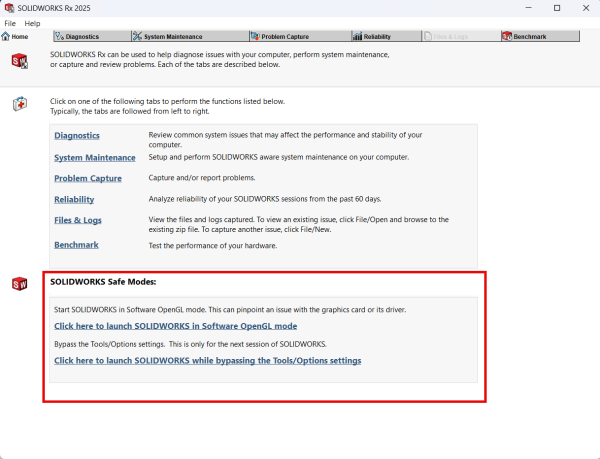
SOLIDWORKS Rx Home page
Safe Mode #1
The first option will launch SOLIDWORKS in “Software Open GL mode”. This will bypass your system’s video card and is useful in determining if crashing and/or graphical issues are related to your video card. Many graphics issues can be related to driver incompatibility, the Diagnostics tab, of the Rx report, will provide notice if your current driver is not supported and will provide a link to download the correct driver.

SOLIDWORKS Rx Diagnostics
Safe Mode #2
The second option will launch SOLIDWORKS with default settings. This can be useful when you are trying to determine if your current settings is responsible for the behavior you are encountering. These changes only apply the next time you launch SOLIDWORKS. Future launches will use the settings you have defined, so there is no risk of losing your settings.
Related Links
Certified SOLIDWORKS Services available from Javelin
Javelin can help you to:
Posts related to 'SOLIDWORKS Rx Safe Modes'
