


How to disable SOLIDWORKS PDM Vault Launch at Windows Startup

Article by Izaaz Sheikh updated March 20, 2019
Article
Every time you start up your laptop, you might be prompted to log into all your SOLIDWORKS PDM Vaults. For example, you have three or more vault views created in your File Explorer and you are asked to sign in all of your vault views. These little annoyances must have a solution.
At some point, some of your PDM folders made their way into your Quick Access favorite not because you pinned these folders to Quick access, but because they were frequently used. This can apply to any folders in File Explorer including SOLIDWORKS PDM vault view folders.
To Disable SOLIDWORKS PDM Vault Launch
File Explorer Options
Windows 11
To disable SOLIDWORKS PDM Vault Launch at startup in Windows 11 File explorer, click on the three-dot menu in the top toolbar of your File Explorer and select Options.
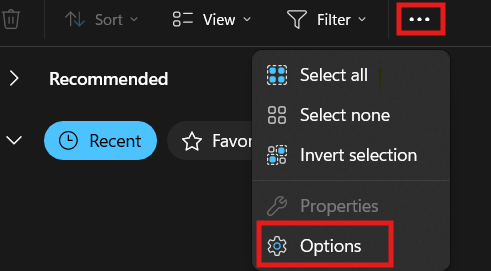
Accessing Folder Options
In the Folder Options, deselect “show frequently used folders”. This will stop Windows from automatically listing your recently accessed folders under the “Quick Access” section. As an added measure, also clear the File Explorer History.
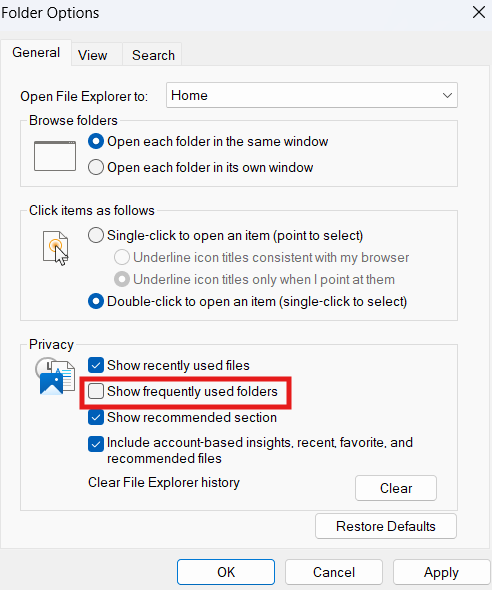
Folder Options
Windows 10
To disable SOLIDWORKS PDM Vault Launch at startup in Windows 10 File explorer, access the Windows Quick Access options by right-clicking on the Quick Access icon and selection Options from the shortcut menu.

In the Privacy section of the Quick Access Options, deselect “Show frequently used folders in Quick Access”. As an added measure, also clear the File Explorer History.

Administration Tool Setting (SOLIDWORKS PDM 2024 and earlier)
Sometimes the solution above may not be what you are looking for as you do want to see your frequently used folders in the Quick Access navigation pane to save your time by not navigating to multiple sub-folders.
Starting from SOLIDWORKS PDM 2024, a new setting was added to your local Administration Tool setting for PDM to not prompt you to login.
Open your Administration Tool and under Local Settings, open Settings through either double-click or Right Click > Open. In the Automatic Login tab, select the vault and enable “Do not prompt for login”. Click OK.
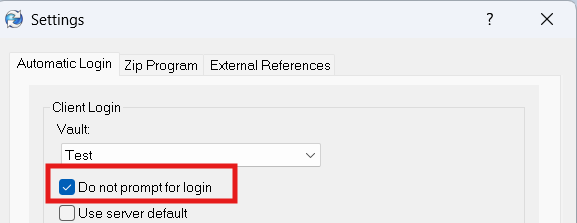
Automatic Login Tab in Local Settings
NOTE: With this setting enable, it is possible that double-clicking on your vault view to prompt for login may not work and you may have to either right click on your vault view and select login or login from the PDM blueberry icon in your Taskbar icons/Hidden icons.
Related Links
Want to do more with SOLIDWORKS PDM?
Our Certified SOLIDWORKS PDM Experts can help you to:
Posts related to 'How to disable SOLIDWORKS PDM Vault Launch at Windows Startup'
