


Customize your 3DEXPERIENCE Mouse Controls to Match SOLIDWORKS

Article by Ray Morrogh updated May 15, 2024
Article
New users of the platform may notice that the 3DEXPERIENCE mouse controls are different than the desktop CAD applications they’re used to. This can be a little disorienting at first for SOLIDWORKS and CATIA users because their muscle memory doesn’t match the default control scheme to manipulate the graphics window.
Whether you’re used to CATIA or SOLIDWORKS control schemes for the mouse, I’m going to show you where the setting exists that will allow you to use the native mouse navigation controls from either CAD program in the 3DEXPERIENCE web apps and other roles on the platform.
Find 3DEXPERIENCE Mouse Controls Preferences in the Browser Interface
The setting to change the default 3DEXPERIENCE mouse controls isn’t actually in any of the applications you’re using. To change your mouse controls, navigate to the icon on the top right of the screen (this will either be the initials of your name or a profile picture if you’ve added one). Select it and navigate to preferences from the drop-down menu.
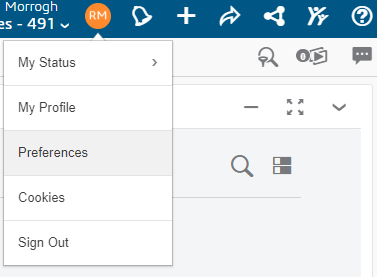
The preferences button in 3DEXPERIENCE
After selecting preferences, the first page will show languages, but you just need to select mouse gestures to see radio buttons with 3 options. Select the option of the software you are most used to, and it will be used across applications run through the platform.

Select your 3DEXPERIENCE Mouse Controls in Preferences
After this, you should be able to navigate your applications with the mouse controls you’re used to. Additionally, in any of the 3DEXPERIENCE desktop applications, you can access the preferences menu the same way. Instead of the Mouse Control menu, you’ll need to access it on the profile tab of the preferences.
If you’d like to find out more about how to get started on the 3DEXPERIENCE Platform, take a look at our Getting Started guide.
Related Links
Discover SOLIDWORKS & 3DEXPERIENCE Works
Learn more about SOLIDWORKS cloud-based collaboration:
Posts related to 'Customize your 3DEXPERIENCE Mouse Controls to Match SOLIDWORKS'
