


Creating a Card List from an SQL Database in SOLIDWORKS PDM

Article by Michael Nwachukwu updated September 16, 2024
Article
Introduction
Card lists play a crucial role in managing data within SOLIDWORKS PDM. By setting up T-SQL queries to retrieve values from an external SQL database, you can create custom card lists. In this article, we’ll guide you through the process.
Prerequisites
Before we begin, ensure you have the following:
- Access to the SQL Server Management Studio (SSMS)
- Familiarity with T-SQL syntax
- A configured SOLIDWORKS PDM environment
Steps to Create Card Lists
- Identify Data Sources:
- Use SSMS to locate relevant table names in your SQL database.
- Determine the data you want to include in your card lists (e.g., materials, customer names).
- Create the Card List:
- In SOLIDWORKS PDM, right-click on “Lists” (for cards) and select “Add New.”
- Provide a descriptive name for your list.
- Choose “From SQL Database” as the data type.

Card Lists in PDM Admin Tool
- Define the SQL Query:
- Under “SQL command returning the data,” enter the T-SQL query that selects the desired values from the database table. You can find example SQL Queries here – EXAMPLE SQL QUERIES
- Specify the following details:
- Server: IP address or name of the SQL server hosting the database.
- Database: Name of the SQL database containing the list values.
- Login credentials: Enter the SQL user’s login name and password.
- Click “Test” to verify the query and connection.

Server Details
- Populate the List:
- If the test is successful, a list of values from the SQL source will appear in the “Values” window.
- Save the list configuration by clicking “File” > “Save.”

- Link the List to a Card:
- Create or edit a data card in SOLIDWORKS PDM.
- Add a control (e.g., drop-down list) that will use the SQL-based list.
- In the properties pane, under “Items,” select the newly created list as a “Special value.”
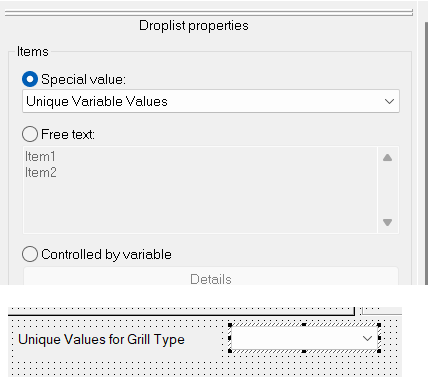
Data Card – Card Editor
- Test out card list:
- Log in to PDM local vault view in File Explorer.
- Click on a file then on the “Data Card” tab.
- See if the card list is populating on the data card.

Using the list in PDM local vault view (File Explorer)
To learn more about SOLIDWORKS PDM, you can see our resources here.
Related Links
Want to do more with SOLIDWORKS PDM?
Our Certified SOLIDWORKS PDM Experts can help you to:
Posts related to 'Creating a Card List from an SQL Database in SOLIDWORKS PDM'
