Using The SOLIDWORKS PDM Move Tree for Efficient File Renaming and Organization

Article by Jay Khajuriwala updated September 10, 2025
Article
Renaming files inside a SOLIDWORKS PDM vault can be intimidating, especially when they’re linked to assemblies, drawings, or other referenced files. Luckily, the Move Tree function in SOLIDWORKS PDM offers a safe and efficient way to rename and/or relocate files without breaking references.
In this guide, we’ll explore how to use the Move Tree function to:
- Apply structured renaming using Transform operations like Prefix, Suffix, and Replace.
- Manually rename files by editing the Target File Name.
- Moving files to a different folder while preserving references.
What Is Move Tree in SOLIDWORKS PDM?
The Move Tree command allows users to move or rename files while maintaining all associated references, something that can’t be done safely with basic file system operations like drag-and-drop or Right-Click>Rename.
To access Move Tree:
- Select a file or multiple files inside the PDM Vault.
- Choose Tools>Move Tree from the context menu.

Automatically Renaming Files in SOLIDWORKS PDM
The transform panel in the Move Tree dialog lets you batch rename files using consistent naming rules. You can perform these actions on a single file, multiple selected files, or all files at one time.
How to Add a Prefix
By adding a prefix using the SOLIDWORKS PDM Move Tree command, you can append a custom string to the beginning of each file name. For example, you can turn a file name from Path.SLDPRT to REV1_Path.SLDPRT programmatically.
- Select the file, click Add Prefix, then enter the prefix into the text box.

 Adding a file name prefix in the Move Tree command
 - Click OK.
- Confirm the Target File Name is updated with the new file name with the prefix. Then click Move.
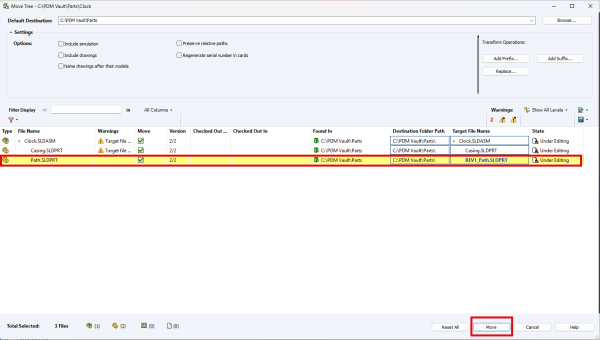 The new file name showing the prefix
How to Add a Suffix
By adding a suffix using the SOLIDWORKS PDM Move Tree command, you can append a custom string to the end of each file name. For example, you can turn a file name from Path.SLDPRT to Path_Rev1.SLDPRT programmatically.
- Select the file, click Add Suffix, then enter the suffix into the text box.
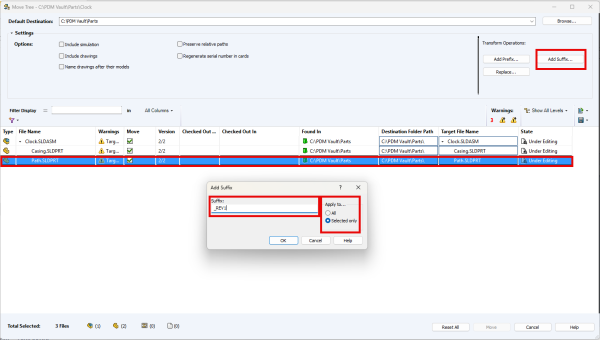 Adding a file name suffix in the Move Tree command
 - Click OK.
- Confirm the Target File Name is updated with the new file name with the suffix. Then click Move.
 The new file name showing the suffix
How to Replace Text
By using the Replace function in the SOLIDWORKS PDM Move Tree command, you can find and replace instances of a string of text within a file name. For example, you can turn a file name from File Name.SLDPRT to File Name_TEST.SLDPRT programmatically.
- Click Replace, then enter the desired text in “Find what” and “Replace with” text boxes.
 Setting up the find and replace boxes
 - Click OK.
- Confirm the file name has been updated with the replaced text. Then click Move.
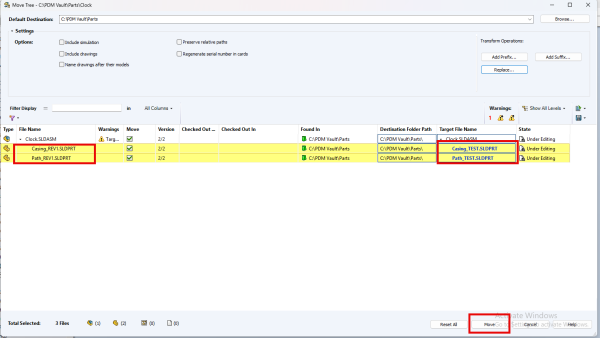 Confirming the files have been renamed
Manually Editing the Target File Name
For more fine control or for situations where the automated methods won’t work, you can manually enter a new file name in the SOLIDWORKS PDM Move Tree command.
To manually edit the target file name:
- Launch the Move Tree command.
- Select the Target File Name of the file(s) you want to rename. Make the desired changes to the file name.
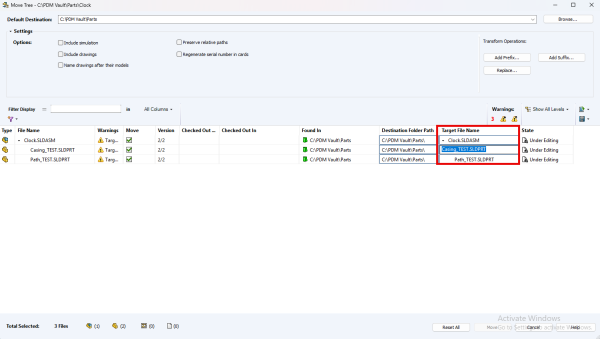 Manually editing the final file name
 - Confirm the changes in the Target File Name cell of the file (s) and click Move to finish the operation.
Moving Files to a New Folder
In addition to renaming, you can also move files to a different folder in your PDM Vault without breaking any references. Follow the instructions provided in the article How to use the SOLIDWORKS PDM Professional Move Tree Feature.
Considerations When Using the Move Tree Command
- Permissions: Ensure you have the appropriate permissions to rename and move files.
- References: Any references to renamed or moved files are automatically updated by PDM if the dependent files are included in the operation.
The Move Tree function is your go-to tool for safe and organized file renaming in SOLIDWORKS PDM. Whether you’re cleaning up file names, applying a new naming convention, or restructuring folders, Move Tree ensures that your references remain intact and your data stays reliable.
To learn about additional SOLIDWORKS PDM tools, register for an upcoming training class here.
Posts related to 'Using The SOLIDWORKS PDM Move Tree for Efficient File Renaming and Organization'