


How to Align Parts in SOLIDWORKS

Article by Aleksandar Tepsic updated May 22, 2026
Article
Figuring out how to align parts in SOLIDWORKS is one of the first challenges faced when you start an assembly. In SOLIDWORKS, the alignment is controlled by a combination of how components are inserted, how you move or orient them, and mates. Learn how to orient and align parts for mating in this walkthrough.
Aligning Parts At a Glance
In this guide, you’ll learn a practical workflow for aligning parts step-by-step.
- Understand how fixed versus floating settings affect positioning when you insert components
- Discover quick ways to roughly place parts using the mouse or the Triad
- Explore different ways of applying mates
- Find time-savers like the Quick Mates toolbar and SmartMates
Inserting Components into Assemblies
While inserting components into an assembly, if you press the check mark, the first component in the assembly will be fixed. This means the origins of the part and assembly will align, and the component cannot be moved. A “Fixed” component is denoted in the FeatureManager tree with a (f) prefix, so if you’re trying to move a fixed component, check this first. Fixed components can be set to float by right-clicking and selecting “Float”.
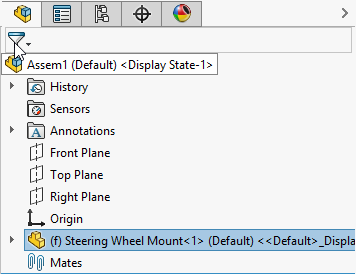
The (f) prefix shown indicates that a part cannot be moved in SOLIDWORKS
In 2023, SOLIDWORKS introduced the fix/float option on newly inserted components. Previously, the first component was positioned as fixed, and the subsequent components were set to floating. A floating component is free to move in space and requires mates to align/position in the assembly.
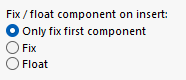
You can fix or float a part on insertion
The first component serves as the base for all others in the assembly. To adjust its orientation during insertion, use the pop-up menu to rotate it around any axis.
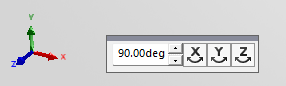
The orientation toolbar is used to align parts upon insertion
Orienting parts is not restricted to insertion, as they may also be oriented afterwards to support better visibility and create proper mating outcomes.
Orienting Parts for Mating
To orient parts after insertion, the following methods can be used as preliminary positioning tools before applying formal mates.
- To translate a component in space, left-click, hold, and move the mouse.
- To rotate a component in space, right-click, hold, and move the mouse.
- For precise control, right-click a component and select Move with Triad. Drag the arrows to translate along specific axes, planes to move in 2D, or rings to rotate.
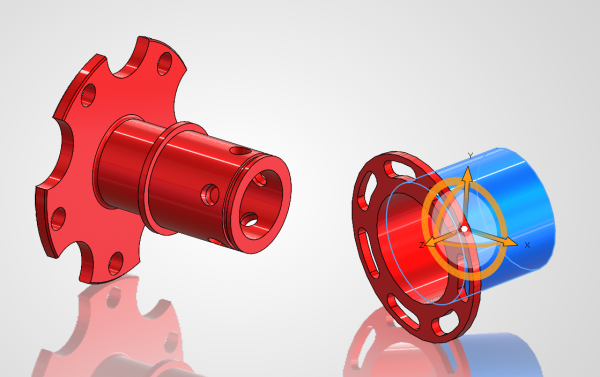
Align parts with the Triad tool
With one part inserted and fixed to the origin, and a second brought in and oriented correctly, you may now proceed to align parts in SOLIDWORKS using formal mates.
Align Parts Using Basic Mates
The second part brought into the assembly is free to move in space. To position parts relative to others, launch the Mate command from the Assembly tab. The main sections of this tool are the mate selections and the mate types. The most commonly used mates are coincident, concentric, and distance mates.
Component entities, such as faces, edges, or planes, can be selected here or pre-selected before launching the command. If a mate flips the wrong way or is not aligned as expected, toggle the mate alignment buttons in the Mate PropertyManager to flip the mating directions.
Common Mates Used to Align Parts in SOLIDWORKS
- Align two parts flush: coincident mates
- Align holes or cylinders: concentric mates
- Set distance between parts: distance mates
- Center a part between two faces: width mates
- Align orientation without touching: parallel mates
- Squaring up: perpendicular mates
- Align around a plane: symmetric mates
The SOLIDWORKS Quick Mates Context Toolbar
Using common mates can be optimized for greater efficiency. By holding down the control key to pre-select component entities, you can trigger a Quick Mate context toolbar near your cursor, rather than starting with the Mate command. Clicking one of the mate types immediately mates the two components.

Quick Mates toolbar
Taking this a step further, SOLIDWORKS predicts the mate you’ll most likely need given the selected entities and highlights that one with a dotted line border. If the prediction is accurate, you can press “Enter” on your keyboard to confirm. You can also assign the enter key to one of your mouse buttons to boost the effectiveness of this technique!
Using SmartMates
To invoke SmartMates, a time-saving approach to automating standard mate types, click on a component’s mating geometry, hold the alt key, and then drag onto the mating geometry of another component. The cursor icon will change to indicate the type of mate that will result from the current mouse position.
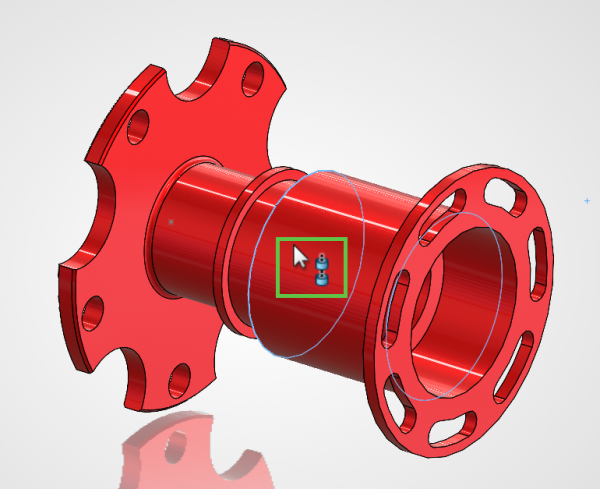
Align parts in SOLIDWORKS using SmartMates
When you release, the same mate pop-up toolbar will become available to modify the mate type and alignment if needed.
How to Tackle Any Alignment
When aligning components in SOLIDWORKS, use this approach to ensure the correct outcome.
- Decide what should stay put (fixed vs. floating)
- Position (roughly) the component with your mouse or Move with Triad
- Lock the relationship in place with the right mate. For most beginner assemblies, coincident (flush), concentric (holes/cylinders), and distance (spacing) mates cover the majority of “align parts” tasks. And tools like Quick Mates and SmartMates help you do it faster as you practice.
For a guided path to mastering assemblies, visit our SOLIDWORKS Assembly course teach the fundamentals step by step. It covers how mates work, avoiding common alignment issues, and building stable assemblies that behave the way you expect.
To register for an upcoming SOLIDWORKS Assembly modeling training course, click here.
Related Links
Certified SOLIDWORKS Services available from Javelin
Javelin can help you to:
Posts related to 'How to Align Parts in SOLIDWORKS'
