


Manual SOLIDWORKS License Activation | How To Guide

Article by Griffin Pacey updated May 27, 2026
Article
SOLIDWORKS license activation can be an unclear and bothersome process. The manual activation of a standalone SOLIDWORKS license on a PC is typically reserved for a PC that lacks internet access.
To successfully activate an offline PC via email, you must be able to transfer files from the offline PC to an internet-connected PC with access to email. Follow this guide to execute the process with few to no obstacles.
What to Expect
In this guide, you will be able to manually activate a SOLIDWORKS license in a handful of steps. To ensure a smooth activation process, please note the following:
- If you’re unable to transfer files to and from this offline PC for security reasons but still need to activate SOLIDWORKS, you’ll need to contact your SOLIDWORKS Reseller in order to activate SOLIDWORKS.
- If your PC has an internet connection, then you may use automatic activation over the internet and follow the steps listed here: How to Automatically Activate a SOLIDWORKS Standalone License
- If you are running a network license, the process varies slightly from the standalone one listed below, so follow the steps here: How to Manually Activate a SOLIDWORKS Network License
Getting Started with Manual Activation
The first steps of activating manually look the same as an online activation.
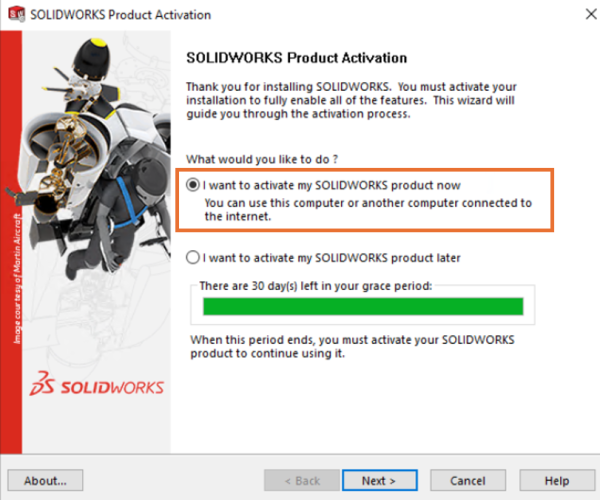
The SOLIDWORKS Product Activation window
The product activation window appears when you have installed SOLIDWORKS with a standalone license and go to launch it for the first time. To proceed, select “I want to activate my SOLIDWORKS product now” and then click “Next”.
Once “Next” is selected, you will be directed to a new window with instructions on how to request a license key from SOLIDWORKS.
Activating Your SOLIDWORKS Product
Once you select “Next”, you will be presented with the Activate/Deactivate window.
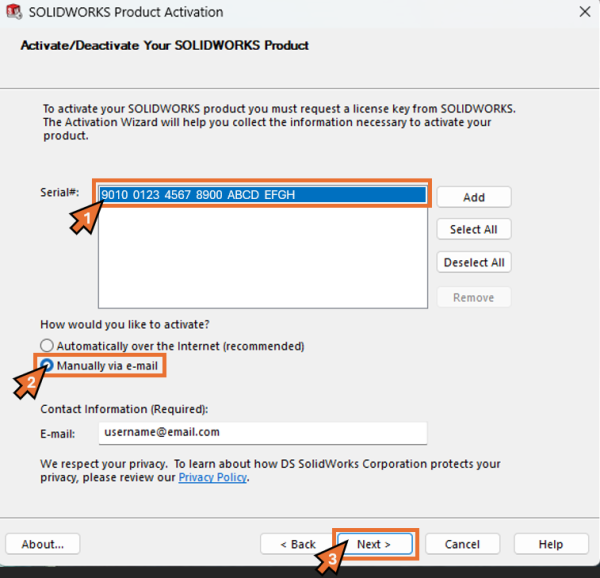
Select the correct settings for manual activation of SOLIDWORKS
First, click on a single serial number listed in the first white box. It is important to note that for email activation, you can only activate one license at a time. Next, you will toggle the option labeled “Manually via e-mail” from the two selections and click “Next”.
You will soon be presented with instructions for creating and uploading a request file in the window labeled “Manual Activation”.
The SOLIDWORKS Activation Request File
In the “Manual Activation” window, click “Save…” to create a request file to the offline PC, which will need to be transferred to an internet-connected, email-capable machine to continue with manual activation beyond this point.
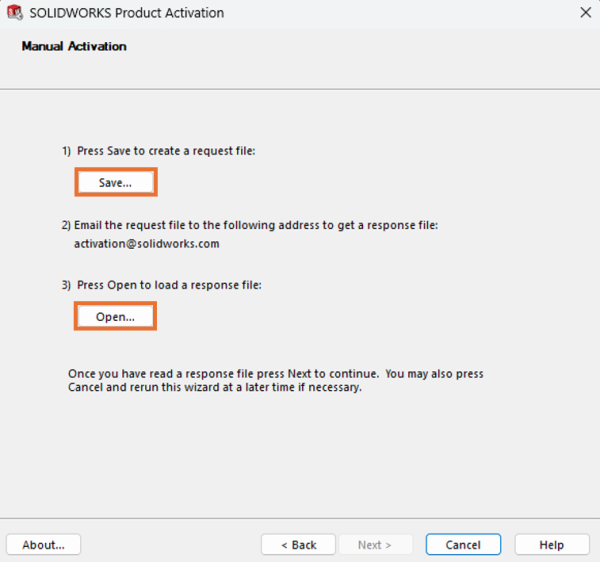
Manual Activation SOLIDWORKS Product Window
Once you’ve transferred this request file to the email-capable machine, attach it to an email addressed to [email protected]. This will send the request file to an automated activation server, and you will get a response in a few minutes, depending on internet speed and email security protocols.
If you receive an email that doesn’t have a response file attached and has an error listed in the response, contact our Technical Support team for us to review the issue.
Wrapping Up Your SOLIDWORKS License Activation
Provided there’s no licensing errors, you will receive a response file starting with “SWActivateResponse_” as its name. Once you have this file, you’ll need to transfer it back to the offline PC.
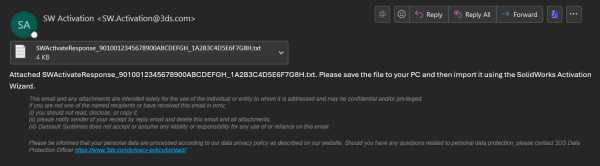
SOLIDWORKS activation email response
Once the file is transferred, click “Open…” on the Manual Activation window. After you select the response file and click “Open”, SOLIDWORKS will automatically activate!
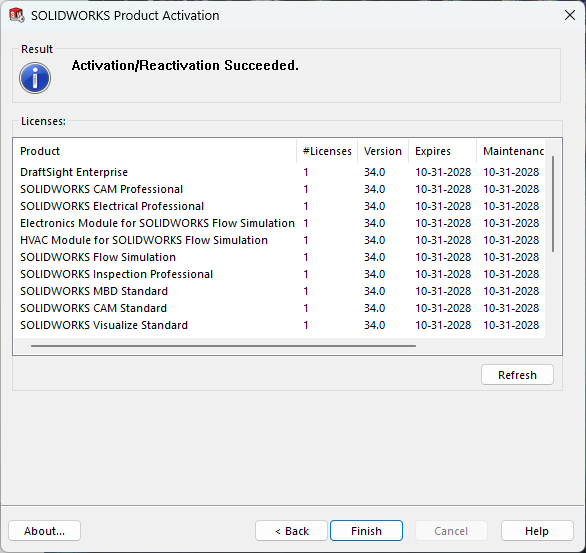
Manual SOLIDWORKS license activation complete
You should see a window with “Activation/Reactivation Succeeded” dialogue under the result bar and next to the blue circle. Select “Finish” to complete the process. For additional product activation instructions, visit the SOLIDWORKS Design Help 2026 website, and scroll to find the tab for Installation and Administration.
Need Support?
If issues arise in cases involving SOLIDWORKS hardware and licenses, installation & setup, or SOLIDWORKS PDM, the TriMech Technical Support team can answer questions and assist in resolution.
Related Links
Certified SOLIDWORKS Services available from Javelin
Javelin can help you to:
Posts related to 'Manual SOLIDWORKS License Activation | How To Guide'
