


Runner Balancing Using SOLIDWORKS Plastics Professional

Article by Suman Sudhakaran updated May 13, 2026
Article
Designing multi‑cavity injection molds and family molds requires careful consideration of runner systems and ejectors. In family molds, paired parts rarely have identical volumes, which introduces challenges in achieving consistent flow behavior across all cavities.
For high‑quality parts with minimal defects, molten polymer must reach each cavity simultaneously and under similar pressure and temperature conditions. However, differences in flow path length, thickness, or resistance can cause one cavity to fill faster than another.
Why Should You Balance Runners?
Runner balancing is critical to ensuring uniform filling across all cavities. Runner imbalance is a hidden issue that can silently degrade part quality, increase scrap rates, and extend cycle times.
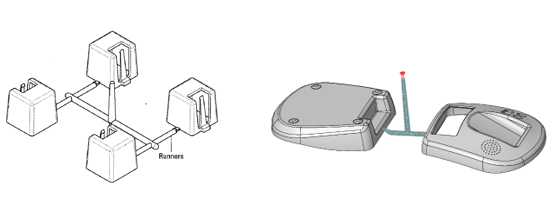
Multicavity injection mold setups
When runners are not balanced, several issues can arise:
- Short shots due to incomplete filling
- Uneven packing, leading to inconsistent density
- Variable shrinkage and warpage
- Weld line inconsistencies
- Cosmetic defects
Often, these problems originate from an unbalanced runner system upstream. In multi‑cavity molds, runners must be artificially balanced to maintain equal pressure and flow distribution, even when cavity sizes differ.
How SOLIDWORKS Plastics Improves Runner Balancing
SOLIDWORKS Plastics Professional replaces guesswork with simulation‑driven accuracy. The software evaluates different variables in injection molding, including material behavior, temperature effects, flow resistance, and cavity volume differences.
This data allows SOLIDWORKS Plastics to adjust runner and gate diameters to achieve balanced flow. Simulation ensures consistent pressure and flow rates, reducing risks of over-packing and premature freeze-off.
How to Balance Runners in SOLIDWORKS Plastics
To ensure proper injection molding in unsymmetric mold setups, SOLIDWORKS Plastics has a Runner Balancing command. This option is only available in a multicavity plastics study.
To balance runners in SOLIDWORKS Plastics:
- Create a Plastics Study: Create a multi‑cavity mold study with an appropriate runner setup.

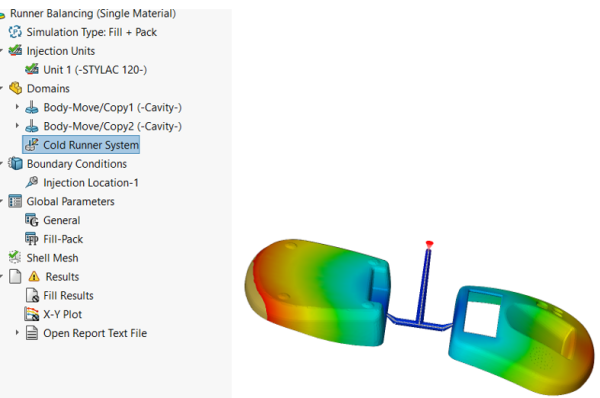 An initial plastic study with unequal filling
 - Mesh the Model: Use a shell mesh to ensure proper coverage.
- Run the Initial Fill Analysis: Perform a fill analysis to identify imbalances, short shots, and unequal filling.
- Enable Runner Balancing: Right-click on the mesh in the study tree and select Runner Balancing.
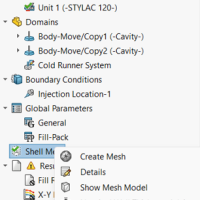 Activating the Runner Balancing command
 - Define Constraints: Configure the minimum and maximum values for the runner and inlet diameters.
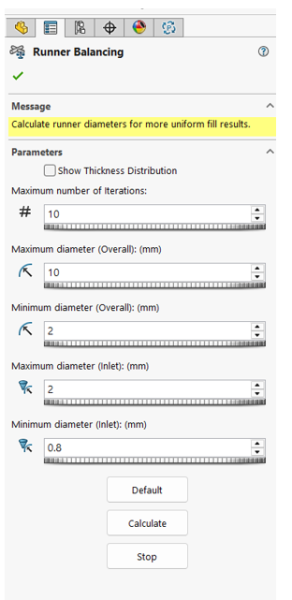 Defining constraints for runner sizing
 - Run the Analysis: Click the green checkmark to run the balancing calculation.
Interpreting Results
The solver iteratively adjusts runner and gate diameters within user‑defined limits to achieve near‑simultaneous cavity filling and uniform pressure distribution. When the runner balancing analysis is complete, a message appears noting the time difference for fill time and pressure difference before and after runner balancing.
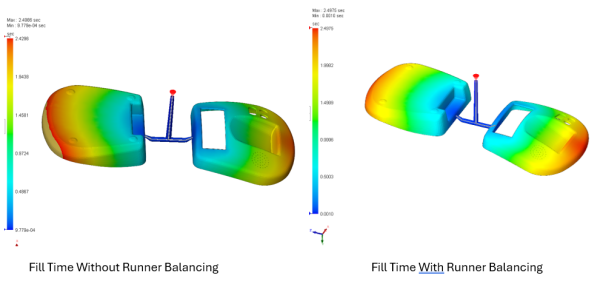
Comparing before and after runner balancing
Reviewing the results will show how the adjusted runner diameters will allow all cavities to fill at the same time. Even though the changes in runner diameters are not too large, a minor change can improve the cycle time.
Achieving Accuracy with Injection Molding
Runner balancing is essential for achieving consistent and defect‑free parts in multi‑cavity and family molds. By leveraging SOLIDWORKS Plastics Professional, engineers can eliminate guesswork and optimize runner systems early in the design process.
Simulation‑driven balancing ensures uniform flow, pressure, and fill times, resulting in higher efficiency and better product quality.
To learn more about SOLIDWORKS Plastics, click here.
For quality parts with minimal defects, the molten polymer must reach each cavity at the same time, under similar pressure and temperature conditions. If one flow path is shorter, thicker, or encounters less resistance, that cavity fills first. This means all the cavities may not be filled equally, leading to defects such as short shots and inferior part quality. This also results in uneven packing, variable shrinkage, warpage, weld line inconsistency, and cosmetic defects. Often, the root cause lies hidden upstream, i.e. an unbalanced runner system. Runner imbalance is one of those design issues that can silently erode quality, increase scrap, and inflate cycle times.
In multi-cavity mold, the runner system must be artificially balanced to ensure uniform fill and pressure distribution in each cavity. Fortunately, SOLIDWORKS Plastics Professional provides a powerful way to detect and eliminate runner imbalances.
Traditionally, runner balancing relied heavily on empirical rules and trial‑and‑error adjustments that involve changing runner diameters, gate sizes, or flow paths after multiple mold trials. Equal runner lengths alone are not enough, and larger cavities naturally demand more material and higher flow capacity. SOLIDWORKS Plastics injection molding simulation replaces this guesswork.
Runner Balancing in SOLIDWORKS Plastics accounts for these volumetric and geometric differences, by resizing runner diameters to balance the flow between cavities. For hot runner systems, where thermal control adds another layer of complexity, simulation driven runner balancing ensures consistent pressure and flow rates. This significantly reduces the risk of over‑packing or premature freeze-off in individual cavities.
To use the Runner Balancing capability in SOLIDWORKS Plastics Professional, set up a Plastics study for multi-cavity mold with runner system defined as required. Mesh the model using Shell mesh. As of now the software does not support Solid Mesh for runner balancing. Run the fill analysis study.
Without balanced runners the fill analysis shows short shots and unequal filling. The pressure plot shown below indicates pressure distributions is not equal in the two cavities of the paired parts.
Runner Balancing option is enabled by right clicking on the Mesh feature in the Plastics study tree. The maximum and minimum diameter for the overall runner along with maximum and minimum diameter at the inlet (or gate) is specified.
The show thickness distribution displays the diameter of the runner. The calculate tab activates Runner balancing study. The solver evaluates flow resistance across all paths during the fill phase. It uses material behavior, non‑Newtonian viscosity, temperature effects, and cavity volume differences to drive runner balancing.
The solver iteratively adjusts runner and gate diameters within user‑defined limits to achieve near‑simultaneous cavity filling and uniform pressure distribution. When the runner balancing analysis is complete, a message appears noting the time difference for fill time and pressure difference before and after runner balancing. The output is not just a visual confirmation but quantitative evidence.
The fill time plot on the left side in image below, shows the unequal fill time for the two cavities. After runner balancing the cavities fill up at the same time.
The Show thickness distribution option is useful to look at the runner and gate diameters before and after the runners are balanced.
Even though the changes in runner diameters are not too large, a minor change can improve the cycle time.
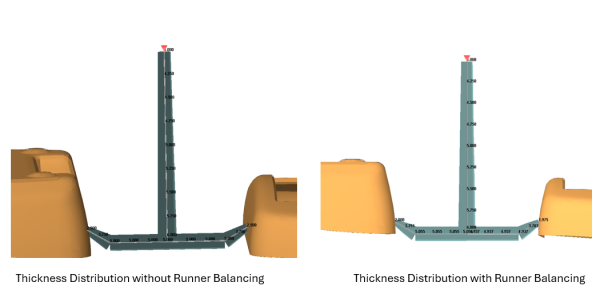
Use Runner balancing in SOLIDWORKS Plastics Professional to shift runner design from a reactive, trial‑based activity to a proactive, data‑driven process, identify and rectify fill imbalances to converge on a balanced runner design early in the design process. Interested in learning more about SOLIDWORKS Plastics Professional? Reach out to us at 888.874.6324
Related Links
Certified SOLIDWORKS Services available from Javelin
Javelin can help you to:
Posts related to 'Runner Balancing Using SOLIDWORKS Plastics Professional'
