


How to Hide and Show Planes in SOLIDWORKS

Article by Lynette Proch updated May 15, 2026
Article
Sketches are the foundation and define the profiles of many SOLIDWORKS features, including extrudes, cuts, and lofts. To create the foundation for features, SOLIDWORKS requires a flat sketching plane to locate the sketch geometry in 3D space.
These planes can be one of the primary planes, a reference plane, or a flat surface or face on an existing body. With all the planes you might be using or creating, it is imperative to know how to hide and show planes in SOLIDWORKS.
Types of Planes in SOLIDWORKS
Typically, there are two different kinds of planes that you use in SOLIDWORKS: the primary planes and user-created reference planes.
Every part and assembly starts with the three primary planes, and they are named Front, Top, and Right by default. Depending on your template, they could have different names or could be visible or not visible.
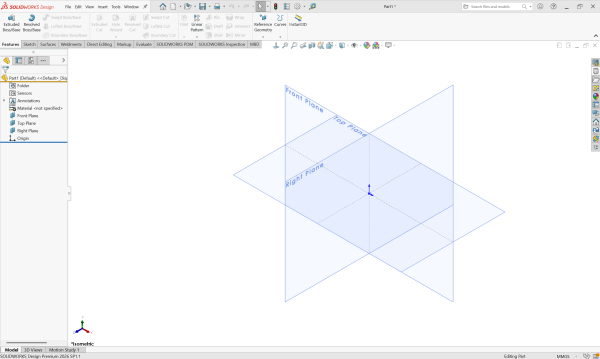
The three primary SOLIDWORKS planes
Reference planes are added manually or with a pattern whenever you need them. Depending on what selection you make while adding them, you can change how they are inserted.
How to Hide and Show SOLIDWORKS Planes
In SOLIDWORKS, there are multiple methods to hide or show planes. You can select the method you are most comfortable with.
The Heads Up Toolbar
When you start a new part, the primary planes appear in the design tree but are hidden in the graphics window. The Heads Up toolbar appears at the top of the graphics window and has a command to toggle visibility of different parts of the design.

The SOLIDWORKS Heads Up toolbar
By clicking the eyeball icon outright, you can toggle between hidden and shown states for all visual entities in the graphics window. The dropdown next to the eyeball allows for finer control over hiding and showing planes, sketches, points, and much more.
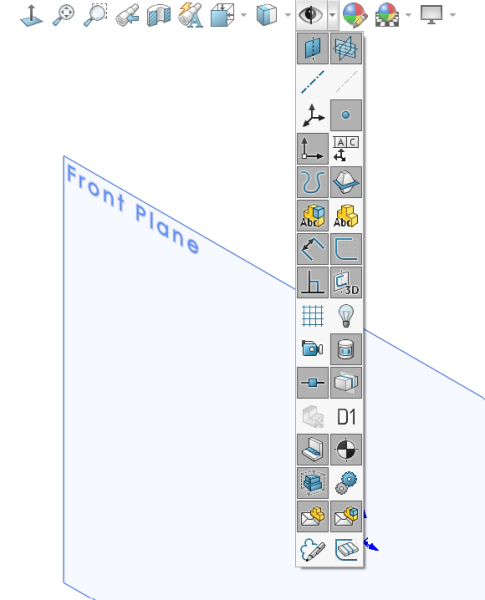
The eyeball icon expanded to show visibility options
You can use this dropdown menu to hide and show planes in SOLIDWORKS. These commands do not delete or suppress the planes; they just toggle the visibility.
The In-Context Toolbar
The in-context toolbar appears when you left-click on a feature or face. This toolbar predicts what the commonly used commands would be and displays them near the mouse cursor.
The eyeball icon that often appears will allow you to hide or show whatever was selected. For a plane, select it from the Feature Tree and then click the eyeball in the in-context menu.
The Right-Click Menu
Another location to toggle the visibility of planes is in the right-click menu. After right-clicking on a plane, at the top of the menu will be a similar eyeball icon. Selecting this will hide or show the plane, depending on its current state.
The FeatureManager Tree
By expanding the SOLIDWORKS Feature Tree, you will have access to commonly used view tools, including display mode, appearance, and visibility.
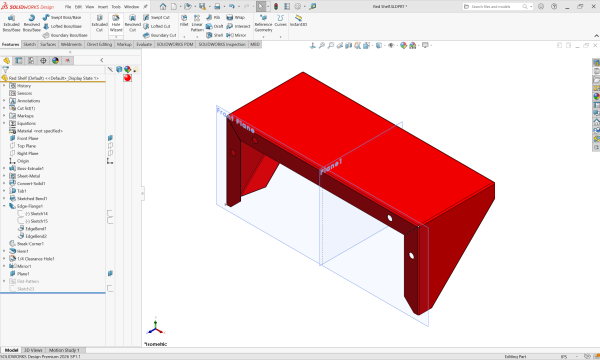
Hiding planes with the SOLIDWORKS Feature Tree
By selecting the plane icon in the hide/show column, you can toggle the visibility of the planes.
The Q Key
Introduced in SOLIDWORKS 2022, the Q key acts as a toggle to quickly show or hide reference geometry (specifically planes, origins, and coordinate systems) in both parts and assemblies. This time-saving shortcut makes it so we don’t have to worry about right-clicking or searching through long Feature Trees.
More Time-Saving SOLIDWORKS Tips
Knowing how to hide or show SOLIDWORKS planes is just scratching the surface of unlocking modeling efficiency. With so many ways to toggle plane visibility, it is important to understand which method works best for your workflow and your needs.
For over 30 years, our team of certified SOLIDWORKS experts has been sharing Tech Tips to usher you towards engineering excellence. Rather than having to hunt those tips down, why not have them delivered right to your inbox in a bi-weekly newsletter?
Click here to sign up for our bi-weekly Tech Tip Newsletter.
Related Links
Certified SOLIDWORKS Services available from Javelin
Javelin can help you to:
Posts related to 'How to Hide and Show Planes in SOLIDWORKS'
