


SOLIDWORKS PDM Database Upgrade Tool

Article by Nadeem Akhtar updated April 5, 2013
Article
After updating your SOLIDWORKS PDM Professional vault to a newer major release you will receive a message similar to the below image when you try to access the vault.

Message After Updating to a Major Release
The above message does not make clear what needs to be done, in order to make the vault compatible. What needs to be done is to update the database associated with the vault and the tool to do this is the Database Upgrade Tool. This utility is located in the SOLIDWORKS PDM installation media directory under the Upgrade sub-folder. The actual file name is Upgrade.exe. Double click the executable to launch the SOLIDWORKS PDM Database Upgrade Tool.
As with any tool that touches the database, you want to have good back-ups of the database, the archive and the PDM settings, prior to running the Upgrade tool. If you followed good practices, you should already have these back-ups that were created prior to your PDM installation upgrade.
After navigating to the Upgrade utility right-click on the executable and select ‘Run it as Administrator.’

Run Upgrade Utility as Administrator
After launching the Upgrade utility, a message will indicate that this utility should only be performed by PDM Administrators; click on yes to continue

Upgrade Wizard Message
After clicking on “Yes”, you will be presented with a screen that lists the steps that should be followed prior to the upgrade.
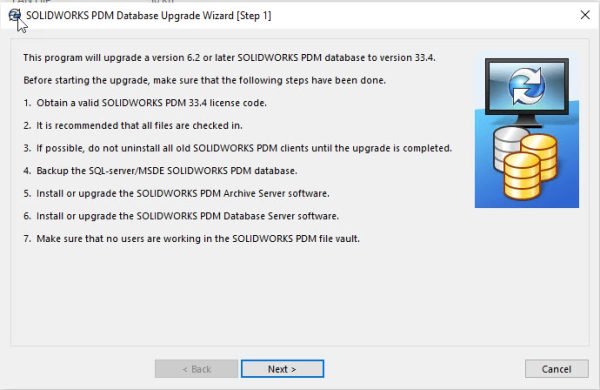
Upgrade Wizard Steps
If all of the steps have been completed click on next and confirm the SQL-Server hosting PDM

Select Server
Click next, enter your “sa” password and click on Log In

Log in
You will be presented with a list of your vaults and whether they need upgrading; select all of the vaults that are to be upgraded and click on next.
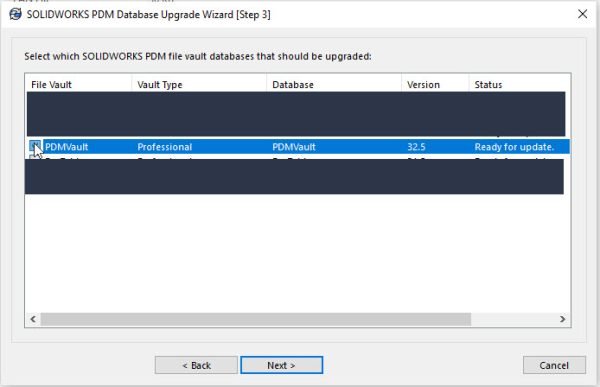
Select a Vault
Click on next on the following screen to begin the upgrade.

Upgrade running
At the end of the upgrade, you will be provided with a log of the upgrade.

Upgrade Completed
Click on Finish to complete the upgrade and close the SOLIDWORKS PDM Database Upgrade Tool.
During the Upgrade, the compatibility level is set to automatically match the current SQL version. A general description of compatibility levels is discussed in this MySolidworks.com article. Generally, knowledge of compatibility levels is not important to the Upgrade process. This addendum is intended for those who wish to better understand some of the processes that happen during the Upgrade.
Related Links
Want to do more with SOLIDWORKS PDM?
Our Certified SOLIDWORKS PDM Experts can help you to:
Posts related to 'SOLIDWORKS PDM Database Upgrade Tool'
