


SOLIDWORKS 2016 Globally Replace Failed Mate References can be a Big Time Saver

Article by Scott Durksen, CSWE updated January 14, 2016
Article
Back in SOLIDWORKS 2014 there was a great enhancement for replacing sketch entities to avoid rebuild errors and update references to the new geometry. This helped update features, mates and even Simulation studies. Read Alin’s and Irfan’s blog posts on this great functionality.
However this only applies when modifying existing sketches to reassign entities to new ones. What if you make significant changes to your part by adding several new features and the original mate faces are now gone? Your assembly now has a multitude of failed mate references, especially if there are several instances of the same component. You would need to manually fix each mate error.
Now in SOLIDWORKS 2016, you only need to reassign a failed mate once as you are given a pop up to “Yes, replace all other missing mate references” for other instances of the same component in that assembly. You are given this pop-up if you edit the mate feature itself, or use the Replace Mate Entities tool.
NOTE: This will only Globally Replace Failed Mate References in the assembly you currently have open. Other assemblies and subassemblies that contain the same component will need to be opened and updated in the same manner.
Globally Replace Failed Mate References Example
Here is an example. I have a knob component inserted multiple times in the assembly and connected to different components.
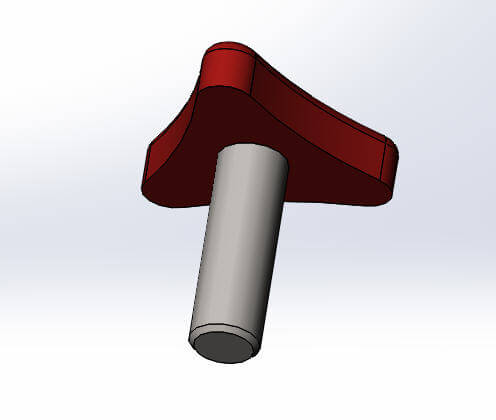
The underside of the knob has a coincident mate with the plates.
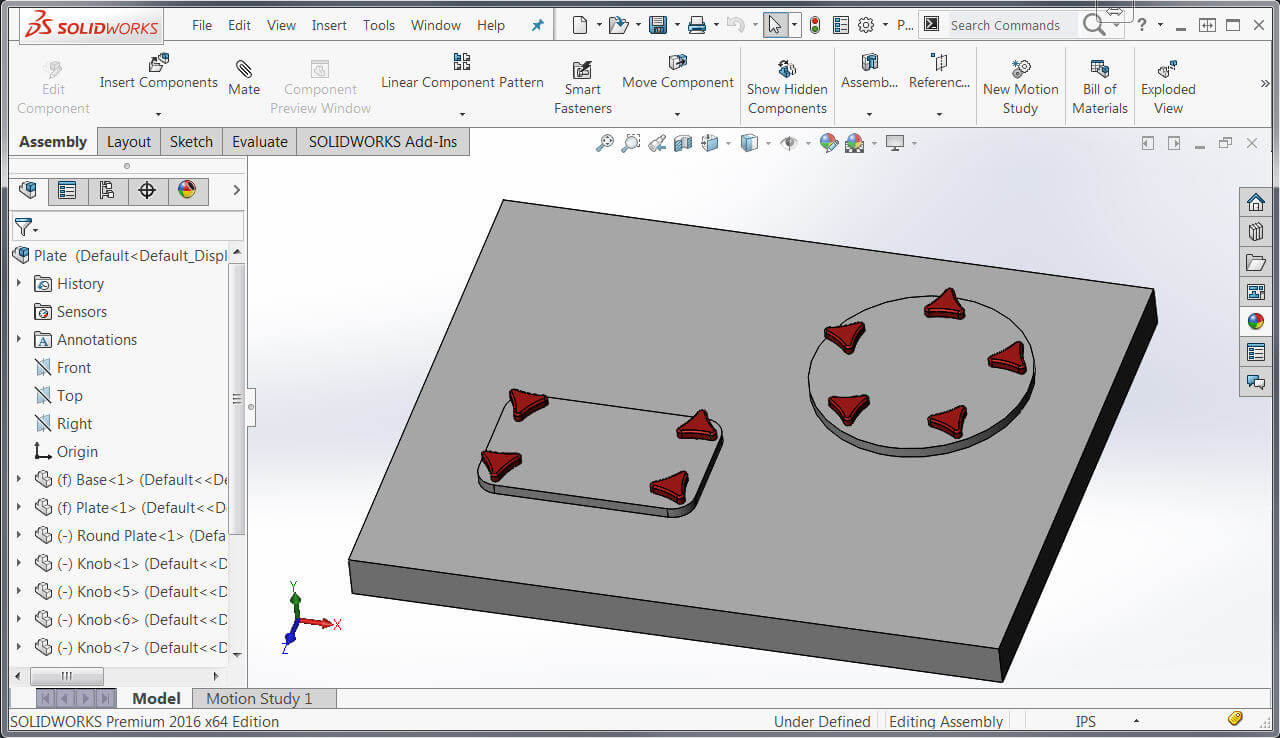
Mate error
Perhaps the knob handle needed some modifications to keep it slightly higher off the surface so I’ve added a loft feature as shown in the figure below:

But now I don’t have my original flat face on the bottom for my coincident mates. Therefore when I return to my assembly, there are many mate errors as it can no longer find the face.

To resolve the mate error
Simply choose one of the mates that has an error, select “Replace Mate Entities” from the shortcut menu

You can then reassign the face (use the Isolate button to assist).

Replace Mate Entities – select face
When you click OK, you’ll then be presented a dialog box where you can select “Yes, replace all other missing mate references“.

And voila! You have corrected all other mates in this assembly that were missing the same reference!
More SOLIDWORKS 2016 Tips
To learn more about what’s new in SOLIDWORKS 2016 software you can review other SOLIDWORKS 2016 update posts here. You might also consider attending a SOLIDWORKS Advanced Update course where you can learn how to obtain new SOLIDWORKS skills. Learn more about our Update Training.
Related Links
Certified SOLIDWORKS Services available from Javelin
Javelin can help you to:
Posts related to 'SOLIDWORKS 2016 Globally Replace Failed Mate References can be a Big Time Saver'
