


SOLIDWORKS PDM methods for optimizing disk space usage on archive server

Article by Jay Khajuriwala updated May 24, 2016
Article

There are a few built in options provided by SOLIDWORKS PDM for managing archive server disk space and reducing folder size used:
- Cleanup – Remove deleted files
- Deleted files and folders are not available from the vault but still exist within the archive. To completely remove a file or folder it must be Destroyed. You can destroy files through the folder properties deleted items tab: If you have access rights, you can destroy (permanently remove) files in this list – Right-click and select Destroy.
- Distribute the archive across multiple drives
- More on this can be found here
- Activate vault compression
Note: The use of the compression option is no longer recommended, as it has been determined to provide minimal benefits in terms of disk space recovery. In most cases, the amount of space reclaimed through compression is negligible, making this method ineffective for optimizing storage.
- By default, all file versions in an archive are stored uncompressed on the archive server. Enabling compression on all file versions older than the most recent version can save some space within the archive. Note: The most recent version is always stored uncompressed for optimal performance during transfers between client and server. To enable archive server compression, see Chapter 3 – Archive Compression and Cleanup in the administration guide.
- Cold Storage: With a cold storage schema, you can move (to secondary storage) or delete obsolete versions
Note: The Restore option in the SOLIDWORKS PDM File Explorer ‘Get Version’ menu allows you to retrieve files from cold storage. However, please note that if cold storage was utilized to delete a file version, that version cannot be restored to the archive server.
- (STEPS AS MENTIONED IN SOLIDWORKS ADMINSTRATIONS GUIDE) To create a cold storage schema:
1. In the left pane of the Administration tool, right-click Cold Storage Schemas and
select New Cold Storage Schema. - 2. In the Cold Storage Schema dialog box, enter a Schema name.
- 3. Select the archive server on which to run the schema.
If the vault is replicated to multiple archive servers, they are listed. - 4. Under Cold storage method:
a) Choose whether to delete or move older versions from the file archives:Note: The deletion cannot be undone. Ensure that you back up the archive before
deletion.• Delete archive files. Deletes files in the vault and records the deletion in the
vault history.
• Move archive files to folder. Moves older versions of files outside the archive.
b) Enter a folder name by combining path components, for example, c:\ColdStore,
and variable components available when you click >.
For example: c:\ColdStore\Year (2) Month (2) Counter-04
When the cold storage schema triggers, the folder path specified is used.
c) Enter a media name, which is a subdirectory in which to move instances of cold
storage. Use path components and variable components available when you click
>. - 5. Under Versions, select the number of versions to keep on the server for each file
archive. For example, enter 5 to keep the five most recent versions of a file and to
discard or move older versions. - 6. Select the folders for the cold storage schema. Subfolders are always processed, so
you need not select them. By default, the entire vault is selected. Use the Add and
Remove buttons to specify folders. - 7. Set up the schedule, either by selecting an interval from Predefined interval or by
selecting User defined schedule.
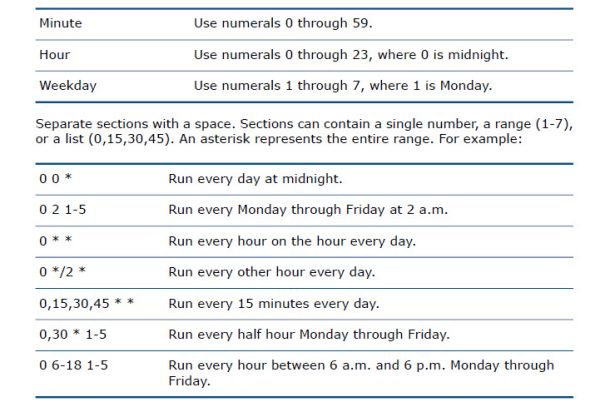
To specify a user-defined schedule, enter a value in Interval string.
The schedule has the format: Minute Hour Weekday where:

The time is local to the server. - 8. Click OK to save the schema.
- 9. Stop and restart the archive server service:
a) From the Control Panel, click Systems and Security > Administrative Tools
> Services.
b) In the Services dialog box, right click SOLIDWORKS PDM Archive Server and
click Stop.
c) Right-click SOLIDWORKS PDM Archive Server again and click Start.
- (STEPS AS MENTIONED IN SOLIDWORKS ADMINSTRATIONS GUIDE) To create a cold storage schema:
What is the recommended order of execution?
The sequence below is recommended by SOLIDWORKS as the logical order of execution for good system maintenance:
- Run daily file backups across all servers of the file vault archives
- More information can be found here
- Run MS SQL Database backups of the vault databases
- More information can be found here
- Backup the archive server settings and logins
- Run Cold Storage schemas to move obsolete file versions to secondary storage
- Run Compression the service to reduce the file size of older file versions
- Run Replication to synchronize the archives
- Run the cleanup procedure of each archive vault to remove orphaned files
Learn more about SOLIDWORKS PDM
Take a SOLIDWORKS PDM training course either online, in a local classroom, or ask us about delivering customized PDM training in your office.
Related Links
Want to do more with SOLIDWORKS PDM?
Our Certified SOLIDWORKS PDM Experts can help you to:
Posts related to 'SOLIDWORKS PDM methods for optimizing disk space usage on archive server'
