


Driving vs Driven: Choose which mate dimension is in the driver’s seat with SOLIDWORKS 2017

Article by Chris Briand, CSWE updated October 26, 2016
Article
A Friday Afternoon in Peril: It is the end of the day, a Friday no less – and you have already put in three hours or so on your concept assembly design. In bringing this concept together you have been tossing parts into the assembly file without any real regard for the conflicts you may be introducing while adding Mates to the components. All of a sudden WHAM, there it is…Ketchup and Mustard stains (Mate Errors) in the assembly feature tree?!
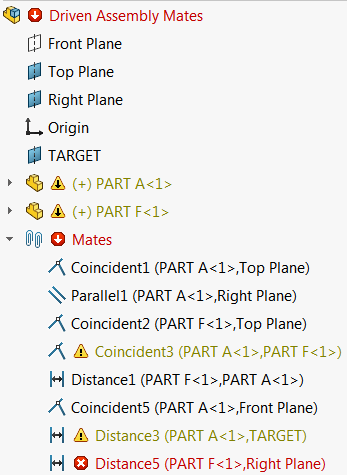
A savvy SOLIDWORKS user may attempt to use the View Mates tool in an effort to solve the conflict, and depending on the system of mates involved that is always a reasonable option.
As has been proven on so many occasions, SOLIDWORKS is a stickler for accuracy, thus getting a bigger hammer to pound an assembly component into place has never been an option — until SOLIDWORKS 2017.
To the Rescue — The “Driven” Option for Mate Dimensions
Using the “Driven” option for a mate dimension, we are able to “relax” one of the competing mates in the assembly, allowing it to solve without error.
The SOLIDWORKS driven mate dimension can be applied in several ways but right-clicking on the Dimension Mate within the Mates Folder appears to be the most readily accessible method.

What type of dimension mates his can be applied to?
The ability to switch mates over to a “Driven” state is currently available for:
- Distance and distance limit
- Angle and angle limit
- Width (Distance and Percentage options)
- Slot (Distance and Percentage options)
- Path (Distance and Percentage options)
The SOLIDWORKS driven mate dimension option can be toggled on and off using the method described above.
SOLIDWORKS 2017 Resources
Access our resources page to get everything you need to learn what’s new in SOLIDWORKS 2017; including tech tips, demonstrations, and upcoming product webinars.
Related Links
Certified SOLIDWORKS Services available from Javelin
Javelin can help you to:
Posts related to 'Driving vs Driven: Choose which mate dimension is in the driver’s seat with SOLIDWORKS 2017'
