


How to reset the default SOLIDWORKS PDM Vault Admin password

Article by Justin Williams updated July 23, 2018
Article
During the install of the SOLIDWORKS PDM Archive Server, you’re prompted to ‘Set the default admin login password’:

Then when creating a new vault, you’re provided options to either set the default password or create a new ‘specific’ SOLIDWORKS PDM Vault Admin Password:

If (like in the above screenshot) you opt to create a SOLIDWORKS PDM Vault Admin Password, this can sometimes lead to the default password getting lost or forgotten. The default password is useful if you ever need to reset a vault specific password, or have multiple vaults and want to keep the password consistent. In the following article, we’re going to look at how to reset a default password if it is ever lost or forgotten.
How To Reset the Default Admin password
- Login to the archive server with local administrative permissions
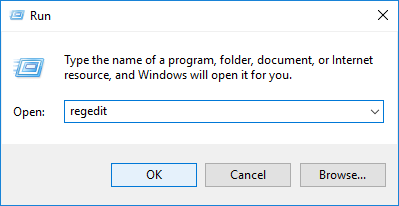
- Open the registry editor
- Start > Run > regedit
WARNING: Please be very careful when editing or deleting any entries in the Windows Registry as changing the wrong entry can lead to major issues on your system.
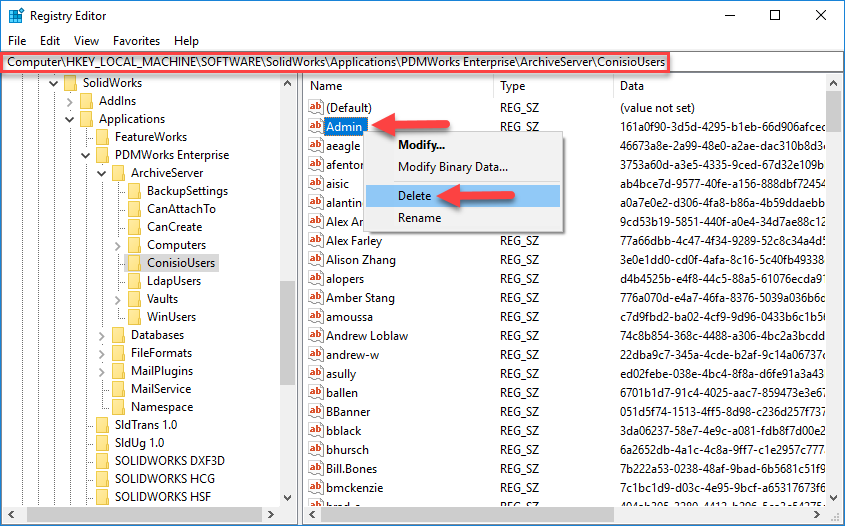
- Navigate to; HKEY_LOCAL_MACHINE\SOFTWARE\SolidWorks\Applications\PDMWorks Enterprise\ArchiveServer\ConisioUsers
- Delete the key ‘Admin’
- Start the Archive Server Configuration Tool
- Start > Programs > SOLIDWORKS PDM > Archive Server Configuration

- Archive Server Configuration Tool > Tools > Default Settings

- Login Page > Admin User > Password
- Enter the new password
- Note; The current password will be blank at this point.

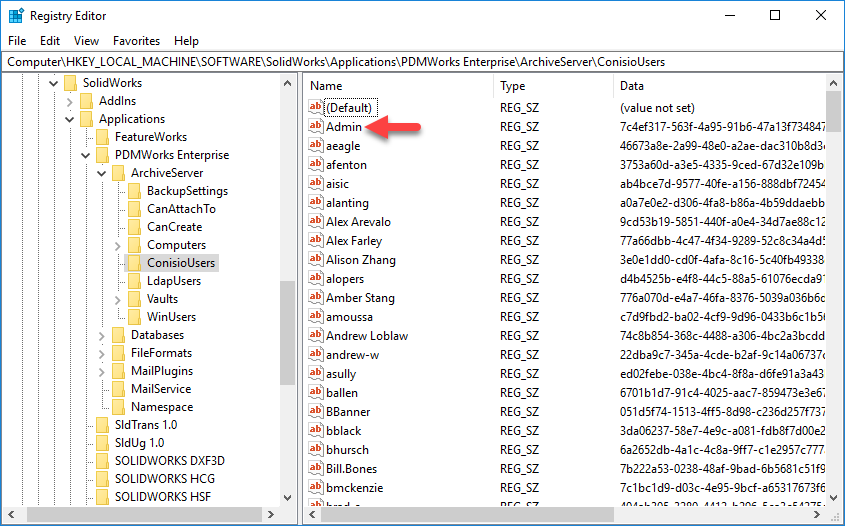
- After hitting OK the ‘Admin’ key will be recreated in the registry and the new password set
Related Links
Want to do more with SOLIDWORKS PDM?
Our Certified SOLIDWORKS PDM Experts can help you to:
Posts related to 'How to reset the default SOLIDWORKS PDM Vault Admin password'
