


Missing Bend Lines on Sheet Metal DXF or SOLIDWORKS Drawings

Article by Griffin Pacey updated August 26, 2024
Article
Are you missing your Sheet Metal bend lines on your DXF Exports or Drawings? Then you’ve come to the right place! Below are some solutions to missing bend lines on both Exported DXFs and on SOLIDWORKS Drawings.
Missing Sheet Metal Bend Lines on DXF Export
Solution 1: Change your DXF Export Settings
- In SOLIDWORKS, open a new or existing part and then open your options.
- Navigate to the Export options and set the type to “DXF/DWG”.

- Now make sure “Fonts” is set to “TrueType” and that “Line Style is set to “SolidWorks Custom Styles”
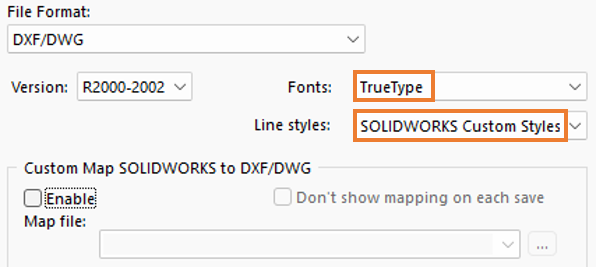
- Now try, re-exporting your DXF(s) and see if the bend lines appear. If they don’t then proceed to Solution 2.
Solution 2: Check your Bend-Lines Sketch
- With your sheet metal part open, flatten the part using the ‘Flatten’ button.
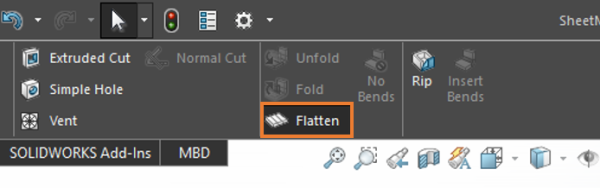
- Now, in the tree, click the arrow next to the “Flat-Pattern” Folder and then the arrow next to the “Flat-Pattern1” Feature.

- If your “Bend-Lines” feature is greyed out like the one in the screenshot above, then right-click on it and click “Unsuppress”.

- Now try, re-exporting your DXF(s) and see if the bend lines appear. If they don’t then proceed to Solution 3.
Solution 3: Mapping your SOLIDWORKS Layers for Bend Lines
If neither of the above solutions resolved your missing bend lines, you might need to create a custom DXF Map. The article here outlines the process of assigning your DXF Lines to a Custom Map: SOLIDWORKS Sheet Metal Bend Lines mapped to DXF Layers
Missing Sheet Metal Bend Lines in a SOLIDWORKS Drawing
Solution 1: Make sure your SOLIDWORKS Drawing Template has Bend Lines active.
For SOLIDWORKS 2023 and Later:
- With your drawing open, click on the arrow next to the Hide/Show Eye Icon. Make sure that the Bend Lines button (bottom right icon) is clicked on, as shown below.

For SOLIDWORKS 2022 and earlier:
- With your drawing open, click on the arrow next to the Hide/Show Eye Icon. Make sure that the Sketches button is clicked on, as shown below.

- Now, any bend lines in Flat Patterns appear automatically, if they don’t then proceed to Solution 2.
Solution 2: Make sure Bend Lines are active in the PropertyManager.
When you create a Flat Pattern view, you’re able to turn the Bend Lines on and off in the PropertyManager. This can be done on both new and pre-existing views.
To make sure that the Bend Lines are turned on, simply click on a pre-existing view and look in the PropertyManager to see if the “Bend Lines” checkbox is checked.

Related Links
Certified SOLIDWORKS Services available from Javelin
Javelin can help you to:
Posts related to 'Missing Bend Lines on Sheet Metal DXF or SOLIDWORKS Drawings'
