


Checked out file opening as “Read-only” from SOLIDWORKS PDM

Article by Cody Foley updated August 23, 2024
Article
Have you ever checked out a file in PDM, did some work and changes on the file only to realize that when you wanted to do a “Check in” you couldn’t as the file was “Read-only”? This can cause some extreme headaches, and even potentially some lost work if you don’t know what is happening. Here is one of the most common reasons for this and how to resolve it.
Windows Folder Permission issues between Windows and PDM causing “Read-only” files
PDM needs the ability to write and modify files, when you do a “Check out” or “Check in” action, typically the “Read-only” flag on the cached file gets toggled. When you do a check out the “Read-only” flag on the file should toggle off, and when you do a “Check in” it should get toggled back on. This feature/process is necessary to make sure users aren’t modifying files inside of PDM without checking out the file. Sometimes the currently set Windows Folder permissions block PDM from switching the “Read Only” check box on files. To resolve this we need to make sure a couple of permissions are set on the root of the vault.

File Properties “Read-only” check box
- Open File Explorer
- Navigate to the location where your vault was set up
- Typically this is the C drive for most people
- Right-click the Vault View and select “Properties”
- If you have Windows 11 you might need to hit “Show More Options” first and then select “Properties”

 Vault View Properties.
 - Select the “Security” Tab

Security Tab
- Click “Edit”
- Click “Add”
- Add your Windows User
- You can check this by opening the Command Prompt typing “Whoami” and using the Windows credentials that pop up.
- In this case, I am using the domain\username “azuread\codyfoley”.

The “whoami” in the “Command Prompt”
- Click “OK”.
- With your name highlighted check the “Full Control” box
- Additionally, check the “Full control” box on the “User” group as well
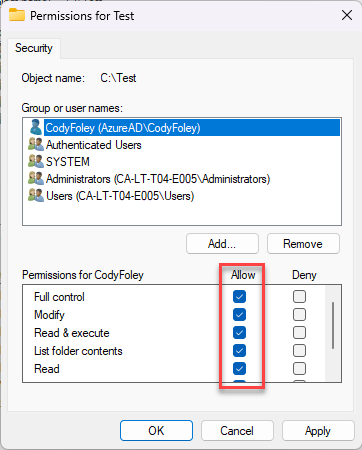
Select “Full control” in the allow column of the Group/User name
- Click “Apply”
- Click “OK”
Now on any files that have checked out that are opening as “Read-only”, you can manually turn off their flags and then check the file in. To do this, please.
- Find the file in the vault
- Right Click the file and then select “Properties”
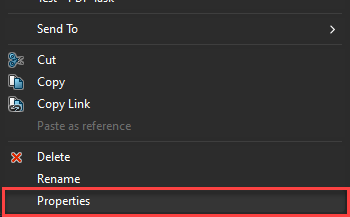
Right click -> “Properties”
- Un-check the “Read-only” flag on the file and select “OK”

Unselect the “Read-only” box
After you do this you should now be able to “Check in” the file with no issues and this problem should be resolved going forward.
Want to learn more? Check out our SOLIDWORKS PDM training courses.
Related Links
Want to do more with SOLIDWORKS PDM?
Our Certified SOLIDWORKS PDM Experts can help you to:
Posts related to 'Checked out file opening as “Read-only” from SOLIDWORKS PDM'
