


SOLIDWORKS Motion Analysis: First Steps to Success

Article by David Arthur, CSWE-S updated August 27, 2024
Article
What do we mean by SOLIDWORKS Motion Analysis Setup?
When we refer to SOLIDWORKS Motion analysis or motion studies in this article, we are referring to a true physics-type analysis of an assembly using the SOLIDWORKS Motion kinematic solver calculating forces, velocities, accelerations, motor torque, etc. Some of the suggestions in this article may apply to Animation studies and Basic Motion studies as well, but the intended audience of this article is the individual, or team, tasked with performing a kinematic Motion Analysis of an assembly using SOLIDWORKS Motion

SOLIDWORKS Motion Analysis
Why use SOLIDWORKS Motion Analysis?
This article outlines the first steps an individual should take when tasked with creating a kinematic motion analysis of an assembly. Often, in a typical work environment, one or more individuals may contribute to an assembly model in SOLIDWORKS. The individuals responsible for creating the assembly typically create the mates and assembly structure without consideration for the requirements of a motion analysis. Instead, the mates and assembly structure are created primarily to satisfy component positioning and downstream production with little, or no, consideration given to Degrees Of Freedom (DOF), proper mechanism motion, or minimizing redundancies. They then pass the model along to a person or team responsible for the analysis tasks. This article aims to provide guidance to the individual(s) tasked with creating the motion analysis with the goal of helping them simplify the assembly down to minimize the number of DOF that must be managed and minimize redundancies. These steps will make success much more likely.
What are DOF and why do I care how many there are in my SOLIDWORKS Motion Analysis?
First, all parts in SOLIDWORKS Motion Analysis behave as rigid bodies. They cannot deform or change shape in any way. Second, each part, or rigid subassembly, that isn’t Fixed or constrained with mates has 6 DOF. These 6 DOF consist of three translational DOF (X, Y, and Z) and three rotational DOF (about X, about Y, and about Z). As we start adding mates between components, or between a component and reference geometry like a plane or axis, we start removing DOF. If we add more than one mate to a component and both mates remove the same DOF from the same component, we end up with redundancies. This isn’t a problem for normal SOLIDWORKS assembly modeling, but it does become a problem when that assembly is moved over to a motion study. When redundancies occur, the SOLIDWORKS Motion solver will automatically try to remove the redundant constraints. With complex mechanisms, this automatic process sometimes doesn’t work out well and we end up with unexpected behavior. Important constraints may be removed which can lead to bodies separating, solver lockup, or incorrect reaction forces. To prevent redundancies, we must create the mates in a systematic piece-by-piece method with DOF in mind from the start. For this reason, we want to minimize the number of DOF that we must manage while still allowing for the correct mechanism motion.
First step to prepare a model for SOLIDWORKS Motion Analysis
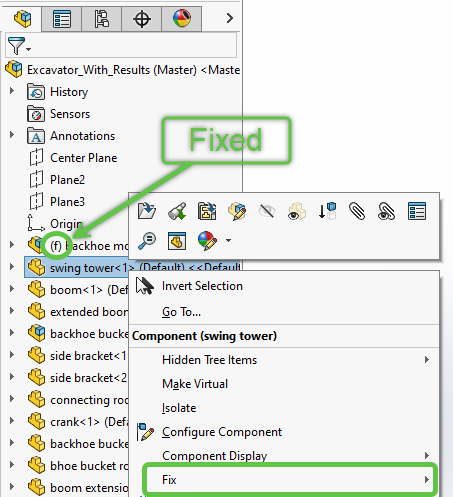
The first step to prepare a model for Motion Analysis is to go through the assembly and Fix all components that don’t move, neither translate nor rotate, at all throughout the motion analysis. A Fixed component is considered to have 0 DOF as far as the motion solver is concerned. This is a quick and easy method to reduce the number of DOF in a motion study. Here are a few guidelines.
- If it doesn’t move during the analysis, Fix it.
- A fixed component will have an (f) beside the component name in the Feature Manager.
- To Fix a component, right-click on the component in the Feature Manager and select Fix from the right-click menu.
Important: Adding enough mates to fully define a component’s position in space is not the same as Fixing it. A Fixed component is considered to have 0 DOF in the motion solver whereas a “fully defined” component is considered to have 6 DOF with the DOF removed by mates. This leaves the possibility open that the solver will mark one of these DOF as redundant and ignore it which could lead to incorrect motion results.
Second Step to Prepare a Model for SOLIDWORKS Motion Analysis
The second step to prepare a model for Motion Analysis is to go through the assembly and form subassemblies for parts that move as a unit, i.e. bolted, welded, or glued together. By default, a subassembly is treated as a single component with 6 DOF regardless of how many components the subassembly contains. If we have 10 separate components at the main assembly level that aren’t Fixed, we have 60 DOF that we must manage. If all those components are bolted, or welded, together such that they move as a single unit during the motion study we can form them into a subassembly within the main assembly and reduce the number of DOF that we must manage. In the example above this reduces the DOF from 60 DOF for the 10 individual components down to 6 DOF for the one subassembly. Forming subassemblies is another very effective way of reducing the number of DOF for a motion study.
- This step may require creating a copy of the production assembly specifically for motion analysis to prevent modifying the production model.
- If there are components that are bolted or welded together but don’t move at all during the study, neither individually nor as a unit, there is no need to form them into a subassembly. Just Fix them as individual components as mentioned in the first step and they will be ignored by the solver.
- Sub-assemblies can be formed in the main assembly by selecting multiple components using the CTRL+Select or Shift+Select method in the Feature Manager tree, right-clicking on one of the selected components, and selecting “Form New Subassembly”. This will create a subassembly within the main assembly and add all the selected components to the subassembly. Additional components can be added to the subassembly by dragging them in the Feature Tree and dropping them on the subassembly.
- If a component is part of a subassembly but needs to move independently of the subassembly during the motion study, it should be removed from the subassembly and placed at the main assembly level. An example of this might be the shaft of an electric motor or the hinges of a door assembly.
- Avoid using Flexible subassemblies for motion. They work in some cases but are more difficult to manage properly. Each component in a Flexible subassembly has 6 DOF unless they are Fixed.
Third Step to Prepare a Model for SOLIDWORKS Motion Analysis
Once all stationary components have been fixed and individual components that move as a unit have been formed into subassemblies, we’re ready to start developing the mating scheme. This is where careful forethought and planning comes into play. One approach is to delete all the existing mates and recreate the mates in a systematic piece-by-piece method with DOF in mind. Start by considering which DOF are removed when adding a particular mate. Add one mate at a time thinking carefully about which DOF are being removed and whether one or more of those DOF have already been removed by another mate.
It is possible to go through an existing mating scheme to modify and replace mates but it can be a challenge. It’s usually easier to delete the existing mates and recreate them systematically. If steps 1 and 2 have been followed, the number of DOF should be minimized which makes the task much easier. For more information on developing a robust mating scheme and avoiding redundancies refer to Redundancies in SOLIDWORKS Motion Analysis.
Related Links
Certified SOLIDWORKS Services available from Javelin
Javelin can help you to:
Posts related to 'SOLIDWORKS Motion Analysis: First Steps to Success'
