


SOLIDWORKS Display Data Mark Best Practices Guide

Article by Sarah Taylor updated November 25, 2025
Article
When working with configurations in SOLIDWORKS, the Display Data Mark option can be enabled, which saves the geometric display data into the file for quick access downstream.
The display data is primarily used in Quick View and Large Design Review modes, as well as in the eDrawings Viewer. However, using this option can also lead to larger file sizes and increased file save times.
Where to Find the Display Data Mark
This option can be enabled and disabled within the ConfigurationManager tab, and is represented by the eyeball symbol on the configurations where it is enabled. The eyeball symbol is used because it matches the icon that is displayed next to Parts and Assemblies in the FeatureManager Design Tree when a file is opened in Quick View or Large Design Review Mode in SOLIDWORKS.
To enable the SOLIDWORKS Display Data Mark:
- Right-click on a configuration in the SOLIDWORKS tree.
- Choose Add Display Data Mark.

Adding a Display Data Mark to a SOLIDWORKS configuration
To disable the SOLIDWORKS Display Data Mark:
- Right-click on a configuration in the SOLIDWORKS tree.
- Choose Remove Display Data Mark.
Alternatively, right-click on the top-level file name at the top of the Configurations list, and select Display Data Mark, then choose which configurations you want to add the mark to. From this same menu, you can also Remove Mark and Purge Data for all Configurations.
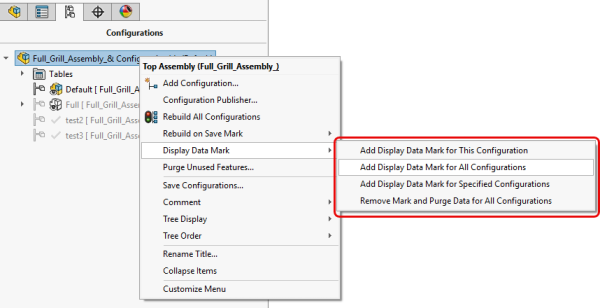
SOLIDWORKS Display Data Mark options for all configurations
When to Use the SOLIDWORKS Display Data Mark
Enabling the Display Data Mark saves the geometric display data into a part or assembly file, for the configurations you specify.
- When Display Data Mark is enabled, the specified configurations can be loaded into Quick View mode (for part files) and Large Design Review mode (for assembly files). These opening modes allow the user to view the geometric display of the model without fully loading in the more resource-intensive feature data. Additionally, these specified configurations can be accessed within eDrawings.
- If Display Data Mark is not enabled for any configurations, then only the most recently activated configuration from the last-saved state of the file can be loaded into these modes.
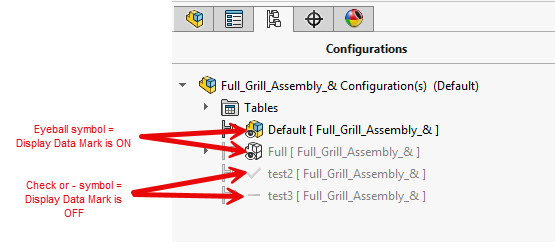
ConfigurationManager symbols indicating whether the Display Data Mark is on or off
If you have large assembly files that you plan to interact with in Large Design Review mode or in eDrawings, using the Display Data Mark helps you open and navigate through multiple configurations in these quick-open modes. These open modes are great for reviewing the model from a high level, when detailed modeling/editing is not required.
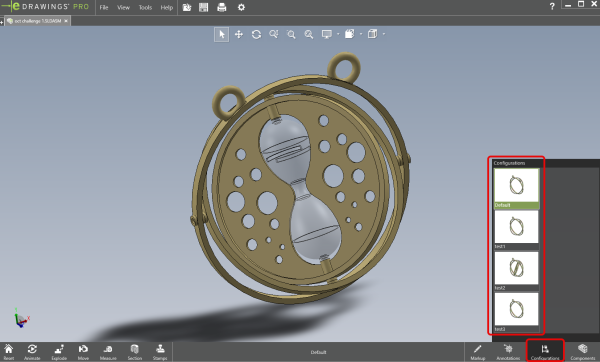
SOLIDWORKS configurations displayed in eDrawings
In my experience, using Display Data Mark is a more common practice in assembly files rather than part files. However, it is possible to apply this setting to the configurations of either file type.
Potential Drawbacks of Turning on the Display Data Mark
Because the goal of enabling the Display Data Mark is to make the geometric data readily available for quick-open modes, this extra data is pre-saved into the file. This can lead to increased file size and increased file save time.
While the file size difference may vary on a file-to-file basis, users can definitely expect to see larger file sizes for parts and assemblies that have Display Data Mark enabled for multiple configurations. Each additional configuration, when it is enabled, will add more of the quick-access geometric display data to the file.
Testing the Impact of the Mark
This Full Grill Assembly file has four configurations in it, and an original file size of 3,175 KB before enabling the Display Data Mark. After enabling this option for all four configurations in the assembly and re-saving the file, it now has an increased file size of 3,682 KB. Removing the Display Data Mark from all configurations returns the file size to the original 3,175 KB.
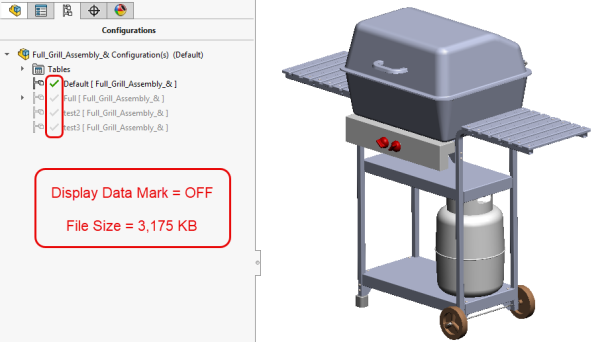
File size with the Display Data Mark disabled
Additionally, enabling Display Data Mark leads to increased file save times. The save time will vary greatly depending on the size and complexity of the assembly to begin with, as well as the number of configurations where Display Data Mark is active.
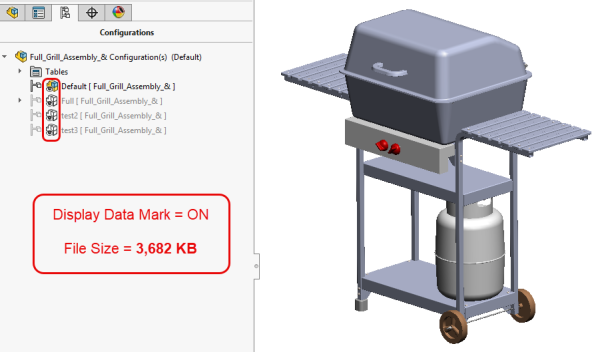
File size with the Display Data Mark enabled
In the Grill Assembly I referenced above, enabling the Display Data Mark for all four configurations added about three seconds to the file save time. In larger, more complex assembly files, the total file save time can scale up considerably.
Key Considerations
The SOLIDWORKS Display Data Mark is a powerful tool that must be used wisely! In cases where configurations need to be readily accessible within Quick View, Large Design Review, or eDrawings, it is critical to turn on Display Data Mark for configurations to load into those modes.
However, because this option does lead to larger file sizes and longer save times, I would recommend being selective with the files and configurations where it is used. Also, you may want to periodically turn it off when working on design changes on a document that will not be sent out any time soon for use in Quick View, Large Design Review, or eDrawings.
Related Links
Certified SOLIDWORKS Services available from Javelin
Javelin can help you to:
Posts related to 'SOLIDWORKS Display Data Mark Best Practices Guide'
