


Javelin / TriMech Author

Delvin Masilamani
SolidWorks Electrical: Working with Custom PLCs
 By Delvin Masilamani on June 25, 2013
PLC Management has a very simple user interface in SolidWorks Electrical. In a few steps, the video below will show you how to create your own Custom PLC.
SolidWorks Electrical: Setting Up a Title Block & Working Template
By Delvin Masilamani on June 21, 2013
Many of our new users often are not sure where to begin their first time when working with SolidWorks Electrical. The most obvious of the transition process is to setup your Title Block & Working Template. I’ve listed a few steps that will help with…
SolidWorks Electrical: 10 Steps to creating a complete Symbol using a BlackBox
By Delvin Masilamani on June 17, 2013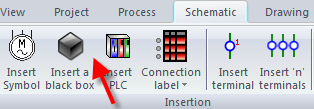
If your moving back and forth wondering how the mysterious BlackBox works to it’s full potential, I’ve taken the liberty of quickly listing the steps required to create a Blackbox, convert it to a symbol and then associate a part to it. Here are the steps: 1)…
SolidWorks Electrical: Working with Cabinet Layout Dimensions
By Delvin Masilamani on April 30, 2013
Shao Liu regularly contributes to the documentation for our Electrical Team here at Javelin Technologies. The article below is a useful section from his work. In SolidWorks Electrical, a user has the ability of changing the dimensions of the duct and rail at any…
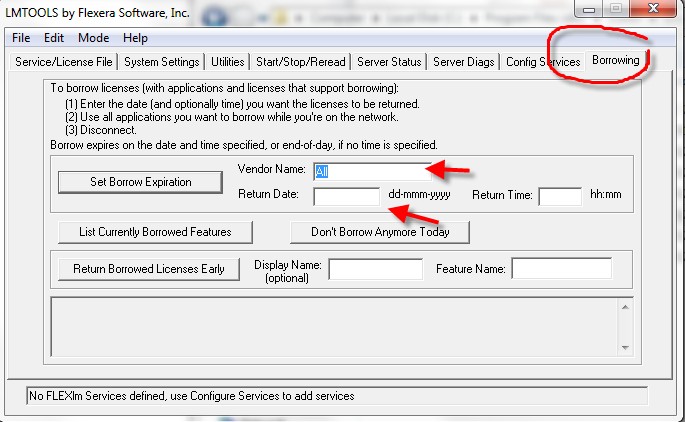
E3 runs on network licensing structure. Often users find themselves looking to work remotely. The license borrowing feature is offered by LMTOOLS which can be found on the FlexLM Tools on the local machine. Following are the steps one must take to borrow a license:…
SolidWorks Electrical: Guide to Uninstallation
By Delvin Masilamani on April 25, 2013A clean uninstall of SolidWorks Electrical comprises of the following steps listed below: 1) Setting up the environment. User might have to involve IT administration – User must have complete Administration rights – Start>Run> type UAC> Drag the slider to Never Notify> Click Ok and restart the machine – Disable all security content such as Spyware, Anti-Virus and local machine Firewall 2) Start>SolidWorks Electrical> Uninstall SolidWorks Electrical Follow the prompts to remove everything. (Removing actual project data is optional) 3) Check to see if the following Folders are deleted, if not manually delete them C:\Program Files\SolidWorks Electrical C:\ProgramData\SolidWorks Electrical Note: All project data is stored in the c:\ProgramData location. Do not delete this if you have not archived your projects. 4) Under Add/Remove Programs, remove all Microsoft SQL 2008 R2…
SolidWorks Electrical: Working With a BlackBox
By Delvin Masilamani on April 1, 2013Electrical designers often come across a BlackBox in their designs. As the term suggests the BlackBox is a complex part of an electronic system that has connections going in and out. These connections may have properties such as power, control or output. In this short video I will walk you through making a smart symbol using the BlackBox feature provided in SolidWorks Electrical.
Working with any Dataset always requires attention. SolidWorks Electrical works in conjunction with it’s powerful SQL database. Mass volumes of design information are broken down in tables and stored systematically for easy access and quick retrieval. As a designer the question arises “How do we backup and save all this important information?” Watch the Video below for answers……
SolidWorks Electrical: Applying group changes to symbols
By Delvin Masilamani on March 21, 2013Most of our new users are curious about how some features work in SolidWorks Electrical. So for the benefit of our users I decided to run a short clip of how SolidWorks Electrical handles symbol changes in bulk over a schematic. It’s a few short simple steps to achieve a desired drawing.
SolidWorks Electrical – Import & Export of DWG files
By Delvin Masilamani on March 12, 2013Electrical engineers are meticulous when it comes to their design to delivery process. I recently had a question come up ” How does SolidWorks Electrical handle DWG file format?” The video below visually answers this question…..
SolidWorks Electrical – Revision Management
By Delvin Masilamani on March 8, 2013Every engineering team follows some guidelines to monitor and maintain quality during it’s design process. One key aspect of this form of quality control is revision management. SolidWorks Electrical has a built-in revision management feature that makes this step of the design process more efficient. This short clip below walks a user through achieving both sheet & project level revision control.
What is SolidWorks Electrical 2013 Software?
By Delvin Masilamani on November 25, 2012
We at Javelin Technologies are excited to introduce SolidWorks Electrical 2013 software, the latest product in our Electrical catalogue. There are a few features that make this Electrical product appealing to more than just the electrical user base. SolidWorks Electrical works seamlessly with SolidWorks CAD…

Some of the features included with SolidWorks Electrical software really sets it apart from other electrical design products. Documentation Export & Bookmarks Documentation included with SolidWorks Electrical has some cool features. The PDFs generated export with Hyperlinks Hyperlinks between documents. Hyperlinks on symbols, wires, and components. The…
Options and Variants is a very powerful and yet easy to use design automation tool. In a short amount of time it helps designers configure systems to provide consistently accurate designs while saving an enormous amount of time and money. There are so many E3 users raving about this functionality. Check out the video below to see how it works, how easy it is to add these options in your design and to control your design. You can also check out the Options and Variants Blog series to get more details: How To Automate Your Electrical Schematics – Part I How To Automate Your Electrical Schematics – Part II How To Automate Your Electrical Schematics – Part III
The people consuming your design are not just the designers or the people reviewing your design. It is used by the Manufacturing team, Assembly team, purchasing , support , sales and even the Customer/End User – in essence everyone involved in making or using the design/product. What can these capabilities help you achieve? How is it helping others? E3 with its Intelligent PDFs and Automated comprehensive reports gives you the ability to share your design and your design intent with all these consumers of the information you create with utmost ease while maintaining top notch quality. The 1 button reports have given E3 customers the ability to provide information in different formats for different audience in a format that is tailored to the end user….