


How to perform a SOLIDWORKS PDM Exact Search (Updated)

Article by Justin Williams updated October 23, 2017
Article
When completing a search in SOLIDWORKS PDM using the name field; when two or more words separated by a space the search will use an OR operation. Or, if you’re searching one word, what happens is a LIKE operation. In large vaults, these searches will return a lot of mostly unwanted results. In this article, we’ll look at how to perform a SOLIDWORKS PDM exact search.
Example 1
- In this example; I’m searching for the part named Example 1 A

The search that’s actually happening is: ExampleOR1ORA.
It’s returning anything matching Example, 1 or A which in large vaults will return a lot of results.
Example 2
- If I’m searching ABC

The search that’s actually happening is; LIKE ‘%ABC%.
It’s returning anything matching ABC which again in large vaults will return a lot of results.
How to Perform an Exact Search
To search for an exact string, we can use double-quotes.
- Searching “Example 1 A” will only return that filename;

- Searching “ABC” won’t help, as it will return all the options that contain ABC, but have any string of characters before or after ABC….we have a couple of options here, we could include the extension “ABC.txt”;
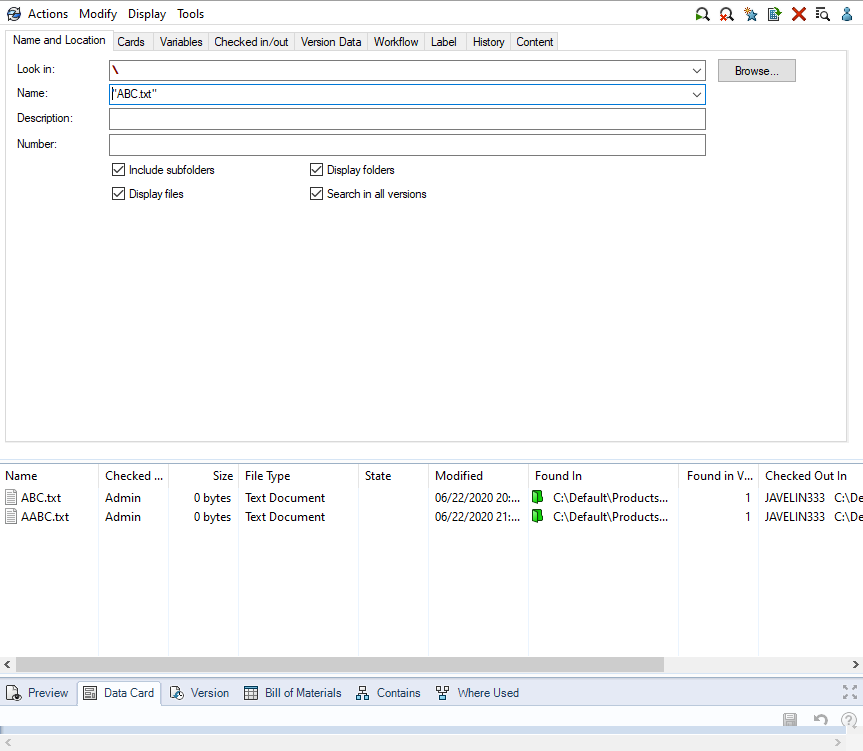
This narrows it down, but it includes results with characters ahead of “ABC”. To narrow it down to only ABC.txt, we can add an operator for exact entry =ABC.txt;
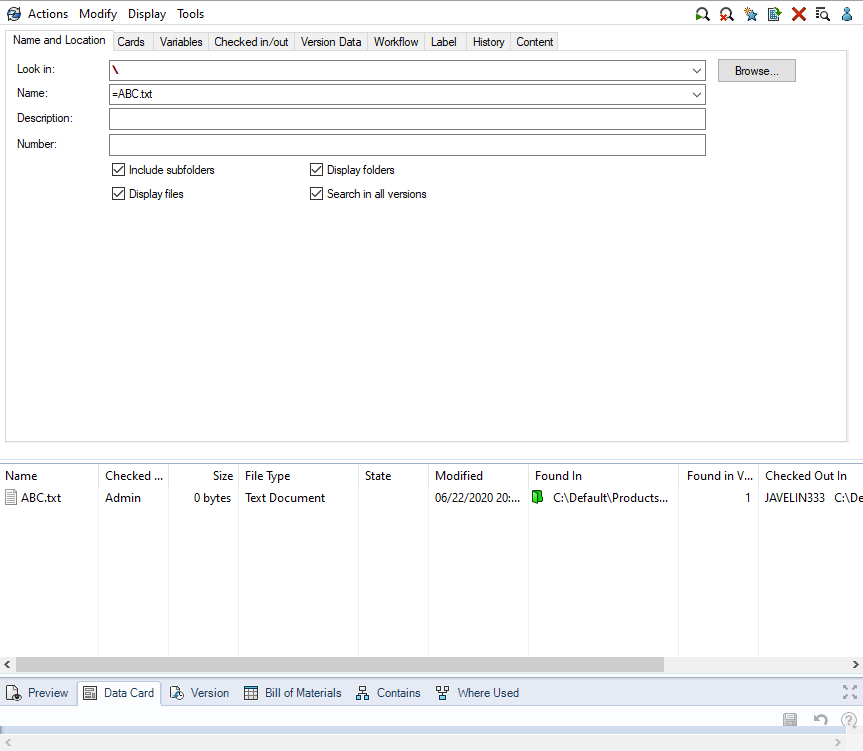
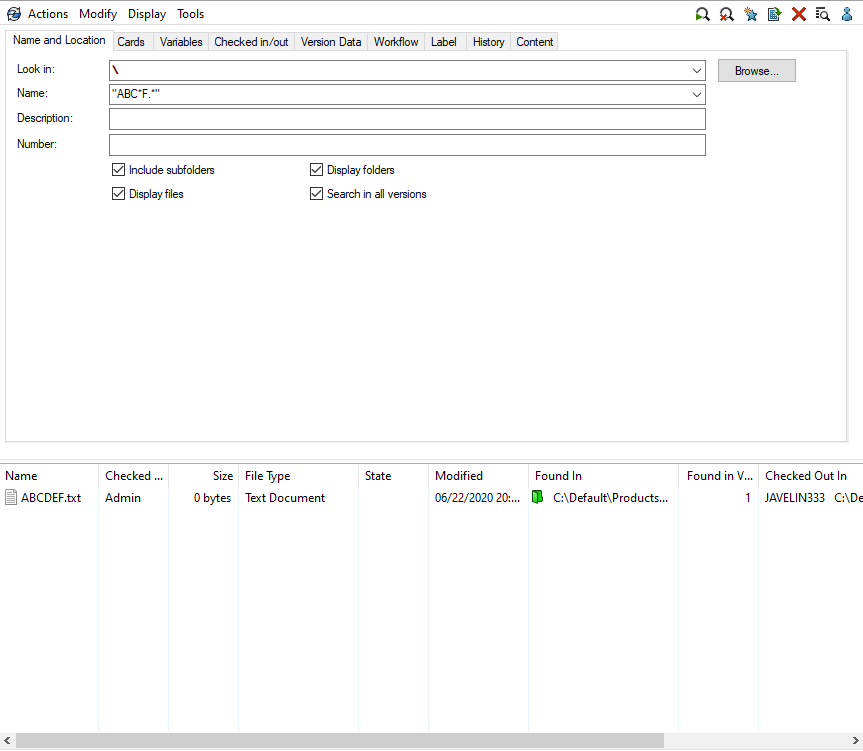
Let’s look at another scenario here…we know the filename contains ABC, but we need to only return the option ending with F, we could use a wildcard “ABC*F.*”;
Learn more about SOLIDWORKS PDM
Javelin delivers SOLIDWORKS PDM user and administration training courses either in-class, online, or on-site at your location. Learn more about our SOLIDWORKS PDM Training »
Related Links
Want to do more with SOLIDWORKS PDM?
Our Certified SOLIDWORKS PDM Experts can help you to:
Posts related to 'How to perform a SOLIDWORKS PDM Exact Search (Updated)'
