


Collecting information for SOLIDWORKS PDM Support

Article by Andrew Lidstone, CSWE updated November 20, 2017
Article
When you are encountering issues using SOLIDWORKS PDM Professional or Standard, the first thing that your Value Added Reseller’s SOLIDWORKS PDM Support technician will want to review in most cases are the log files, from both the local client and the server.
Thankfully, this information and more can be very easily gathered and packaged up using the Collect Support Information Wizard that is available on all client installations of SOLIDWORKS PDM (this is available for PDM Professional and PDM Standard vaults, for CAD Editor, Contributor or Viewer clients). Here are the steps to use this important support tool:
STEP 1: On the client system that is encountering the issue, launch the SOLIDWORKS PDM Administration program. Right click on the vault name in the list and select “Collect Support Information …”

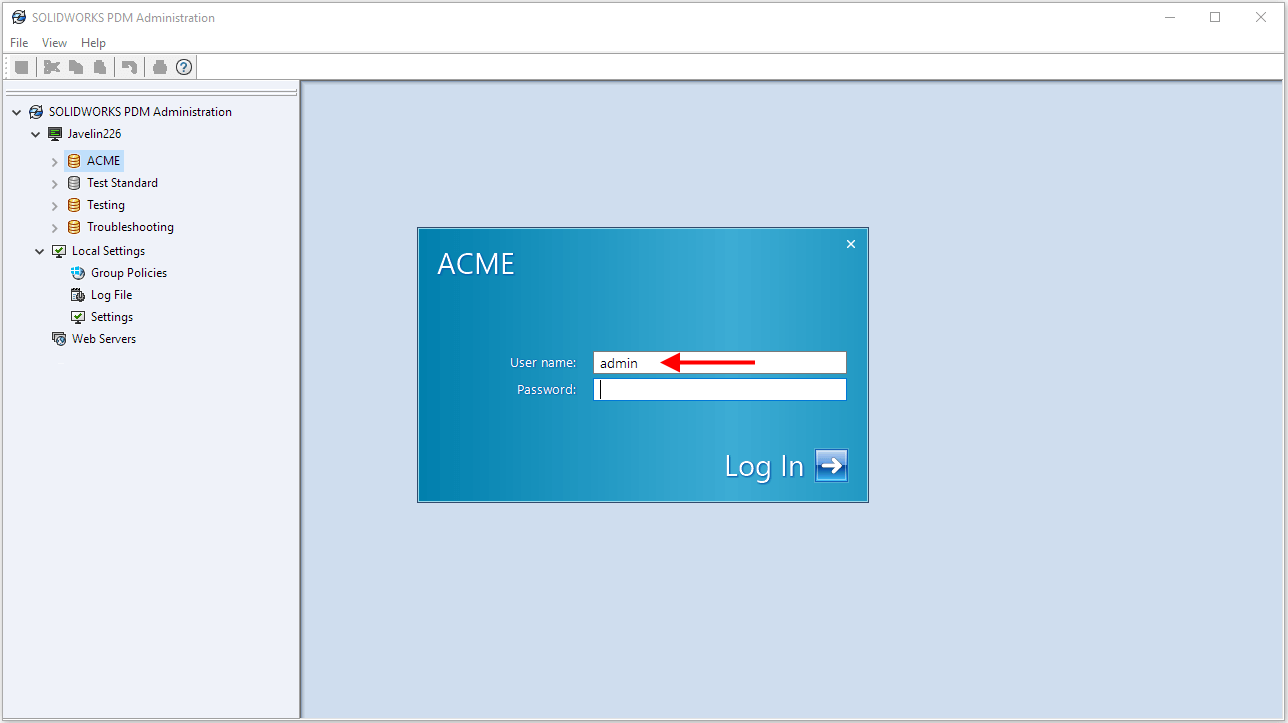
STEP 2: To use the Collect Support Information wizard, you must log into the Administration tool as the admin account.
STEP 3 Collect Logs and Settings: On this screen, leave all items checked and click “Next>“.
NOTE: If you encounter any issues or errors after Step 7 when generating the package, return to this screen and try unchecking any of the items that failed. If you have to perform this change, make sure to bring it to the attention of your PDM support technician.

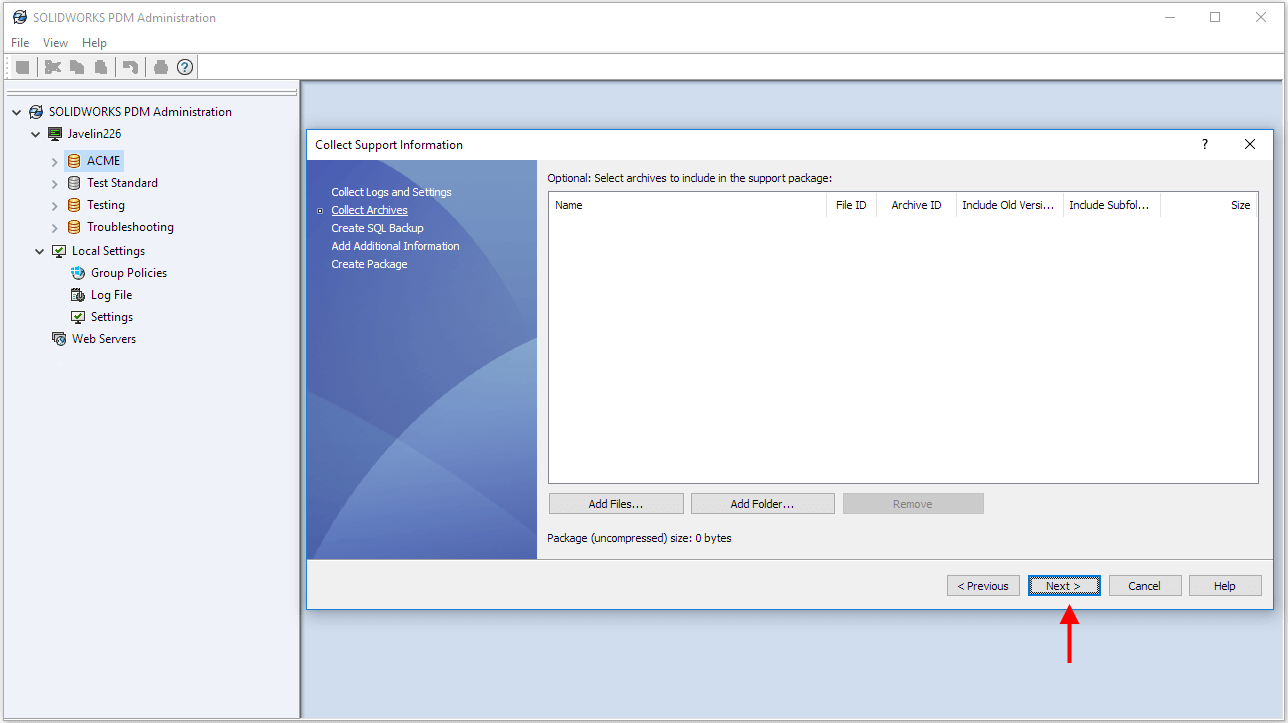
STEP 4 Collect Archives: The wizard can be used to collect Archives of specific files or folders in the vault. Unless you have been specifically instructed to include these files by your support technician, you can skip this step for now and click “Next>”
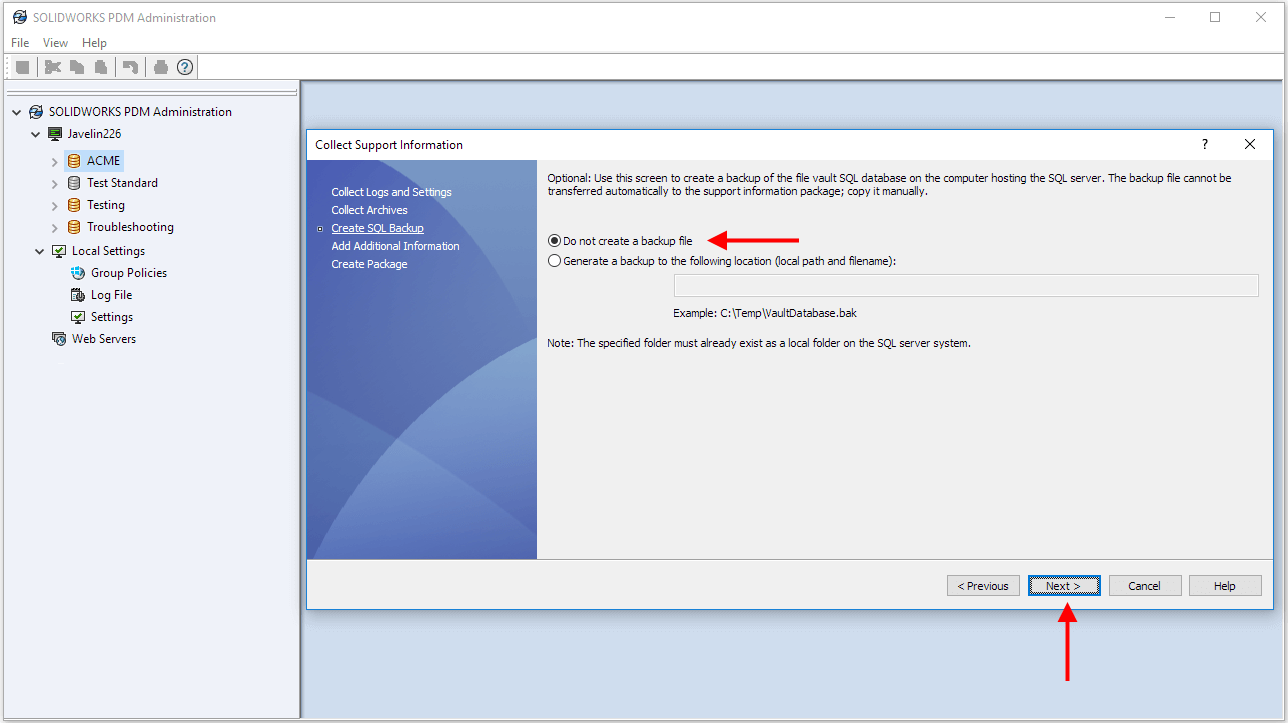
STEP 5 Create SQL Backup: The wizard can be used to trigger the creation of a backup file for the SQL database. Unless you have been asked for an SQL backup file, there is no need to generate the file now. Leave the option “Do not create a backup file” selected and click “Next>”
STEP 6 Add Additional Information: On this screen you can enter any additional comments or description of the issue that you wish to communicate to the PDM support technician. If you have already described the issue to them, then you can simply leave this blank and click “Next>”

STEP 7 Create Package: Click “Browse” next to the output file path text box and select a Folder and File name for the .zip file that will be created for by the wizard. Once this is set, click “Finish” and the

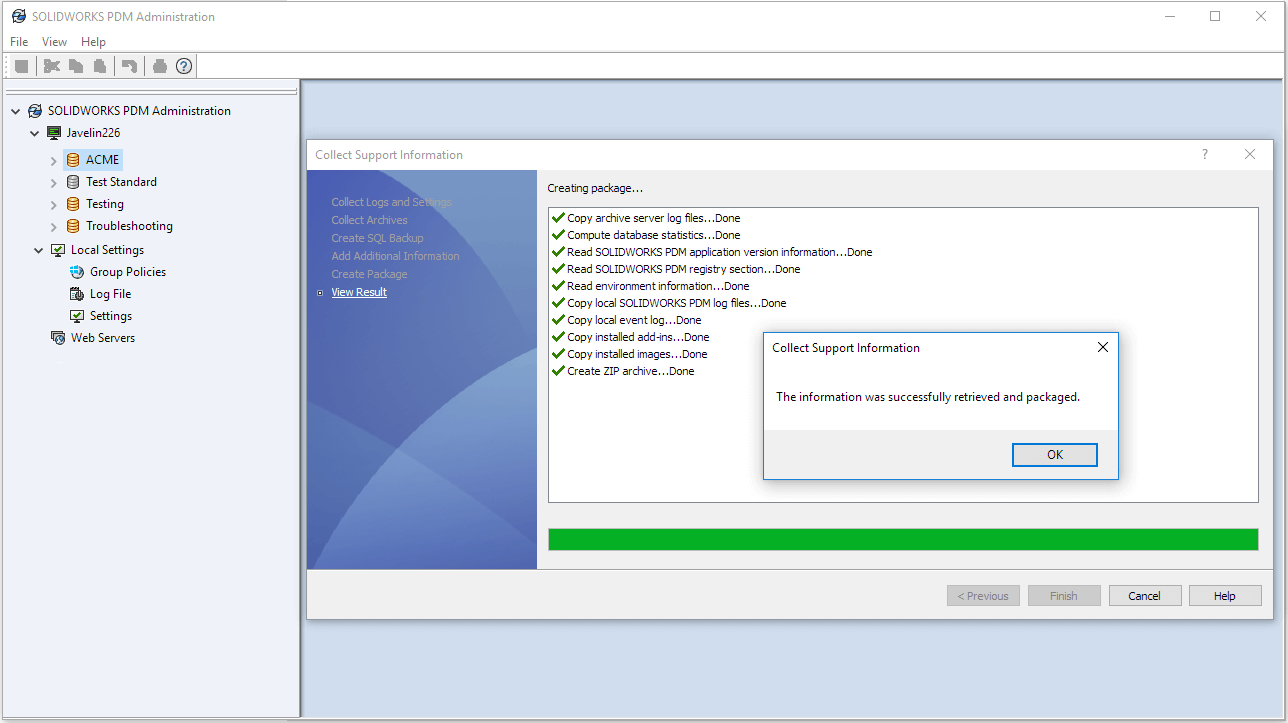
STEP 8: Once the package is complete, send the .zip file to your PDM support technician.
Related Links
Want to do more with SOLIDWORKS PDM?
Our Certified SOLIDWORKS PDM Experts can help you to:
Posts related to 'Collecting information for SOLIDWORKS PDM Support'
