


Configuring the SOLIDWORKS PDM Standard Drawing to PDF Convert Task

Article by Jagtar Sandhu updated May 9, 2018
Article
In SOLIDWORKS PDM Standard, PDF Convert Task can now be created to convert SOLIDWORKS Drawings to PDFs.
Tasks are created through the SOLIDWORKS PDM Administration, by accessing the Task node.

SOLIDWORKS PDM Administration Tasks
The Task node will contain the Task List, which can used to view the Task status and to manually launch the Task. The Convert Task will also appear under the Task node. In PDM Standard, only the Convert Task is available. Other tasks, such as Print and Design Checker, are only available in SOLIDWORKS PDM Professional. Also, SOLIDWORKS PDM Professional, allows the customization of Tasks.
By double-clicking on the Convert Task we can configure how it will convert SOLIDWORKS Drawings to PDF’s. On the Add-in, we can define the whose user permissions, will be used when the task is launched. This can allow a user’s permissions, to be temporarily elevated, when running the task.

Convert Properties
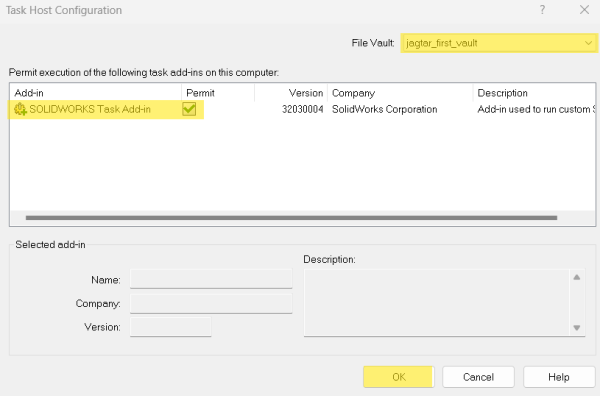
Task Host Configuration must be enabled on each computer running the Task. To enable Task Host Configuration, Click the PDM Icon in the system tray and select Task Host Configuration

Select the file vault and check the permit box on the desired add-in. Once confirmed, select OK.
Lastly, in the Execution Method tab, we define which computers can launch the Task.

Execution Method
Conversion settings, allow us to define export options for the PDF, as well as what version of referenced files will be used. Some options are only available in SOLIDWORKS PDM Professional, such converting to DWG. Also, in PDM Professional, other SOLIDWORKS file types, such as assemblies and parts, can be converted to be PDF’s

Advanced Conversion Options
In the File Card tab, we can map variables, from the source SOLIDWORKS Drawing, to the generated PDF.

Map variables
The destination where the PDF will be saved, as well as the default file name, is defined in the Output File Details tab. SOLIDWORKS PDM Professional, allows replacing an existing file, as well specifying, a second location to create the PDF

The destination where the PDF will be saved
Success and Error Notifications can be created to automatically notify, selected Users or Groups.
Once we have created the Task, the Task can be executed through a Workflow Transition Action.
Related Links
Want to do more with SOLIDWORKS PDM?
Our Certified SOLIDWORKS PDM Experts can help you to:
Posts related to 'Configuring the SOLIDWORKS PDM Standard Drawing to PDF Convert Task'
