


How do I resolve the ‘No Bends Found’ SOLIDWORKS Sheet Metal Error?

Article by James Swackhammer updated April 30, 2019
Article
Have you ever received this SOLIDWORKS Sheet Metal Error?
“No bends found.”

Why do I get this error?
This is a common sheet metal error I used to see all the time. This typically occurs when you are converting a solid body part into a sheet metal part using the Insert Bend feature. There are limitations to the gap size when converting. If you are concerned about the gap size being too large then this article is for you.

A solution to the problem
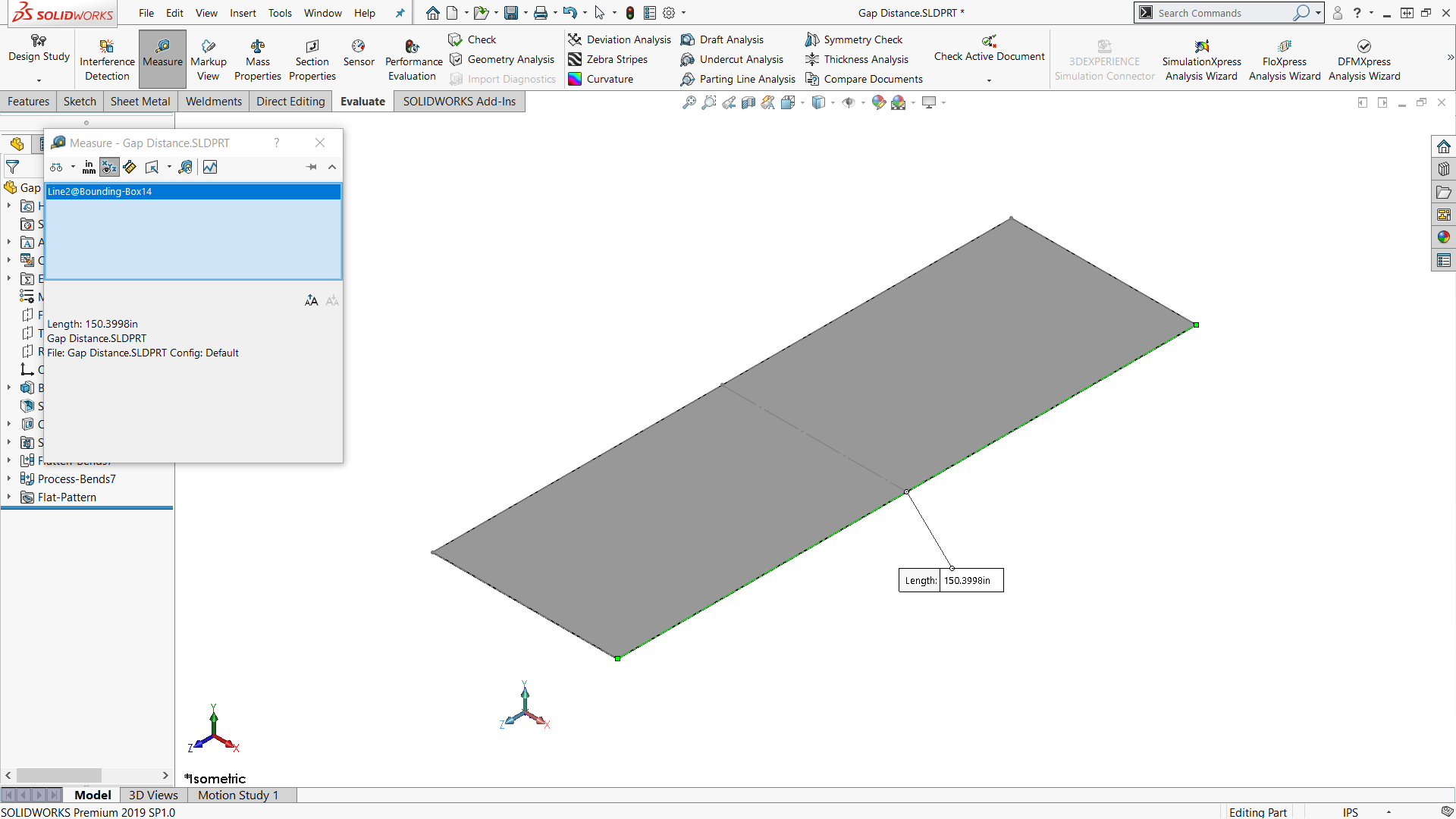
I have an easy example part that is 48″ in diameter, but the smallest gap I could get (without going crazy into decimals) was a 0.004″. With the Flatten feature the total diameter is 150.3998″.
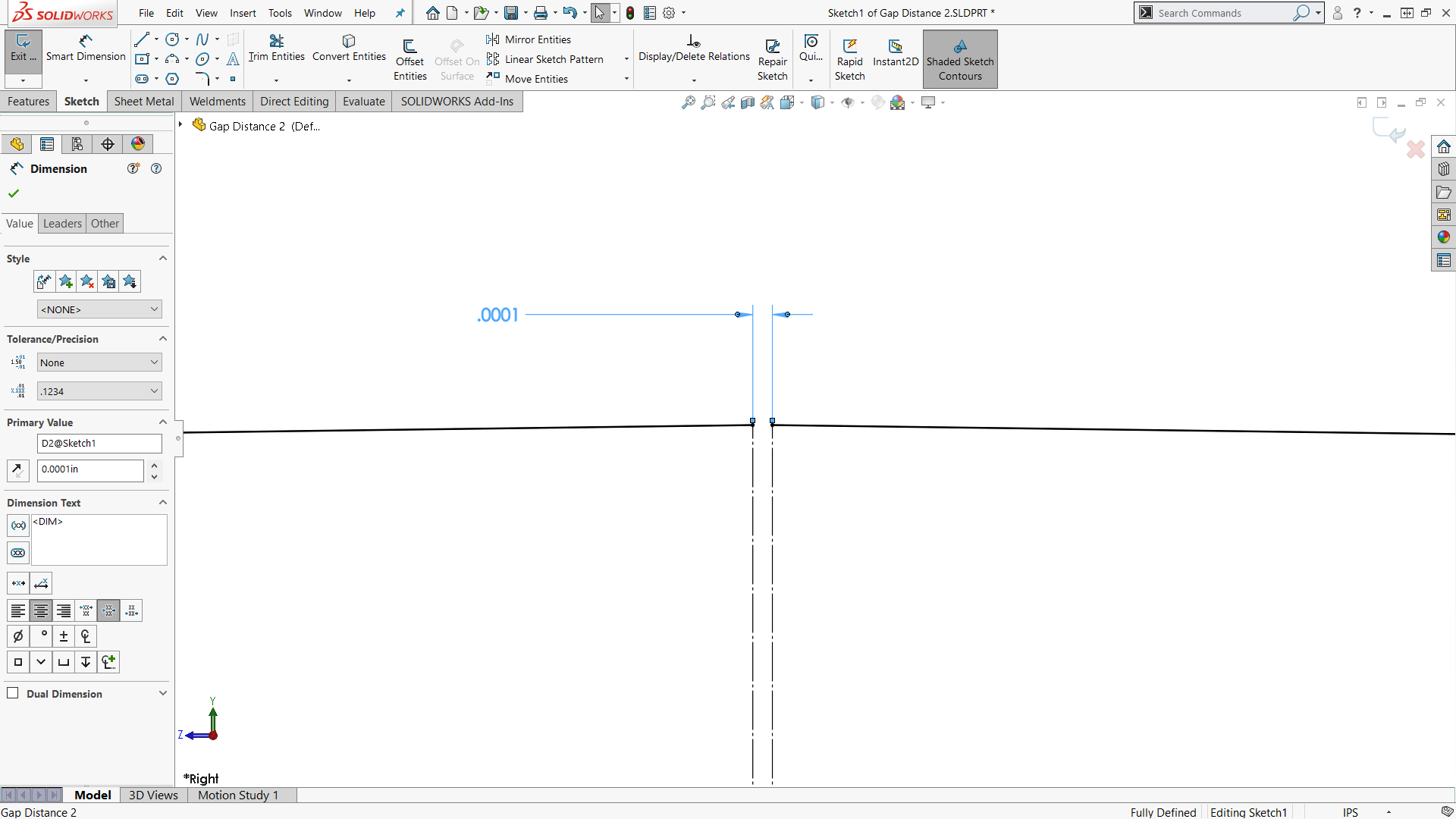
This is what I do to get a smaller gap. I start a sketch on the right plane and use the 3 Point Arc command. I then draw two construction lines and connect the arc to the origin. Here is where you can dimension a tiny gap of 0.0001″ to the arc construction lines. Below is my example of the arc and a closeup of the construction line dimension.

With this sketch I went straight into the sheet metal Base Flange command and made the same mid-plane 48″ length like the first part. Be careful when using the single line sheet metal, make sure your material is going in the right direction – if its not, you can use the Reverse Direction check box. The flattened length of this part is 150.4046. It is slight 0.0038″, but if you are concerned about getting the gap smaller then use this technique.

Related Links
Certified SOLIDWORKS Services available from Javelin
Javelin can help you to:
Posts related to 'How do I resolve the ‘No Bends Found’ SOLIDWORKS Sheet Metal Error?'
