


Your Complete Guide to Import Legacy Drawings from DXF/DWG

Article by Jamie Hill, CSWE/CSWE-S updated September 24, 2025
Article
A while back, I inherited a project from a retiring engineer who’d been with the company since the ’90s. His desk was a treasure trove of perfectly crafted title blocks and detailed layout drawings, all locked away in AutoCAD files. Rather than recreating everything from scratch, I dove headfirst into SOLIDWORKS’ import capabilities and discovered just how powerful these tools really are.
Whether you’re dealing with a client’s sacred title block or trying to leverage existing geometry for new designs, importing legacy DXF and DWG files can save you serious time. Here’s everything I learned about making these old files work in modern SOLIDWORKS workflows.
Breathing Life Into Legacy Title Blocks
Converting old title blocks into SOLIDWORKS drawing templates is probably the most common reason people dig into legacy files. The good news? SOLIDWORKS makes this pretty straightforward. Just go to File>Open as if you are opening any SOLIDWORKS file, browse to the appropriate DXF/DWG file, and open it.
When you open a DXF or DWG file, SOLIDWORKS immediately recognizes you’re working with 2D data and presents you with import options. For title block work, you’ll want to select the option that creates a new SOLIDWORKS drawing. The software will walk you through a wizard that lets you control exactly how the import happens.
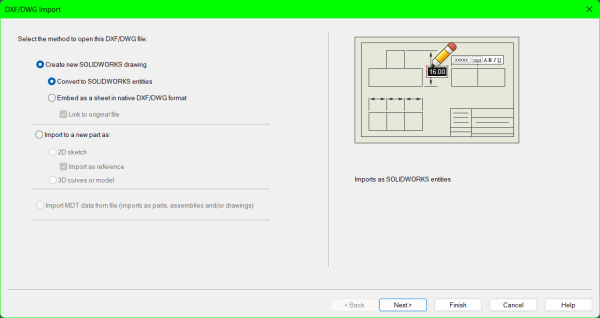
Opening a legacy drawing with the Import Wizard
The layer mapping screen is where things get interesting. You’ll see all the layers from your legacy file, and you can choose which ones become part of your sheet format. This is your chance to be selective, import the title block and border geometry, but leave behind those random construction lines and mysterious “TEMP” layers that seem to exist in every old drawing.
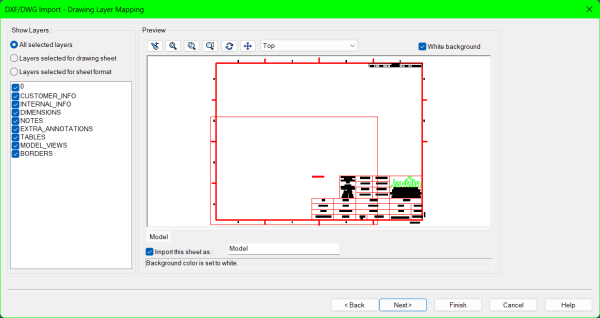
Adjusting layer information from a legacy drawing
Pay attention to the units settings. I’ve seen beautiful title blocks imported at completely wrong scales because someone missed this step. If your legacy file was created in millimeters but you work in inches, make sure to specify this during the import process. Once imported, you’ll have a new SOLIDWORKS Drawing with all your DWG or DXF title block and border information already in your Drawing. To edit your new title block or border, right-click on the sheet and go to Edit Sheet Format.
Make sure you clean up any text that didn’t convert perfectly. This happens sometimes with complex fonts or special characters. Then save the file as a drawing template (.drwdot) or sheet format (.slddrt) in your templates folder. Now you’ve got a reusable template that preserves the original design while working seamlessly in SOLIDWORKS.
Using Reference Sketches to Drive Your Design
Sometimes you don’t need a complete title block; you just need that perfect profile or layout geometry that someone spent hours getting right. This is where reference sketches become incredibly useful. The process starts the same way: open your DXF or DWG file through File>Open, but instead of creating a drawing, you can import the file as a sketch in a new part or import 2D DXF/DWG files as reference sketches.
Reference sketches are special because they import as locked geometry. You can see them, dimension them, and use them as guides, but you can’t accidentally modify the original shapes while you’re designing. Using the reference sketch geometry to define the position, offset & convert entities will work, but mirroring items must use a drawing in the construction line.

Using a DXF as a reference sketch
The imported reference sketch appears in your feature tree with a distinctive icon showing it’s locked. If you need to modify the geometry later, you can right-click and convert it to an editable sketch, but most of the time you’ll want to keep it locked to preserve the original design intent.
I use reference sketches constantly when designing parts that need to fit existing assemblies or match legacy component footprints. They’re perfect for positioning features, creating offsets, or establishing design constraints without worrying about accidentally changing the reference geometry.
Key Insights to Import Legacy Drawings
After working through dozens of legacy imports, here are the insights that’ll save you frustration:
- Clean up your legacy files first: Before importing, take five minutes to review the DXF or DWG file and remove unnecessary layers. That “DEFPOINTS” layer with invisible geometry? Delete it. Those construction lines from the original designer’s process? Gone. Clean files import much more predictably.
- Text blocks are your biggest headache: Legacy text formatting often gets mangled during import, especially if the original used custom fonts or special characters. Plan to recreate complex text rather than fighting with font mapping issues. It’s faster to retype a title block than to troubleshoot why everything looks like Wingdings.
- The layer mapping step is crucial: Don’t just import everything; be selective about which layers you bring over. I’ve seen people import 47 layers when they only needed 3, then wonder why their template looks cluttered with random geometry.
- Unit conversion can bite you. Double-check your units settings during import. There’s nothing worse than a perfectly converted title block that’s sized for business cards because you missed the millimeter-to-inch conversion.
- Reference sketches work great for complex profiles. When you’re designing parts that need to match existing shapes or fit specific footprints, import the legacy geometry as a reference. You can design around it without worrying about accidentally changing the original constraints.
Making It Stick in Your Workflow
The real value isn’t just getting these legacy files into SOLIDWORKS; it’s building a system that prevents this problem from happening again. Create a proper template library, establish naming conventions that make sense, and train your team to use standardized formats consistently.Legacy drawings represent someone else’s hard work and institutional knowledge.
When you can efficiently convert that information into your current workflow, you’re not just saving time, you’re preserving years of design decisions and engineering wisdom. The next time someone drops a stack of old drawings on your desk, don’t groan. Fire up SOLIDWORKS, follow these steps, and turn those dusty archives into valuable design assets. Your future self will definitely thank you.
Running into issues working with imported data? Contact our Technical Support Team here.
Related Links
Certified SOLIDWORKS Services available from Javelin
Javelin can help you to:
Posts related to 'Your Complete Guide to Import Legacy Drawings from DXF/DWG'
