


Displaying Mass using Different Units on a SOLIDWORKS Drawing [VIDEO]

Article by Andrew Lidstone, CSWE updated July 8, 2013
Article
When dimensioning models in a SOLIDWORKS drawing it’s very simple to switch the dimensions from inches to millimeters to meters by changing the drawing files unit system. Regardless of the unit system being used in the model file (the part or assembly), as soon as the drawing units are changed, the dimensions update.

Unfortunately, the same is not true for SOLIDWORKS Drawing mass units displayed in notes. This value is linked to a custom property from the model file. Because the value is written to the custom property within the model file, it’s value will be locked to that file’s unit system, not the drawing units. To get the mass note to display in the desired units, a few additional steps are needed.
Step 1.
In the Part or Assembly model, go to Tools > Equations. Under Global Variables, add a new global variable for the different mass unit (eg: “weightkg”). Under Value / Equation select “SW-Mass” from the File Properties list. Complete the equation to convert the mass value from the current unit to the target unit (eg: to convert grams to kilograms, simply divide the value from SW-Mass by 1000).


Step 2.
Once the Global Variable has been defined, a custom property needs to be created and linked to the Global Variable so that it can then be mapped to a drawing note. Go to File > Properties > Custom Properties. Create a new custom property with a different name than the Global Variable that was created in Step 1 (eg: “Weight In KG”). Under Value / Text Expression type in the Global Variable followed by @ then the part or assembly file name.

Step 3.
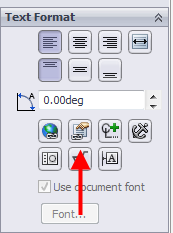
Finally use the Link to Property button to link the note in the drawing to the custom property:

Video demonstration
Please watch this video for a demonstration of this workflow:
Related Links
Certified SOLIDWORKS Services available from Javelin
Javelin can help you to:
Posts related to 'Displaying Mass using Different Units on a SOLIDWORKS Drawing [VIDEO]'
