


DriveWorks Pro Server: What to Watch out for when Upgrading

Article by Jim Peltier, CSWE updated June 17, 2014
Article
Perhaps you’re considering upgrading from DriveWorks Pro 10 to 11, or perhaps you’ve already done this and have fallen into a little trap.

DriveWorks error
The error message reads: “The group could not be opened, check that it exists and you have permissions to access it. Could not connect to (server name) . The connection attempt lasted for a time span of _______. TCP error code 10061: No connection could be made because the target machine actively refused it (IP address:Port number) ”
Now, of course, you frantically check that the project exists on the server (which it does, much to your relief), and you check your permissions and they are adequate.
The typical upgrade issue and how to solve it
The problem that many encounter is that when they upgrade to DriveWorks 11, they forget to uninstall DriveWorks 10 (or, at least, they forget to disable the server). You can try a few things first, to confirm that this is happening:
First, run the DriveWorks Pro Server 11 Configuration utility

Start > Programs > DriveWorks 11 > Tools > DriveWorks Pro Server 11 Configuration
First off, we should test the connection to the server. After all, the error message did say it “Could not connect to (server)” We’ll try the SQL server first:

DriveWorks Configuration dialog: Under SQL Server, choose Test Connection
In the SQL Server section, we’ll click “Test Connection.” If your server, username, and password are blank like mine shown above, then it will not connect.
Let’s check the Pro server next. If we choose Pro Server from the list on the left, we should see a button that says either “Start Service” or “Stop Service”, depending on the status of the server. If it says “Start Service,” then that explains why you cannot connect.
If it says that the server is running, you may find that it still won’t let you connect. This could be caused by the fact that the old server is running. Perhaps you stopped it when you installed, but something (like a reboot of the server) caused it to restart. Let’s go into Windows Services and shut it down.
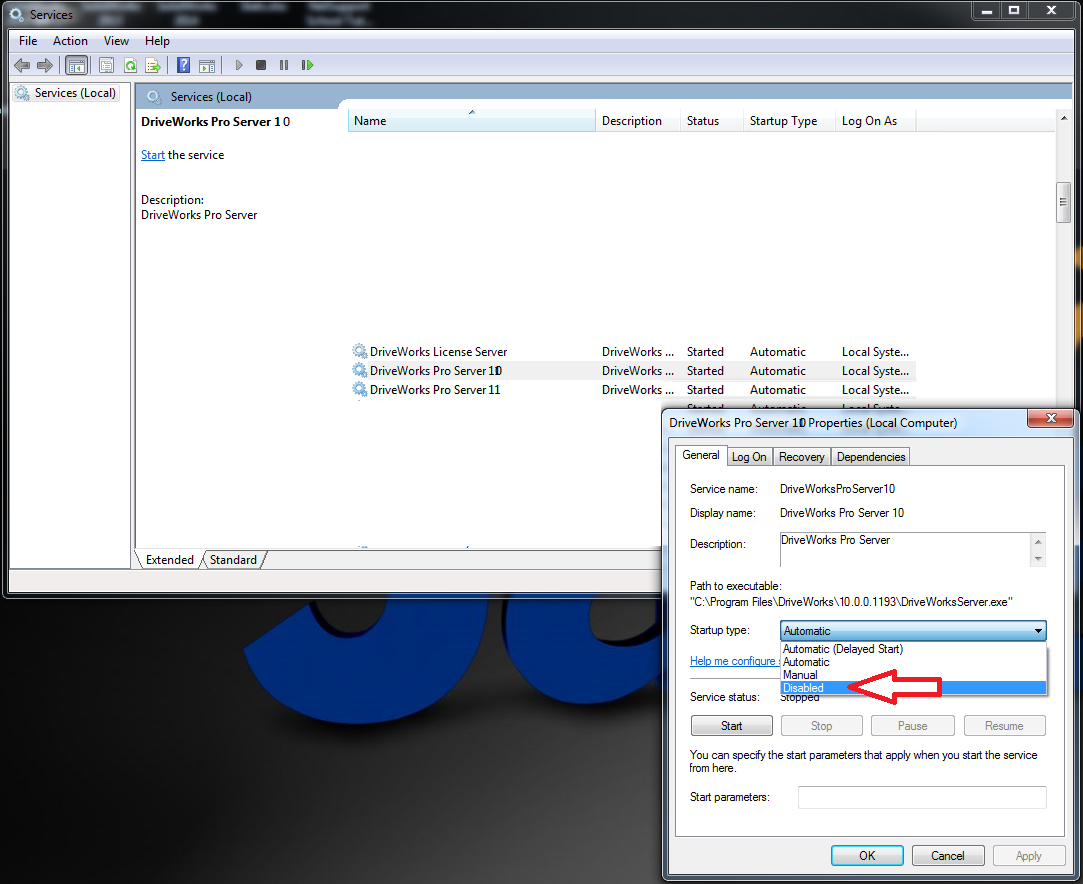
Go to Start, then type Services where it says Search Programs and files and choose the option that says Services. Then, find DriveWorks Pro Server 10 in the list. I bet it says “Started.” Let’s disable it by right-clicking on it, choosing Properties, then choosing Disabled from the dropdown. By choosing Disable rather than simply stopping the service, we shouldn’t have to go in here and stop the server each time. Now there’s no longer a conflict and you should be able to open your Groups and Projects.
If problems persist, contact your reseller, or refer to the DriveWorks Pro Troubleshooting Guide article on this subject.
Related Links
Certified SOLIDWORKS Services available from Javelin
Javelin can help you to:
Posts related to 'DriveWorks Pro Server: What to Watch out for when Upgrading'
