


Javelin / TriMech Author

Delvin Masilamani
SOLIDWORKS Electrical Design Automation
 By Delvin Masilamani on April 25, 2017
SOLIDWORKS Electrical Design Automation caters to various types of user experience. For those who are starting out it can be as simple as drag objects, drop and connect wires. As the system design increases in complexity, users can then leverage automation features available within the…
SOLIDWORKS Electrical and SOLIDWORKS Mechanical Working in Collaboration
By Delvin Masilamani on April 11, 2017
Often we find users surprised with how the complete solution works and delivers next level of technology. Integrating the mechanical and electrical design space requires change from existing design practices. SOLIDWORKS Electrical collaboration with SOLIDWORKS Mechanical CAD requires a few key criteria to be satisfied….
SOLIDWORKS Electrical 2017 Top 5 Features
By Delvin Masilamani on November 8, 2016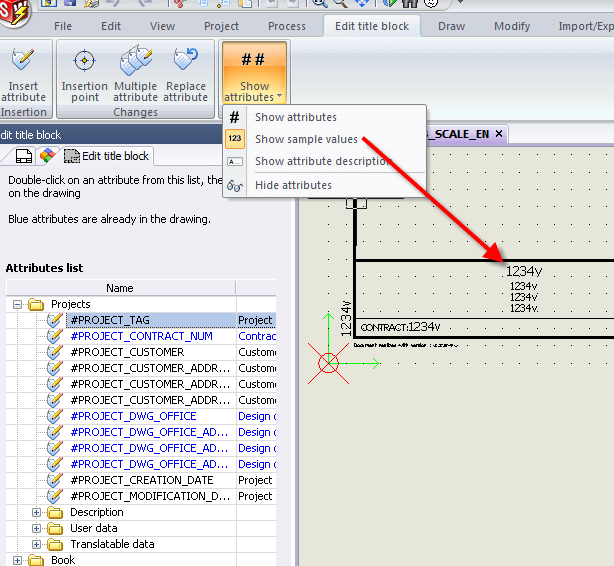
The DS SOLIDWORKS team has continued it’s ever adaptive model of listening to their users and adding changes to SOLIDWORKS Electrical. The 2017 version has introduced new features which we hope customers will enjoy using and help them to be more productive. Listed below are Javelin’s SOLIDWORKS…
SOLIDWORKS Electrical 2017 Interface Updates
By Delvin Masilamani on October 26, 2016
The SOLIDWORKS Electrical 2017 interface updates and user experience changes are a delight to work with: Process Ribbon update: Renumber document and Propagate data to connected objects buttons have been added. Just like all other steps in the design process this change assists in the intuitive…
SOLIDWORKS Electrical 2017 Attribute visibility styles in Title Block editor
By Delvin Masilamani on October 24, 2016
In most cases it is typically not easy to recollect an attribute’s function or description unless you have created them yourself. In SOLIDWORKS Electrical 2017, this is resolved as you can now select the view you prefer. The SOLIDWORKS Electrical Attribute in a Title Block can be shown…
SOLIDWORKS Electrical 2017 Adds design rule check “GoTo” links
By Delvin Masilamani on October 23, 2016
DS introduced the SOLIDWORKS Electrical Design Rule Check feature to ensure that your electrical designs can be verified and projects are built efficiently maintaining the highest quality. For SOLIDWORKS Electrical 2017 DS added “Go To” links in this report so you can now jump from the report line item to resolve issues with…
SOLIDWORKS Electrical 2017 Propagate data to connected objects
By Delvin Masilamani on October 5, 2016
Users can now plan components and wiring system that are an exception to rules setup within this program. Selected objects like Equi-potential, wire, terminal, or PLC channel can propagate or transfer to a destination object. This advanced setup is most effective while working with PLC or…
SOLIDWORKS Electrical 2017 Super Part
By Delvin Masilamani on October 3, 2016
Often we find our design requiring more than one part to make up a component. To accommodate this group of parts/assembly there is now a new way of creating a part in SOLIDWORKS Electrical 2017 called a ‘Super Part’. The steps described below will show you how to define a psrt such as…
How SOLIDWORKS Electrical Reduces Manufacturing Costs [VIDEO]
By Delvin Masilamani on December 3, 2015
In our latest on-demand webinar you will learn how SOLIDWORKS Electrical reduces manufacturing costs by combining the electrical schematic functionality with 3D modeling capabilities in one powerful, easy-to-use package. The new 2016 release of SOLIDWORKS Electrical: Enables faster and more accurate schematics and documentation. Reduces errors…
SOLIDWORKS Electrical 2016 Assign Component Feature
By Delvin Masilamani on September 27, 2015
The enhanced SOLIDWORKS Electrical 2016 Assign Component is a time saving feature that will put a smile on your face as it reduces the number of clicks required to assign component to multiple symbols. Historically you would right-click each symbol to associate them to the same component….
SOLIDWORKS Electrical 2016 Defining Wire Order
By Delvin Masilamani on September 25, 2015
SOLIDWORKS Electrical has always had the ability to assign the correct wire order when multiple wires intersected or connected. Users were able to change this sequence using the from to list for the wire cabling order. In SOLIDWORKS Electrical 2016, they added nodal indicators as shown in the…
SOLIDWORKS Electrical 2016 Project Snapshot
By Delvin Masilamani on September 25, 2015
In SOLIDWORKS Electrical 2015 we needed to make multiple copies of projects through the Project Manager. This created confusion when testing different design scenarios or if a user needed to modify the design based on a change request. In order to make it simpler for users, SOLIDWORKS Electrical 2016 has…
SOLIDWORKS Electrical 2016 Title Block Attribute Management
By Delvin Masilamani on September 23, 2015
One of the most useful features added to the SOLIDWORKS Electrical 2016 Title Block is the ability to apply multiple attributes while in edit mode. Previously such a feature and ribbon was only available while creating symbols. Just like normal symbols, you can select multiple attributes, already…
SOLIDWORKS Electrical 2016 link enhancements for Enterprise PDM
By Delvin Masilamani on September 22, 2015
To improve the integration of SOLIDWORKS Electrical 2016 with the rest of the SOLIDWORKS product portfolio there are now more options for linking with SOLIDWORKS Enterprise PDM. SOLIDWORKS Electrical users can select which BOM reports they wish to export and also define the target subfolder where the files will…
SOLIDWORKS Electrical 2016 Interface Updates
By Delvin Masilamani on September 22, 2015
There are a few notable SOLIDWORKS Electrical 2016 interface updates which will definitely improve your user experience with this electrical product. Report Manager In the Reports Manager, they now have Filters to help you extract any data specific from the report. For example, you can create and apply…