


How to Use Linked Notes in SOLIDWORKS Drawings

Article by Scott Durksen, CSWE updated July 13, 2026
Article
Connecting drawing annotations directly to custom properties with linked notes in SOLIDWORKS enables you to create drawings that automatically update when your model data changes.
What Are Linked Notes in SOLIDWORKS?
A linked note is a drawing annotation whose text is driven by a property value, rather than manually typed text.
These properties can come from:
- The drawing document itself
- A referenced part or assembly model
- A model referenced in a drawing view
Why Link Notes to Custom Properties?
In SOLIDWORKS, maintaining accurate and consistent drawing data is critical, but manually entering data like part numbers, materials, and revisions can quickly become repetitive and error-prone.
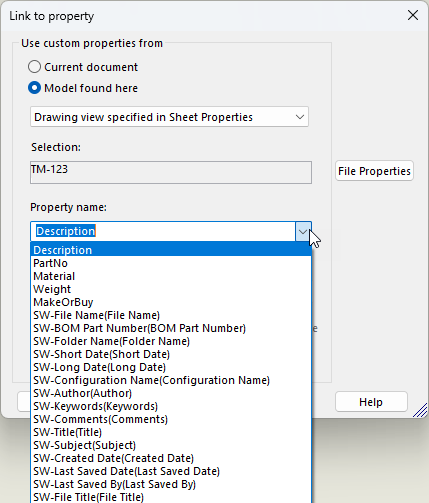
Linking notes to SOLIDWORKS custom properties
Linking notes to properties helps eliminate one of the most common issues with efficiency and accuracy: duplicate data entry. Instead of entering the same information multiple times, you define it once as a custom property and reuse it everywhere.
Key benefits include:
- Consistency: The same property value is used across all references, reducing mismatches.
- Automation: Changes made at the model level propagate directly to the drawing.
- Efficiency: Avoid repetitive typing and manual updates.
- Standardization: Drawing templates can automatically populate title block fields for every project.
Elimination of duplicate data entry will lead to more streamlined workflows and boosted productivity.
How to Add Custom Properties
There are multiple ways to add custom properties to a model or drawing.
The three best methods include:
- Adding properties manually in each document under the Properties window.
- Setting up Property Tab templates to improve efficiency.
- Implementing SOLIDWORKS PDM with data cards linked to properties.
Understanding Property Links
Five types of SOLIDWORKS variables can be added to notes to define where to pull the data from.
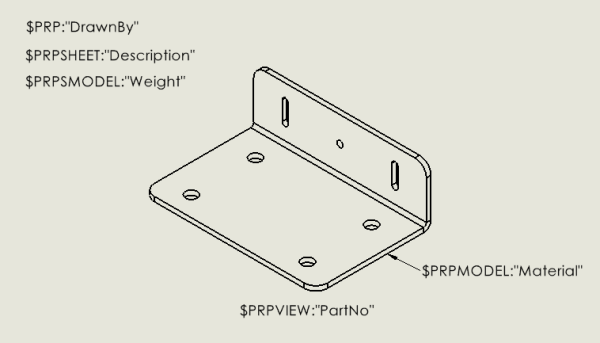
Notes linked to custom properties
Each variable must pull from either the drawing file, assembly, or part. Some are required to be attached to the view, while others may reside in a title block.
- $PRP: Pulls properties from the drawing file itself and is commonly used in title blocks.
- $PRPSHEET: Pulls properties from the model referenced in the view specified in the sheet properties and is also commonly used in title blocks.
- $PRPSMODEL: Pulls properties from the component or view selected when creating the link.
- $PRPVIEW: Pulls properties from the drawing view to which the note is attached and requires that the note be attached to a view.
- $PRPMODEL: Pulls properties from the component to which the annotation is attached and requires a note attached to the component with a leader.
How to Link Notes to Custom Properties
To link notes in SOLIDWORKS, you need to have a drawing open. Typically, for title block notes, you would open the drawing template, but for drawing-specific notes, you would open a regular drawing file.
- Add a new Note annotation from the CommandManager.
- In the Note PropertyManager, select Link to Property.
- Select the appropriate reference and property from the dropdown menu.

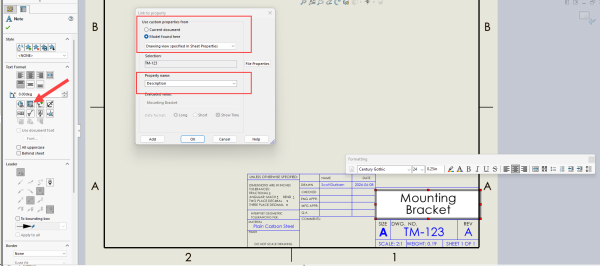 Adding a linked note in a drawing
 - Reposition the new note on the drawing.
Title Blocks
To add linked notes in a title block, right-click the sheet and select Edit Sheet Format.
- For drawing properties, select the Current Document option. This will add the $PRP syntax.
- For model properties, ensure a drawing view has been added to the sheet of a model that contains custom properties. Select Model Found Here and Drawing view specified in Sheet Properties. This will add the $PRPSHEET syntax.
By default, the sheet properties will use the model in the first view inserted into the sheet.
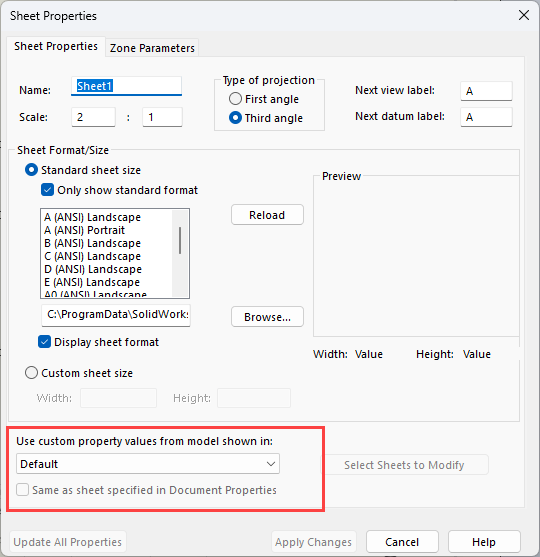
Editing sheet properties
In a multi-sheet drawing with views of different models, the document properties can control where properties are pulled. The drawing view can be deleted afterwards to save an empty drawing template.
General Notes
Adding general notes in the sheet environment can be independent, attached to a view, or attached to a component with a leader.
When the note is:
- Independent: Choose Model Found Here and Select Component or Other Drawing View; select a reference. This will add the $PRPSMODEL syntax.
- Attached to a view: Choose Model Found Here and Current Model View. This pulls properties from the model in the attached view, rather than the view specified in the sheet properties. This will add the $PRPVIEW syntax.
- Attached to a component with a leader: Choose Model Found Here and the Component to which the annotation is attached. This will add the $PRPMODEL syntax.
Viewing Linked Properties
The evaluated value is presented after adding the linked note, but you sometimes want to see what property the note is linked to.
To view the linked syntax, use either of the two methods:
- Enable Annotation Text Expression through View > Hide/Show.
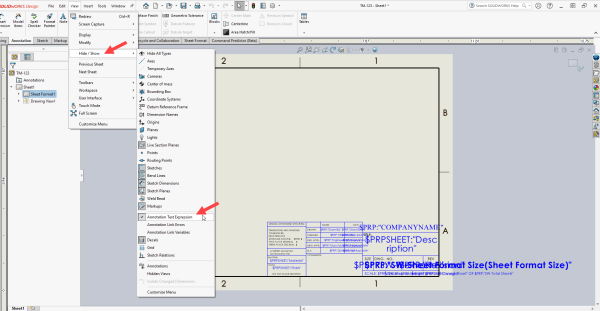
Viewing Annotation Text Expressions
- Right-click the note and use the Edit Text window. This will also allow you to manually edit the syntax.
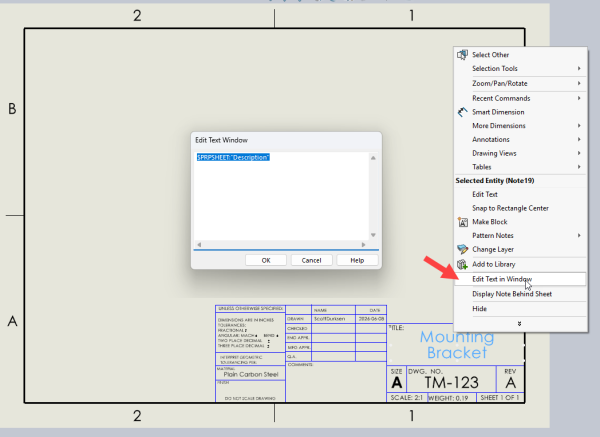
Opening the Edit Text Window
Common Pitfalls to Watch For
- If the property does not appear, ensure the property exists in the model or drawing.
- If the wrong value is displayed, check if the note is linked to the correct view or component.
- If you are unable to find the empty linked note, enable Annotation Link Errors.
If you are able to use them correctly, linked notes will deliver immediate efficiency gains.
Improving 2D Documentation
Linked notes and custom are just the beginning to mastering SOLIDWORKS drawings. There are many other operations, tools, and workflows that can enhance your 2D documentation.
The SOLIDWORKS Drawings training course is a great way to learn new functionality and ensure you are maximizing drawings for your organization.
To register for an upcoming SOLIDWORKS Drawings training course, click here.
Related Links
Certified SOLIDWORKS Services available from Javelin
Javelin can help you to:
Posts related to 'How to Use Linked Notes in SOLIDWORKS Drawings'
