


SOLIDWORKS PDM STANDARD Windows Explorer Overview

Article by Joe Medeiros, CSWE updated August 3, 2017
Article
In this article, I will provide an overview of the SOLIDWORKS PDM Windows Explorer View for a local vault. This Vault interface is available to all Client License Types.
SOLIDWORKS PDM Client License Types
Below is a list of the different PDM Client License Types.
SOLIDWORKS PDM Editor:
Adds an Add-in in SOLIDWORKS, which allows a user to interact with the vault from with-in SOLIDWORKS. This includes Checking Out files so they can be edited, Checking In files so that they will be saved to the PDM server, searching for files as well as other vault related activities. The editor includes Contributor and Viewer Components
SOLIDWORKS PDM Contributor:
Offers the same functionality as the Editor, but uses a Windows Explorer interface. The Contributor includes the Viewer component
SOLIDWORKS PDM Viewer:
Offers view only capabilities. Users can view files, but cannot check-out files for editing.
Even though the Editor and Contributor licenses include additional components, this does not mean that these components can be used concurrently. Each license can only be used once, regardless which component is being used, to access the vault. A user can choose to use a different License Type, but unless there is a bundle of network licenses, that include Contributors and/or Viewers, this will not free up a license for another user.

Changing PDM License Type
SOLIDWORKS PDM Windows Explorer
The SOLIDWORKS PDM Explorer View consists of the following:
- Navigation Pane – Displays the drives, folders etc. available from a computer. This includes PDM Vaults and their contents
- File and Folder View – Displays all the files and sub-folders in a selected folder. Information, such as who a file is checked out by, the description of a file and the Workflow state the file is in, is also displayed. The information that is displayed can be controlled through SOLIDWORKS PDM Administration.
- PDM View Tabs – Control what groups of information are displayed
- Preview Pane – Displays a preview of a selected file, either as an image or using eDrawings. Only some CAD files, such as SOLIDWORKS parts, assemblies and drawings will use eDrawings. Additional viewers can be specified, through SOLIDWORKS PDM Administration.
- Variables – Lists the Variables and the Variable values associated, with a selected file. These variables can be linked to SOLIDWORKS Custom and Configuration Specific Properties. Tabs on this panel allow users to choose which variables are displayed.

Vault View in Windows Explorer
Along the top of the File Folder View, there are four drop down menus:

Explorer Menus
Actions menu
The Actions drop down menu allows you to perform actions, such as Check-in/out.

Actions Menu
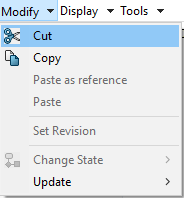
Modify Menu
From the Modify menu, you can perform actions such as Copy, Paste or Change the State of a file.
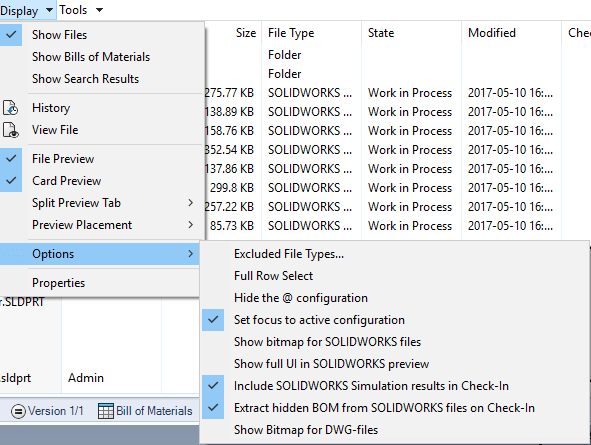
Display menu
The Display menu, allows you to choose what View will be displayed in the Explorer Window. You can choose:
- Show Files, which is the default
- Show Bill of Material, which will display saved Named BOM’s
- Search Results, display the PDM search window
A user can view a file in separate Window, using View File, this will use the viewer specified for that file type, in SOLIDWORKS PDM Administration i.e. eDrawings for SOLIDWORKS files. The user can also view the History of a selected file. Options allow a user to control display options, such as whether an image or eDrawings will be used in the Preview panel, for SOLIDWORKS files.
Tools menu
The Tools menu gives users the ability to send Notifications, Clear Local Cache, and copy an entire project using Copy Tree. From here, a user can access SOLIDWORKS PDM Administration

Tools menu
The commands available from the above menus, can be added to the right-mouse menu through SOLIDWORKS PDM Administration.
PDM View Tabs
The PDM View Tabs allow a user to Preview a selected file.
The Data Card can be viewed and edited from the Data Card tab. The Data Card, allows a user to view and add information (metadata), related to a selected file or folder

Data Card Tab
Version Tab
From Version tab, the Version of the cached file and that of the vaulted file can be seen and compared. This is useful in determining if latest file is being viewed or worked on. The Revision, State and Workflow of the file are also displayed here.

Version Tab
Bill of Materials tab
The Bill of Materials tab can the display the PDM BOM, a Named BOM or the Solidworks BOM.

Bill of Materials
Contains tab
The Contains tab, lists all files that are referenced by a selected file.

Contains Tab
Where Used tab
The Where Used tab lists all files that the selected file is being referenced by.

Where Used tab
This article is meant as introduction to SOLIDWORKS PDM Standard and the SOLIDWORKS PDM Windows Explorer. To work efficiently with SOLIDWORKS PDM Standard contact us about SOLIDWORKS PDM User Training.
Related Links
Want to do more with SOLIDWORKS PDM?
Our Certified SOLIDWORKS PDM Experts can help you to:
Posts related to 'SOLIDWORKS PDM STANDARD Windows Explorer Overview'
