


Blog Category
Showing 1-15 of 369.
SOLIDWORKS 3D Design
SOLIDWORKS 3D Design Techniques and Tutorials from Javelin




Using Detail and Section Views to Add Intelligence to SOLIDWORKS Drawings
 By John Landis on February 9, 2026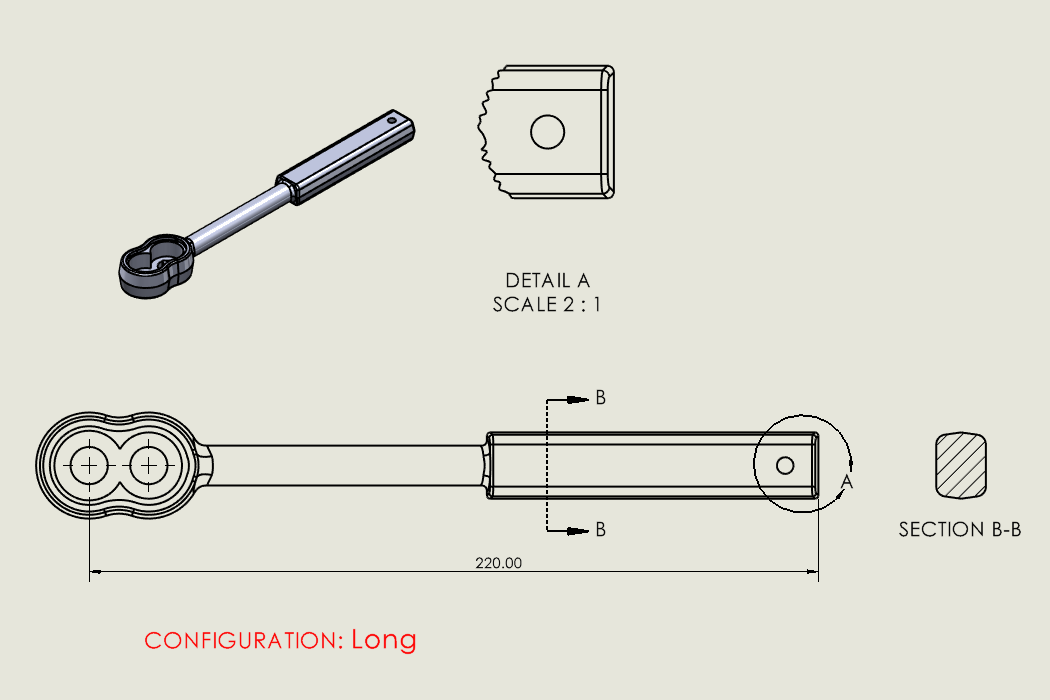
Detail and section views are commonly used in SOLIDWORKS drawings and are an easy way to communicate important details. These view types rely on a parent drawing view, and they generate linework based on the…
Productivity Tips for the SOLIDWORKS User Interface and FeatureManager
By John Landis on January 12, 2026
The SOLIDWORKS user interface has long been recognized as one of the best in the computer-aided design and engineering industry. Its intelligent toolbar and panel layout, left and right-click functionality, workflow context sensitivity, and gesture…
How to Show Mixed Units in a SOLIDWORKS Weldments Cut List
 By Carleigh Amyot, CSWE on January 7, 2026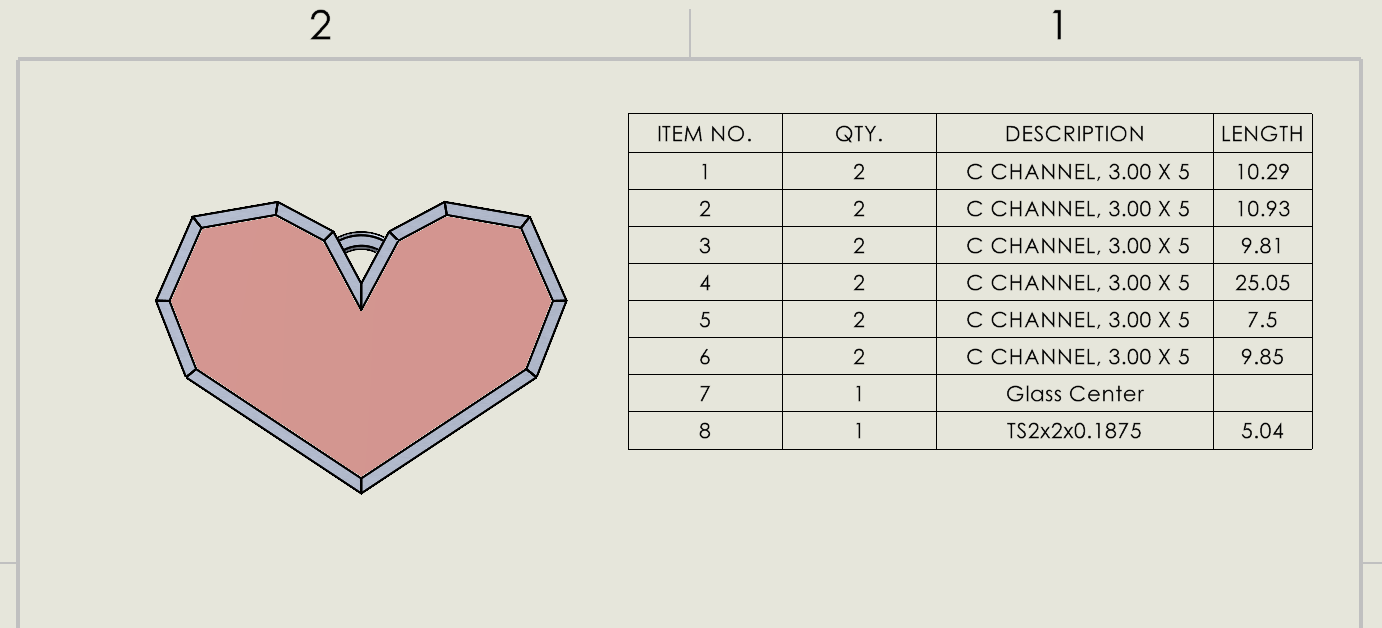
If you are designing multibody SOLIDWORKS parts with mixed units, both imperial and metric, you need a way to accurately display the information in a cut list. You can manually change some values by typing…
How to Fix Wrong Size SOLIDWORKS Toolbox Components
 By Scott Durksen, CSWE on December 17, 2025
If you’ve ever opened an assembly with SOLIDWORKS Toolbox components only to find that all of the sizes are wrong, the first reaction is panic and the dread of thinking all fasteners need to be…
Choosing the Best Sketch Method for SOLIDWORKS
 By Sarah Taylor on December 12, 2025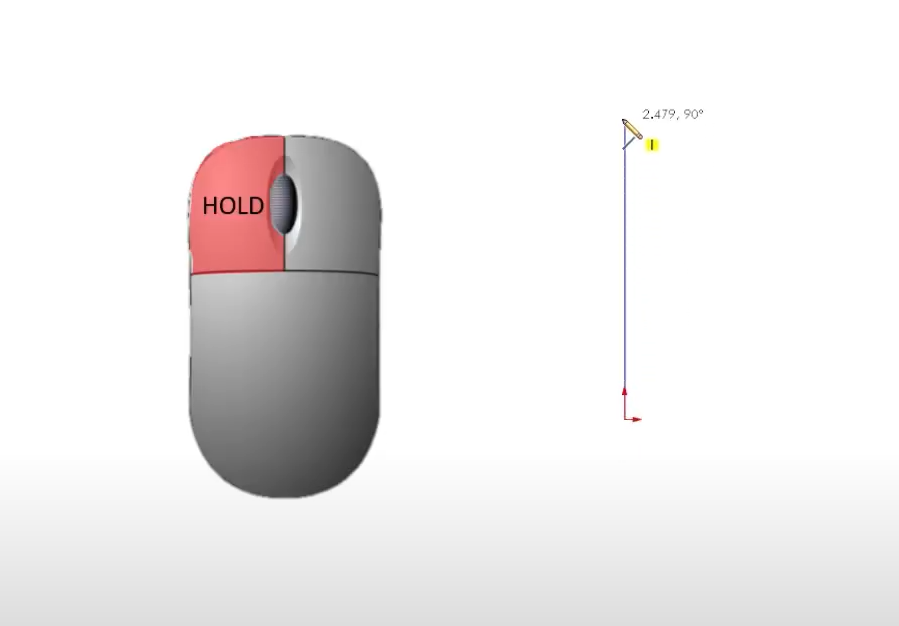
If you’ve ever struggled to get clean, closed contours or found yourself fighting with uncooperative SOLIDWORKS sketches, this post is for you. Choosing the best sketch method might seem straightforward at first, but it depends…
Understanding SOLIDWORKS BOM Options for Replacing Components
 By David Arthur, CSWE-S on December 3, 2025
When working with a SOLIDWORKS BOM, there are several options that can help us specify how to manage removed or replaced components. The two options we will address here are Keep Missing Item/Row and Do not…
How to Use the Preview Sketch Dimension Tool
 By Chris Duchaine on December 1, 2025
The Preview Sketch Dimension tool, introduced in SOLIDWORKS 2024, enables you to fully define and place sketch dimensions without needing to use the Smart Dimension command. Creating a design in SOLIDWORKS usually follows a straightforward…
Using SimulationXpress for Free FEA Analysis
 By Ryan Burgess on November 26, 2025
SOLIDWORKS SimulationXpress is a powerful yet accessible tool for structural simulation and validation. Whether you are new to finite element analysis (FEA) or just curious about how loading might affect your model, SimulationXpress offers a great starting point to run first-pass FEA analysis on SOLIDWORKS parts.
SOLIDWORKS Display Data Mark Best Practices Guide
By Sarah Taylor on November 25, 2025
When working with configurations in SOLIDWORKS, the Display Data Mark option can be enabled, which saves the geometric display data into the file for quick access downstream. The display data is primarily used in Quick…
Modeling Thin Walled Parts | TriMech Training Tidbits
 By Mike Walloch, CSWE on November 19, 2025
SOLIDWORKS is the most popular CAD application for mechanical engineering and product design. Learning how to use it effectively is essential to millions of professional CAD users. TriMech’s instructor-led training is a great way to…
How to Create A Virtual Subassembly in SOLIDWORKS
By Mike Walloch, CSWE on November 5, 2025
Not all SOLIDWORKS assemblies are created equal, especially not in terms of performance. Two versions of a geometrically identical assembly could open and rebuild faster or slower based on choices made during modeling. Using a…
How to Export Images with Higher Resolution from SOLIDWORKS
 By Vincent Magcalas on November 4, 2025
Have you ever worked on a model in SOLIDWORKS and wanted to export images from the graphics area in the form of an image file with higher resolution than just a screenshot? SOLIDWORKS gives users…
SOLIDWORKS User Forum and Enhancements Access in SOLIDWORKS
 By Aleksandar Tepsic on November 3, 2025
The SOLIDWORKS User Forums are a treasure trove of tips, tricks, and real-world insights shared by industry experts from around the globe. Now it’s easier than ever to tap into that knowledge right from inside…
Choosing the Best Neutral File Formats in SOLIDWORKS
 By Alaa Hosn on October 29, 2025
Designing and manufacturing in today’s engineering environment sometimes requires the need to effectively share CAD models between different platforms and organizations. Regardless of whether collaborating with an outside vendor using a different CAD software or…
Combining Different Part Numbers into a Single SOLIDWORKS BOM Column
 By John Lee, CSWE on October 24, 2025
With drawing sheet space at a premium, there is arguably a benefit to minimizing the number of columns in the bill of materials (BOM) table. Combining different part number sources within one BOM column can…

Design Services
From concept to manufacturing to scale, TriMech Design Services helps makers, startups, inventors, small manufacturers get to market.
Most Popular Posts

SOLIDWORKS 2024 Hardware Recommendations
TriMech has compiled this recommended SOLIDWORKS 2024 hardware guide to aid you in the process of upgrading or purchasing new hardware for SOLIDWORKS.

IMPORTANT! Transfer Activation Prior to Upgrading to SOLIDWORKS 2024
Prior to installing SOLIDWORKS 2024, you need to transfer activation from your prior release of SOLIDWORKS to ensure it’s available to activate SOLIDWORKS 2024.

SOLIDWORKS Packages Comparison
What is the difference between SOLIDWORKS® Standard, Professional and Premium 3D CAD software? Learn about the features included in each of the three SOLIDWORKS offerings.