


Blog Category
Showing 1-15 of 2,521.
SOLIDWORKS Tech Tips
Thousands of SOLIDWORKS Tech Tips created by the team of Certified Experts at Javelin




SOLIDWORKS Composer Silhouette Styles: Crest, Per Actor, and Model
 By Sarah Taylor on December 29, 2025
When creating technical illustrations in SOLIDWORKS Composer, selecting the right display styles is crucial for conveying technical information. In the Technical Illustration Workshop, showing silhouettes adds clean, distinct outlines to the model views. There are…
The Difference Between Saving and Checking In With SOLIDWORKS PDM
By Sarah Taylor on December 22, 2025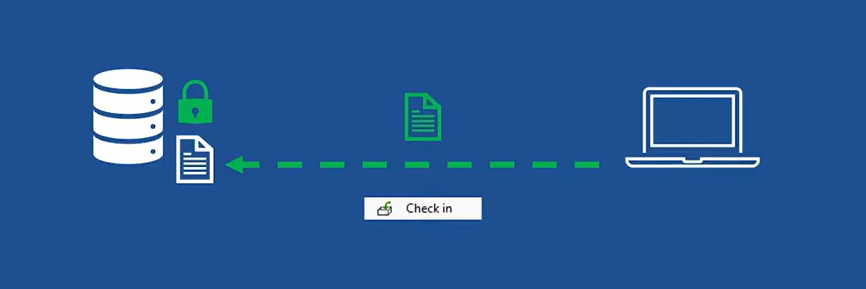
When working in SOLIDWORKS PDM, there are many ways to collaborate and track changes to files. From the automated workflows, integrated approvals, and derivative content generation, your team can find great comfort in the available…
How to Remove the SOLIDWORKS Toolbox Flag for Custom Fasteners
 By Scott Durksen, CSWE on December 19, 2025
The SOLIDWORKS Toolbox is a great way to improve efficiency by using a standardized database of fasteners for components in an assembly. Each Toolbox part file contains a “flag” property to differentiate between standard parts…
How to Fix Wrong Size SOLIDWORKS Toolbox Components
By Scott Durksen, CSWE on December 17, 2025
If you’ve ever opened an assembly with SOLIDWORKS Toolbox components only to find that all of the sizes are wrong, the first reaction is panic and the dread of thinking all fasteners need to be…
Troubleshooting SOLIDWORKS PDM License Issues
 By Derik Moore on December 15, 2025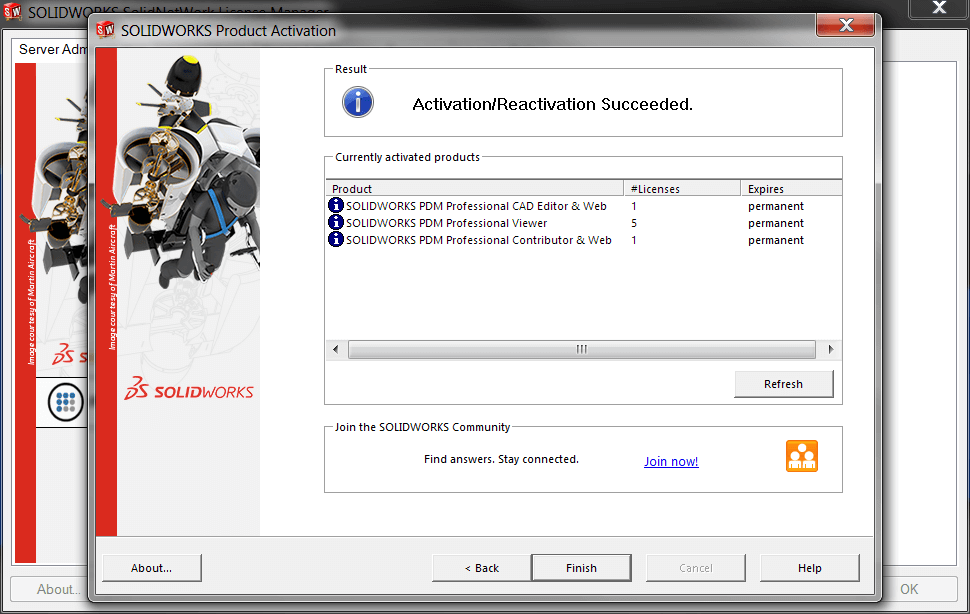
SOLIDWORKS PDM uses floating licenses that operate the same as traditional SOLIDWORKS network licenses. However, there are a few differences between them, resulting in different steps for fixing them compared to regular network licenses. Troubleshooting…
Choosing the Best Sketch Method for SOLIDWORKS
By Sarah Taylor on December 12, 2025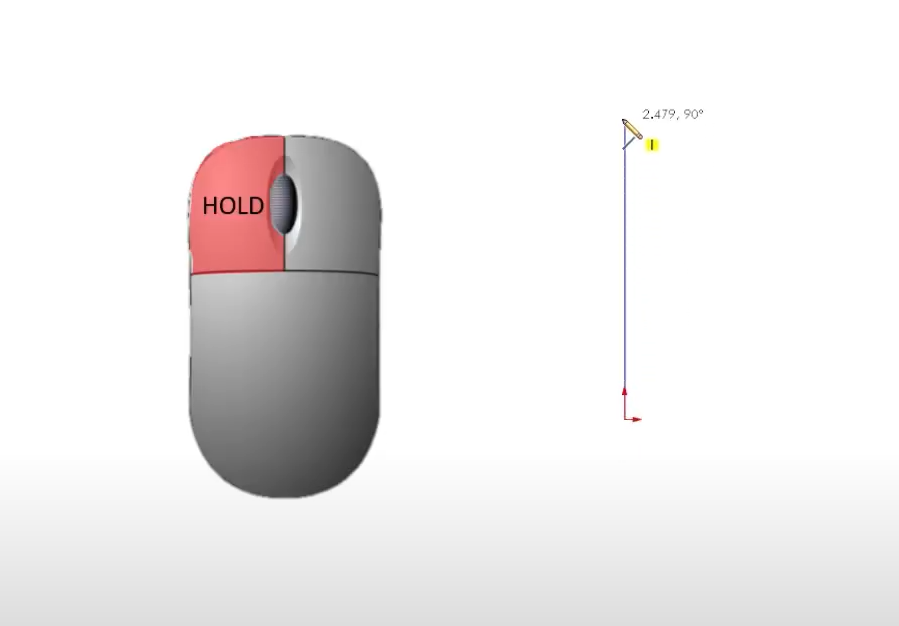
If you’ve ever struggled to get clean, closed contours or found yourself fighting with uncooperative SOLIDWORKS sketches, this post is for you. Choosing the best sketch method might seem straightforward at first, but it depends…
Getting the Most from SOLIDWORKS PDM Copy Tree
 By Dewayne May on December 8, 2025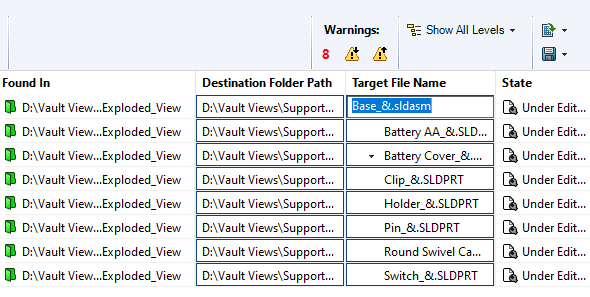
The Copy Tree tool within SOLIDWORKS PDM is designed to help engineering teams manage their design data efficiently. Copy Tree offers similar functionality to SOLIDWORKS’ standalone Pack & Go tool, but with enhanced capabilities tailored…
How to Simulate Fluid-Structure Interaction Using 3DEXPERIENCE
 By Suman Sudhakaran on December 5, 2025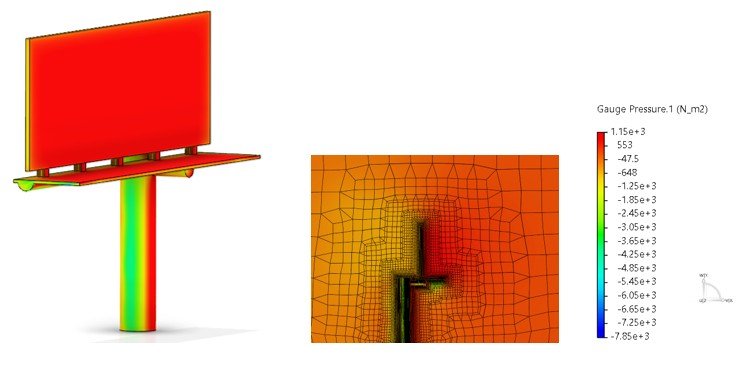
Simulation tools on the 3DEXPERIENCE platform empower designers and engineers to solve fluid-structure interaction (FSI) problems. With advanced meshing capabilities, robust solvers, and cloud computing, 3DEXPERIENCE simulation can streamline your product design process. The computational…
How to Navigate the DSx.Client Care & Order Website
 By Keily Grubaugh, CSWE on December 4, 2025
The DSx.Client Care & Order website allows you to add, remove, or modify access to subscription benefits for your organization. Without being configured properly, your SOLIDWORKS users may not be able to make full use…
Understanding SOLIDWORKS BOM Options for Replacing Components
 By David Arthur, CSWE-S on December 3, 2025
When working with a SOLIDWORKS BOM, there are several options that can help us specify how to manage removed or replaced components. The two options we will address here are Keep Missing Item/Row and Do not…
How to Work Offline with SOLIDWORK PDM
 By Cody Foley on December 2, 2025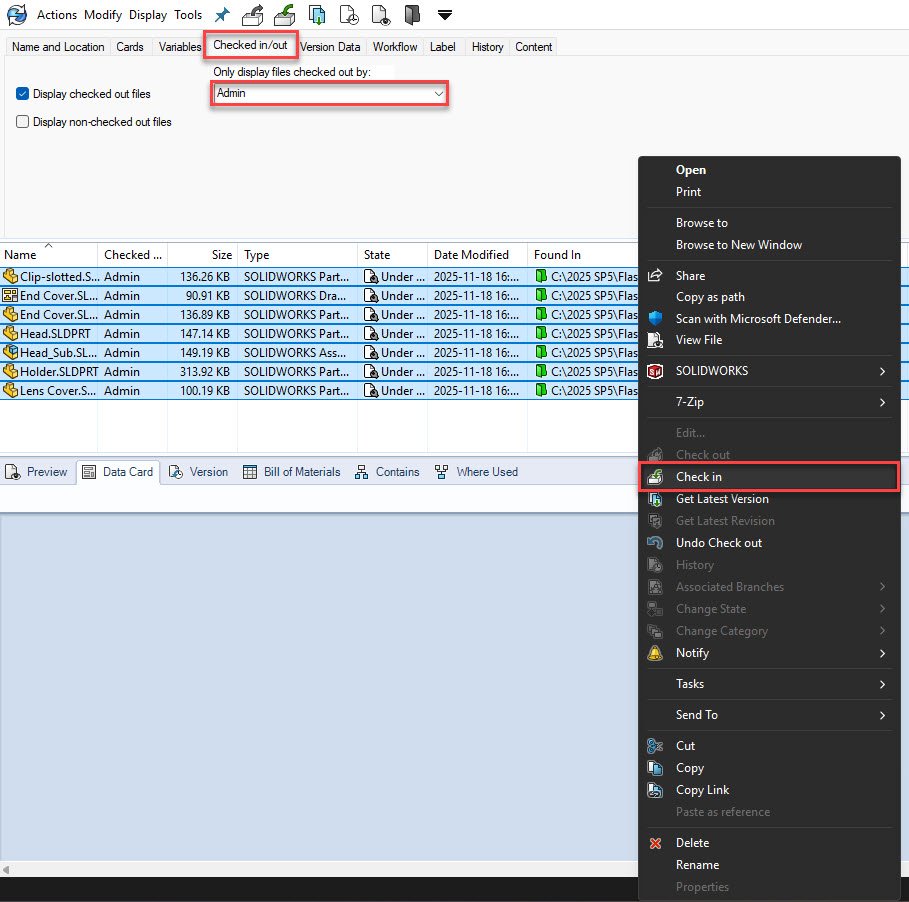
SOLIDWORKS PDM is a server-based product and requires a connection to the application and database servers for smooth operation. However, there are times that you may need to disconnect from the server for a length…
How to Use the Preview Sketch Dimension Tool
 By Chris Duchaine on December 1, 2025
The Preview Sketch Dimension tool, introduced in SOLIDWORKS 2024, enables you to fully define and place sketch dimensions without needing to use the Smart Dimension command. Creating a design in SOLIDWORKS usually follows a straightforward…
Solving the “Face is not laying on the boundary between the solid and fluid region” Error
By David Arthur, CSWE-S on November 28, 2025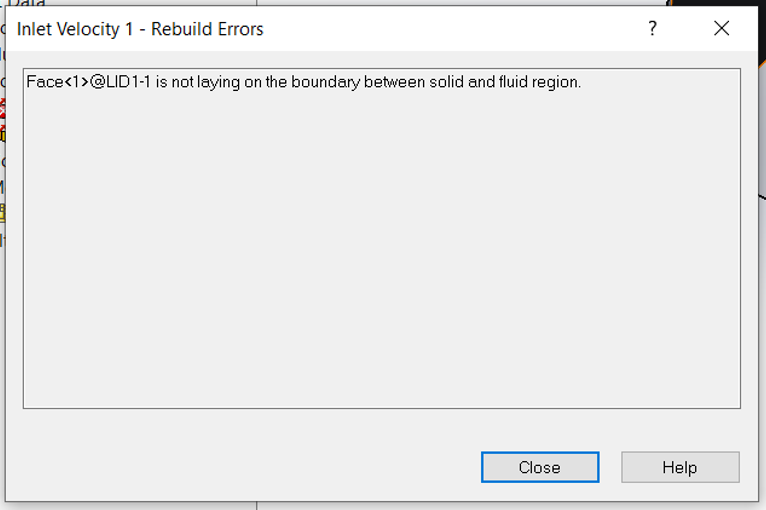
When trying to validate a boundary condition in SOLIDWORKS Flow Simulation, we may get an error stating “Face is not laying on the boundary between the solid and fluid region”. Typically, there are three main…
SOLIDWORKS Display Data Mark Best Practices Guide
By Sarah Taylor on November 25, 2025
When working with configurations in SOLIDWORKS, the Display Data Mark option can be enabled, which saves the geometric display data into the file for quick access downstream. The display data is primarily used in Quick…
Top 10 Tips for SOLIDWORKS Assembly Modeling
 By Rachel Jackson on November 21, 2025
In the world of computer-aided design, SOLIDWORKS Assembly Modeling stands out as a powerful tool for creating intricate assemblies. Whether you’re designing complex machinery or elegant consumer products, mastering SOLIDWORKS can significantly enhance your productivity and efficiency. However, to truly unlock its potential, it’s essential to follow best practices for modeling assemblies. In this blog post, we’ll explore some key tips and techniques to help you streamline your assembly modeling process and achieve optimal results.

Design Services
From concept to manufacturing to scale, TriMech Design Services helps makers, startups, inventors, small manufacturers get to market.
Most Popular Posts

SOLIDWORKS 2024 Hardware Recommendations
TriMech has compiled this recommended SOLIDWORKS 2024 hardware guide to aid you in the process of upgrading or purchasing new hardware for SOLIDWORKS.

IMPORTANT! Transfer Activation Prior to Upgrading to SOLIDWORKS 2024
Prior to installing SOLIDWORKS 2024, you need to transfer activation from your prior release of SOLIDWORKS to ensure it’s available to activate SOLIDWORKS 2024.

SOLIDWORKS Packages Comparison
What is the difference between SOLIDWORKS® Standard, Professional and Premium 3D CAD software? Learn about the features included in each of the three SOLIDWORKS offerings.