







Performance | What’s New in SOLIDWORKS 2026
SOLIDWORKS 2026 introduces a suite of enhancements that elevate performance to new levels of speed, flexibility, and efficiency. Whether you’re importing complex geometry, managing assemblies, or refining parts, SOLIDWORKS 2026 empowers you to work smarter thanks to streamlined workflows.
Come explore the standout features in part design that make SOLIDWORKS 2026 a must-have for companies looking for a competitive edge.
Background Import of Large Files
Importing large STEP or neutral CAD files has traditionally been a bottleneck in design workflows. Oftentimes, you would spend more time looking at the import dialog than actually working with the model.

Background import of a STEP file
SOLIDWORKS 2026 introduces a new background import model via the task pane, allowing users to queue multiple files for processing while continuing to work uninterrupted. This asynchronous approach significantly reduces downtime and boosts productivity, especially when dealing with supplier data or legacy models.
Filter Component Selection Filter
SOLIDWORKS selection filters have been a massive timesaver in the past, but they just received a major usability upgrade.

SOLIDWORKS component selection filter
Engineers can now use the new Filter Components option to quickly select top-level subassemblies or components directly from the graphics area. This eliminates the need to drill down through the Feature Manager or use breadcrumbs, making appearance changes and part manipulation faster and more intuitive.
Feature-Based Selection Filter
Editing unfamiliar or complex parts is now easier with the new feature-based face highlighting.

Feature-based selection filter
When working on a part, users can filter by feature and instantly see all associated faces and their originating features. This is particularly useful for reverse engineering, troubleshooting imported geometry, or refining legacy designs.
Selecting Bodies Based on Size
Managing imported geometry often involves removing unnecessary models to help reduce the overall complexity of the model. The new Select Bodies by Size tool allows users to isolate components based on their size.

Component select by size
A slider will appear, allowing you to refine the selection and dial in your results. Once selected, these bodies can be deleted en masse, reducing file complexity and improving performance without compromising design intent.
Selecting Bodies Based on Volume
Similar to selecting bodies based on size, SOLIDWORKS 2026 introduces Select Bodies by Volume. Engineers can sketch a volume directly in the graphics area to capture and remove detailed features like threads or electronics that are too large for size-based filtering.
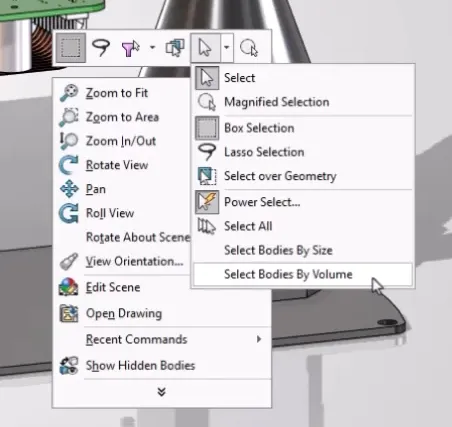
Selecting bodies based on volume
This spatial approach is ideal for cleaning up assemblies and optimizing performance. Selecting based on volume can be a critical step in ensuring imported models and geometry don’t bog down your system.
Struggling with large assembly performance? Check out our Large Assembly and Drawing Workshop here.
Improved Performance Evaluation
The Performance Evaluation command now provides deeper insights into model complexity, including graphics triangles and face counts. After using the new body selection tools, SOLIDWORKS users can quantify the impact of their optimizations.

Performance Evaluation showing graphics triangles
In many cases, combining Performance Evaluation with the other enhancements can reduce triangle and face count by over 60%. This results in faster modeling, rendering, and overall improved performance.
Upgrading to SOLIDWORKS 2026
SOLIDWORKS 2026 delivers meaningful improvements that enhance overall performance. while enhancing control and integration. From improvements to evaluation performance to better control over selecting SOLIDWORKS components, these updates reflect the evolving needs of professional engineers.
Whether you need assistance during the upgrade process or just want to explore these great new enhancements, TriMech is your trusted technical partner. Our team is here to help ensure that upgrading to SOLIDWORKS 2026 is one of the best decisions you make.
To learn more about SOLIDWORKS 2026 and get a trial, click here.
Find more resources:
Related Content
Want to see more recorded demos? Watch one of our on-demand webinars: